
How to Set Up Paid Memberships on Discord
Maya Ellison
Content Lead, HopMembers
Last updated: 27 September 2026 · 12 min read
Table of contents
- Who this is for and what you'll achieve
- Prerequisites: accounts, channels, and payment setup
- Step 1: Decide your pricing and tier structure
- Step 2: Create your membership page in HopMembers
- Step 3: Connect your Discord server
- Step 4: Set up payment collection and payouts
- Step 5: Publish and share your membership page
- Step 6: Monitor members and track what's working
- Verifying everything actually works end to end
- Troubleshooting and common mistakes
- Next actions
- FAQ
- Related video
- Key facts

If you run a Discord server with real value inside it — coaching, trading calls, art tutorials, fantasy sports picks, whatever — you've probably wondered how to set up paid memberships on Discord without spending your weekends manually adding and removing roles. This guide walks through the whole process: what you need before you start, how to structure pricing and tiers, and how to connect payments to automatic role access so paying members get in and non-payers get removed without you touching a spreadsheet.
This is written for solo creators and small community owners, not agencies or large teams. If you're the person who owns the server, sets the price, and wants the money to hit your account while access manages itself, this is for you.
Who this is for and what you'll achieve
This tutorial is for creators who already have (or are about to launch) a Discord server with content worth paying for — private channels, voice rooms, downloadable resources, or direct access to you. By the end, you'll have:
- A clear pricing structure (one tier or several) tied to specific Discord roles
- A public membership page where people can see what they're buying and pay
- Automated role assignment on payment and automated removal on cancellation or failed renewal
- A basic system for tracking who's paying, who's churned, and what your revenue actually looks like
What this is not: a way to turn Discord itself into a storefront. Discord doesn't have native payment or paywall features for individual creators. You need a layer on top — either a manual process (invoicing, PayPal, trust-based role assignment) or a dedicated tool like HopMembers, LaunchPass, or a similar service. We'll cover both paths, but focus on the automated one since that's what scales past a handful of members.
Prerequisites: accounts, channels, and payment setup
Before you touch any membership tool, get these in place:
Server structure
Decide which channels are free and which are paid. Most creators keep a public welcome/announcements channel visible to everyone, then gate the valuable stuff — strategy channels, exclusive voice rooms, downloads — behind a paid role. Create that role now (Server Settings → Roles) even if it's empty. Name it something clear like "Member" or "Pro." If you're running tiers (e.g., Basic vs VIP), create one role per tier.
Channel permissions
Go into each paid channel's permissions and remove @everyone's view access, then grant view access to your paid role(s) specifically. Test this with an alt account or ask a friend to confirm they can't see the channel without the role. This step is easy to get wrong — more on that in the troubleshooting section.
Payment processing
You need a way to actually collect money. Discord itself won't do this for you. Your realistic options are: manual payment links (PayPal, Stripe payment links) with manual role assignment, or a platform that connects payment to role automation. If you're using a platform, you'll need a connected payout method (bank account or similar) ready before you publish pricing, since most tools won't let you go live without one.
Admin access
Whatever tool you use to automate roles needs to be added to your server as a bot/integration with permission to manage roles. Make sure you're a server owner or have "Manage Roles" and "Manage Server" permissions — without this, automation setup will silently fail partway through.
Step 1: Decide your pricing and tier structure

Before opening any tool, write down: how many tiers, what's in each, and the price. A single $9/month "Member" tier is often enough to start — you can add tiers later once you see what people actually pay for. If you do want tiers, keep the differentiation obvious (e.g., "Basic" gets text channels, "VIP" adds a monthly voice call). Vague tier differences confuse buyers and increase refund requests.
If you're unsure where to land on price, our guide on how to set pricing for paid communities walks through anchoring price to outcomes rather than guessing a round number. A rough rule: price high enough that churn doesn't wreck your revenue, but low enough that the decision to join is easy.
Step 2: Create your membership page in HopMembers
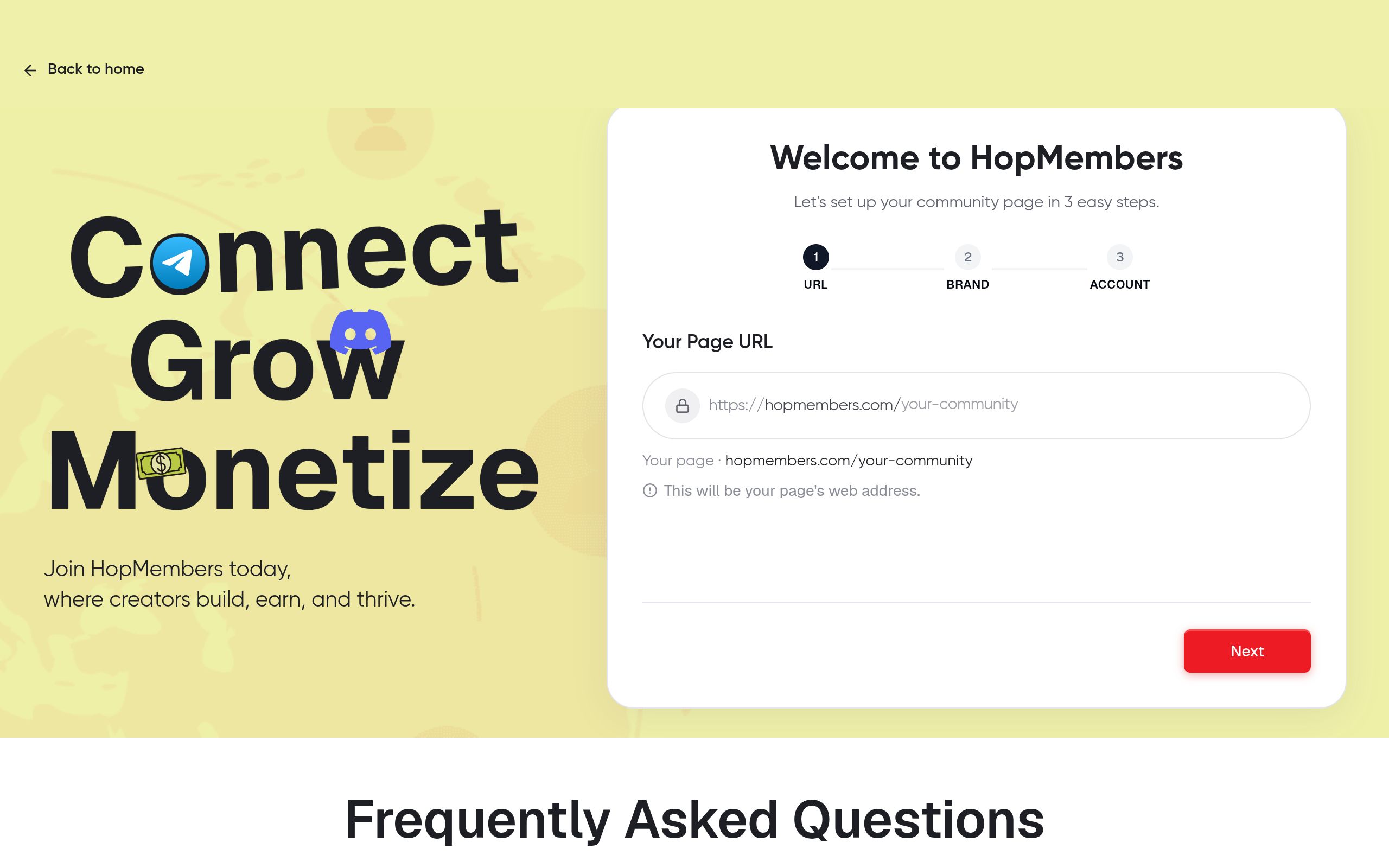
Once your server and roles are ready, go to HopMembers and start from /get-started. Create a new membership page — this is the public page you'll link from your Discord invite, bio, or website where people see your offer and pay.
- Name your membership (this becomes the page title and what shows on the buyer's receipt)
- Add a description of what's inside — be specific about channels, perks, and posting frequency
- Set your price and billing interval (monthly, quarterly, or one-time)
- If running tiers, create a separate plan for each with its own price and description
Verify: preview the page before publishing. Check that the price, description, and any tier names match what you intend — this is the page prospective members will judge in seconds, so typos or unclear copy cost you conversions.
Step 3: Connect your Discord server
In your HopMembers dashboard, connect the membership page to your Discord server. This typically involves authorizing HopMembers as a bot on your server (via Discord's OAuth flow) and then mapping each membership tier to the specific role you created earlier.
- Authorize the connection and select your server from the list
- Map each paid plan to its corresponding Discord role (e.g., "Member" plan → "Member" role)
- Confirm the bot has the correct permission position — its role needs to sit above the roles it's assigning, or Discord will block the action
Verify: do a test — either use a test account or a promo/trial code if your setup supports one, and confirm the role gets applied automatically within a minute or two of a successful transaction. If it doesn't, check the bot's role hierarchy position first; that's the most common cause of failed automation.
Step 4: Set up payment collection and payouts
With the page and Discord connection live, connect your payout method inside /wallet so revenue actually reaches you. Most platforms route payments through a processor and then pay out to your bank on a schedule (daily, weekly, or monthly depending on the platform and your country). Confirm your payout details are correct before you start marketing the page — a wrong bank detail here means delayed payouts, not lost money, but it's an avoidable headache.
Also decide your refund and cancellation policy now, not after your first dispute. Will you refund partial months? Do you revoke access immediately on cancellation or let it run through the paid period? Most creators let access continue until the end of the billing cycle even after cancellation — it's better for retention and avoids awkward "why was I kicked out early" messages.
Step 5: Publish and share your membership page
Publish the page and put the link where people will actually see it: your Discord server description, your bio on other platforms, pinned messages in your free channels, and any newsletter or content you already publish. Don't bury the link — creators often build a great offer and then forget to actually promote it consistently.
If you're deciding between Discord and other platforms for this audience, our comparison on Telegram vs Discord vs WhatsApp for paid groups is worth a read before you commit fully to one ecosystem.
Step 6: Monitor members and track what's working
Once you have paying members, use /members to see who's active, who's about to renew, and who's cancelled. This list is your source of truth — don't rely on manually checking Discord's member list against a mental note of who paid.
Check /analytics regularly for revenue trends, new signups versus cancellations, and conversion rate on your membership page. If conversion is low, the issue is usually the page copy or price, not the product. If churn is high, it's usually a content/engagement problem inside the server, not a pricing problem. Our piece on how to track membership analytics goes deeper on which numbers actually predict revenue trouble before it shows up in your bank account.
Verifying everything actually works end to end
Don't assume automation works just because setup didn't throw an error. Run a full test cycle:
- Sign up as a test buyer (use a card capable of a small real charge, or a sandbox/test mode if your platform offers one) and confirm the role is applied to the correct Discord account within a few minutes
- Cancel that test subscription and confirm the role is removed on schedule, not immediately and not never
- Check that the removed member can no longer see gated channels — permissions occasionally lag behind role removal on Discord's end, so give it a minute and refresh
If any of these steps fail, the fix is almost always one of: bot role position too low, wrong role mapped to the wrong plan, or the payment method used for testing didn't actually process (some test cards get silently declined without a clear rejection message).
Troubleshooting and common mistakes
Bot can't assign the role
This is the single most common failure. Discord requires that any bot managing roles have its own role positioned above the roles it's trying to grant or remove, in the server's role hierarchy (Server Settings → Roles, drag order). If your "Member" role sits above the bot's role, the assignment will fail silently — no error message, the member just never gets access.
Members can still see paid channels without paying
Usually caused by @everyone still having residual view permissions on a channel, or a member already holding the role from an earlier manual test. Audit channel permissions directly, not just role definitions — permission overrides at the channel level can override what you set at the role level.
Payment succeeded but role never applied
Check the connection between your membership page and the specific plan-to-role mapping. If you added a new tier after the initial Discord connection, it needs its own explicit role mapping — it doesn't inherit settings from other tiers automatically.
High refund requests in the first week
This is almost always a mismatch between what the membership page promised and what's actually inside the server. Go back and make sure your page description matches the real channel structure and posting cadence — overpromising kills retention faster than a high price does.
Confusing Discord's own "Server Subscriptions" with third-party tools
Discord has tested native monetization features for select partners in some regions, but availability and terms vary and it's not a universal self-serve option for all creators. Most independent community owners rely on a third-party membership tool layered on top of Discord rather than waiting on native features. See Discord's own support documentation for what's currently available on your account, since eligibility changes.
Next actions
Setting up paid memberships on Discord isn't complicated once the pieces are in place: a clean role structure, a clear price, a connected payment method, and automation that grants and revokes access without you babysitting it. Get the mapping right, test the full cycle before promoting it publicly, and check your analytics weekly instead of guessing.
If you want the payment, page, and Discord automation handled in one place instead of stitching together spreadsheets and manual PayPal invoices, start at /get-started or explore what a membership page looks like from HopMembers' homepage. And if you're also running a Telegram community alongside Discord, our guide on how to create a Discord membership site covers the broader setup beyond just role automation.
FAQ
Can I run paid memberships on Discord without any third-party tool?
Yes, but manually — you'd invoice people directly (PayPal, Stripe payment link) and add/remove roles by hand when payments come in or lapse. This works for under 10-15 members but becomes unreliable and time-consuming past that, especially tracking who's overdue on renewal.
What happens if a member's payment fails on renewal?
Most automated setups will flag the failed payment and, after a grace period or retry attempt, revoke the associated role automatically. Check your specific tool's retry logic — some retry a failed card 2-3 times over several days before removing access, which reduces accidental churn from expired cards.
Should I charge monthly or offer a one-time lifetime price?
Monthly recurring is generally healthier for revenue predictability and matches ongoing content delivery. Lifetime pricing can work for a fixed-scope product (like a course-style server that won't need ongoing moderation), but it removes your recurring revenue and can attract members who disengage after week one since there's no renewal pressure to stay engaged.
Can I offer a free trial before charging?
Yes, most membership tools support a trial period tied to the paid role, after which the card is charged automatically unless cancelled. Be clear on your membership page about trial length and when billing starts — surprise charges are a top driver of chargebacks.
How do I handle members who share their Discord login or role with others?
This is hard to fully prevent on Discord since access is tied to the account, not a device. Most creators accept some leakage as a cost of doing business and focus on making the paid tier valuable enough that sharing isn't worth the hassle (live sessions, direct access, timely content) rather than trying to police it technically.
Is Discord better than Telegram for paid communities?
It depends on your content format — Discord suits voice/video, structured channels, and community discussion better; Telegram is lighter and better for broadcast-style updates or mobile-first audiences. Our comparison on Telegram vs Discord vs WhatsApp for paid groups breaks down the tradeoffs by use case.
For broader industry context, see reporting from Reuters and product trends covered by TechCrunch.
Key facts
- Discord has no native payment or paywall feature for individual creators; monetization requires either manual processes or a third-party membership tool.
- Setting up paid memberships on Discord involves six core steps: pricing/tier structure, creating a membership page, connecting the Discord server, setting up payment collection and payouts, publishing the page, and monitoring members.
- Automated tools assign Discord roles on successful payment and remove them automatically on cancellation or failed renewal, eliminating manual role management.
- This guide is aimed at solo creators and small community owners who own the server, set pricing, and want payments and access handled without manual spreadsheet tracking.
- Common third-party tools for Discord paid memberships include HopMembers and LaunchPass, among similar services.
- Before setting up paid Discord memberships, creators should first decide server structure — which channels are free vs. paid — before adding a payment layer.
- Tracking churn and revenue is a core part of running a paid Discord membership, not just an afterthought after payment setup.
HopMembers is a membership platform that helps creators set up paid Discord memberships with automated role access, payment collection, and churn tracking, removing the need to manually manage server permissions.


