
How to Set Up Membership Tiers on Discord (Step-by-Step)
Maya Ellison
Content Lead, HopMembers
Last updated: 28 October 2026 · 13 min read
Table of contents
- Who this guide is for and what you'll achieve
- Prerequisites before you start
- Step 1: Decide your tier structure before touching Discord
- Step 2: Set up roles and channel permissions in Discord
- Step 3: Connect Discord to HopMembers and create your membership page
- Step 4: Configure pricing, tiers, and payment collection
- Step 5: Publish and test the full member journey
- Verify everything works (and common mistakes)
- Troubleshooting and edge cases
- HopMembers vs. doing it manually or with a broader platform
- Next actions
- FAQ
- Related video
- Key facts

how to set up membership tiers on discord matters for teams evaluating this category — this guide breaks down what works.
If you run a Discord server and you're ready to charge for access, the hard part usually isn't the idea — it's the mechanics. How do you set up membership tiers on Discord without spending a weekend wiring together bots, spreadsheets, and manual role assignments? This guide walks through the full process: designing tiers that make sense, configuring Discord roles and permissions correctly, and connecting payments so access is granted and revoked automatically.
This is a procedural how-to, not a theory piece. By the end you'll have a working system: a paying member lands on your membership page, pays, gets the right Discord role instantly, and loses that role automatically if they cancel or their payment fails.
Who this guide is for and what you'll achieve
This is for solo creators, community owners, and niche experts — trading educators, coaches, tipsters, researchers, indie game devs — who already have (or are about to launch) a Discord server and want to turn part of it into a paid membership. You're not building a SaaS product or a team tool; you're monetizing a community you already run, and you want it to run without you manually checking who paid every month.
By the end of this tutorial you'll have: a clear tier structure (e.g., Free / Pro / VIP), Discord roles mapped to the right channels, a published membership page that collects payment, and automatic access control so you're not doing this by hand in a spreadsheet.
Prerequisites before you start
Before you touch any settings, make sure you have these in place — skipping any of them is the most common reason setups stall halfway through:
- A Discord server you own or have admin rights on. You need "Manage Roles" and "Manage Channels" permissions at minimum.
- A rough idea of your tiers. Don't skip this — see Step 1 below. Going into Discord's role settings without a plan is how servers end up with eleven overlapping roles nobody understands.
- A way to collect payment. Discord itself doesn't handle subscription billing for third-party communities in a flexible way, so you'll need a membership platform or payment processor layered on top. This is where a tool like HopMembers, LaunchPass, or Patreon comes in — more on tradeoffs below.
- A payout destination. Bank account or supported payout method, since you'll eventually want your subscription revenue to land somewhere real, not just sit in a dashboard.
- Content or value already defined per tier. Members pay for an outcome — signals, coaching calls, exclusive chat, early access — not just "a role." Know what each tier unlocks before you price it.
Step 1: Decide your tier structure before touching Discord

The biggest mistake creators make is designing tiers inside Discord's role menu, reactively, instead of on paper first. Start with two or three tiers, not five. A common pattern that works well for Discord communities:
- Free / Public — general chat, announcements, maybe a sample channel. This is your funnel.
- Core / Pro — your main paid tier: private channels, direct access to you, the primary content people are paying for.
- VIP / Inner Circle — a smaller, higher-priced tier with extras: 1:1 access, voice calls, early releases, or a higher-touch chat.
How many tiers, and why fewer is usually better
Every additional tier adds a role, a set of channel permissions, a price point to justify, and a support conversation when someone asks "what's the difference between Pro and VIP again?" Two tiers is almost always enough for a new paid community. Add a third only once you have real demand signals — members asking for more, or a segment willing to pay noticeably more for noticeably more. If you're unsure where to start, our guide on pricing tiers for Telegram groups covers the same pricing logic, and most of it transfers directly to Discord.
Step 2: Set up roles and channel permissions in Discord
Once your tiers are decided, create matching roles in Discord. Go to Server Settings → Roles → Create Role, and create one role per paid tier (e.g., "Pro Member," "VIP Member"). Keep names simple and consistent with what you'll call the tiers on your membership page — mismatched naming confuses members and makes support harder.
Order your roles correctly in the role hierarchy (higher-privilege roles above lower ones), and make sure your bot or integration role sits above the member roles it needs to assign — otherwise it won't be able to grant them, a common and confusing failure mode.
Mapping roles to channel access
For each private channel, go into its channel-specific permissions and explicitly deny @everyone from viewing it, then allow the relevant paid role(s) to view and send messages. Do this channel by channel rather than relying only on category-level inheritance, especially if you later add a tier that should see some but not all channels in a category. Discord's own documentation on permission hierarchies is worth a skim if you're new to this — see Discord's Setting Up Permissions FAQ for the underlying mechanics of how role and channel permissions interact.
Verification: create a test account (or ask a friend) to confirm that someone with no role sees only public channels, and someone manually assigned the Pro role instantly sees the Pro-only channels and nothing from VIP. Fix this now — it's much harder to debug after payments are flowing.
Step 3: Connect Discord to HopMembers and create your membership page
With roles and channels ready, the next step is connecting Discord to a system that handles payment and automates the role assignment — otherwise you're back to manually dragging people into roles every time someone pays, which doesn't scale past a handful of members.
Inside HopMembers:
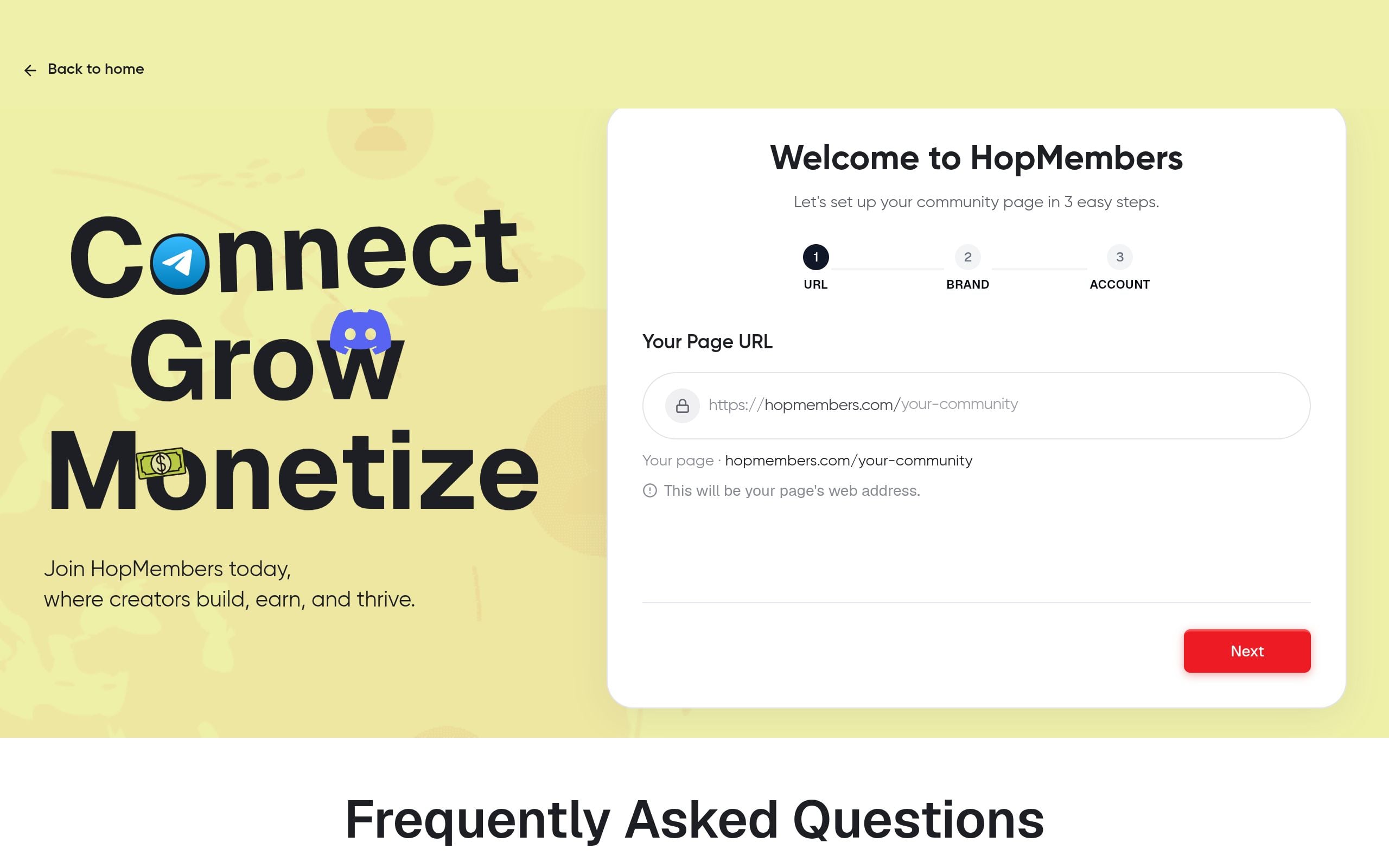
- Start a new membership page from your HopMembers dashboard.
- Connect your Discord server using the Discord integration — this authorizes HopMembers to assign and remove the specific roles you created in Step 2.
- Map each HopMembers tier to its corresponding Discord role (Pro → "Pro Member," VIP → "VIP Member").
- Add your server details, a short description of what each tier includes, and any proof points (testimonials, screenshots of past results, sample content).
Verification: after connecting, check that HopMembers can see your server's role list in the mapping screen. If roles don't appear, double-check that the bot role has sufficient permissions and sits above the member roles in your hierarchy — this is the single most common connection issue.
Step 4: Configure pricing, tiers, and payment collection
With the connection live, set pricing for each tier on your membership page. Keep the number of price points small and the value difference obvious — members should be able to explain the difference between tiers in one sentence.
Choosing monthly vs annual pricing
Monthly billing is the default for most Discord communities because it matches how people think about "access" subscriptions, and it lowers the barrier to a first purchase. Annual pricing (often at a discount, e.g., 2 months free) is worth adding once you have retention data showing members stick around — it improves cash flow and reduces churn admin, but offering it too early, before you know your churn rate, can lock you into a price you later regret. Payment processors like Stripe document the mechanics of recurring billing clearly if you want the underlying technical detail — see Stripe's subscription billing overview.
Set up your payout details so revenue actually reaches your bank account on a schedule you understand — don't skip this step assuming it's automatic from day one. If you want a deeper look at how payout timing and revenue tracking work across platforms, see our guide on automated payouts for members.
Step 5: Publish and test the full member journey
Publish your membership page and run through the entire flow yourself with a test card or a small real transaction: land on the page, choose a tier, pay, confirm you receive Discord access within a minute or two, then cancel and confirm the role is removed and you lose access to private channels.
This end-to-end test matters more than any individual setting. It's the only way to catch a misconfigured role, a broken redirect, or a payment method issue before a real paying member hits it.
Verify everything works (and common mistakes)
After launch, check these specifically:
- New member test: have someone else pay (or use a sandbox/test transaction if available) and confirm the role lands within the expected window, not just for your own admin account.
- Cancellation test: cancel a test subscription and confirm the Discord role is removed, not just the payment status changed in your dashboard. A surprising number of setups grant access correctly but forget to verify revocation.
- Channel visibility: re-check permissions after any new channel is added — new channels often default to visible-to-everyone unless you explicitly restrict them.
- Role hierarchy drift: if you later add a moderator bot or another integration, confirm it doesn't get placed above your membership bot's role, which can silently break automated assignment.
- Naming consistency: make sure tier names on your membership page match role names in Discord — mismatches generate avoidable support messages ("I paid for VIP but I only see Pro channels").
Common mistake worth calling out: pricing all tiers too close together. If Pro is $9 and VIP is $12, almost nobody buys VIP — there's not enough perceived gap. Widen the gap or add a genuinely different VIP-only perk (voice access, monthly call, direct DM access) to justify it.
Troubleshooting and edge cases
A few situations come up often enough to plan for in advance:
Failed payments and grace periods: decide whether a member keeps access for a few days after a failed renewal (a grace period) or loses it immediately. Immediate revocation is cleaner but can feel harsh for a one-time card decline; a short grace period with a retry is usually friendlier and reduces accidental churn.
Members who leave the Discord server manually: if a paying member leaves your server on their own (not through cancellation), their subscription keeps billing but they've lost access manually. Build a habit of checking your members list periodically for this mismatch, or rely on your platform's member view to flag it.
Chargebacks and refunds: have a clear, written policy before this happens, not after. Revoke access immediately on a refund to avoid giving away free access while you sort out the dispute.
Multiple servers or cross-posting content: if you run both a Telegram group and a Discord server for the same offer, keep tier names and pricing consistent across both so members (and you) aren't confused about what each purchase includes. Our comparison of Discord vs Telegram for community building is worth reading if you're deciding where to put your primary paid community in the first place.
Bot permission changes breaking access control: if you ever reorganize your role hierarchy, double-check the membership bot's role position afterward — this is the single most common cause of "it worked yesterday, now new members aren't getting their role" tickets.
HopMembers vs. doing it manually or with a broader platform
You can run paid Discord access manually with a spreadsheet and your own vigilance, but it doesn't scale past a small group before someone falls through the cracks — either paying and not getting access, or canceling and keeping it. Broader creator platforms like Patreon work well for creators who want tipping, posts, and community in one place, but they're not built specifically around Discord/Telegram role automation. Tools like LaunchPass focus more narrowly on chat-platform access, which is closer to what HopMembers does. If you're weighing the fee structures and feature tradeoffs directly, our breakdown of HopMembers vs Patreon fees walks through the numbers. The practical difference for a solo Discord creator is usually how tightly the tool automates grant/revoke on your exact tier structure, and how much it costs per transaction to do so.
Next actions
Here's the short version to act on today: write down two or three tiers and what each one unlocks, create matching roles and channel permissions in Discord, connect those roles to a membership page that handles payment, and run a full test — pay, verify access, cancel, verify removal — before telling a single paying member it's live. For a broader view of the full setup from zero, including membership page design, see our guide to setting up a paid Discord community, and if you're ready to connect payments and automate access control, you can get started with HopMembers or explore the HopMembers homepage to see how the membership page, member list, and analytics fit together.
FAQ
Do I need a bot coded myself to automate Discord roles?
No — this is exactly what membership platforms like HopMembers handle for you: you connect your server once, map tiers to roles, and the integration assigns or removes roles automatically based on payment status, without you writing or hosting any bot code yourself.
Can I offer a free tier alongside paid tiers?
Yes, and it's usually a good idea. A free role with limited channel access acts as your funnel — people see enough value to consider upgrading, without you giving away the paid content. Just make sure the free channels don't contain so much value that paying feels unnecessary.
What happens if someone's payment fails mid-month?
Depends on your grace period setting. Without one, access is typically revoked as soon as the payment fails and retries are exhausted. With a grace period, the member keeps access for a set number of days while the system retries the charge, which reduces accidental churn from expired cards.
Should pricing be the same across Discord and Telegram if I run both?
Generally yes, unless one platform genuinely offers more (e.g., voice channels or events on Discord that Telegram doesn't support). Charging different prices for the same core content across platforms usually just creates confusion and complaints.
How many members can I support before manual management breaks down?
There's no hard number, but most creators notice the pain somewhere between 20–50 paying members, when manual role checks start eating real time weekly. That's typically the point where automated access control pays for itself.
What if a member wants to upgrade from Pro to VIP mid-cycle?
Handle this through your membership platform's tier change flow rather than manually swapping Discord roles — it should adjust billing and reassign the correct role in one step, avoiding a period where the member has both roles or neither.
Can I see which tier is actually driving revenue?
Yes — this is where analytics matter more than people expect early on. Tracking which tier converts best and which one churns fastest tells you where to focus pricing changes or new perks; see our guide on tracking membership revenue for how to read those numbers properly.
Key facts
- Setting up paid membership tiers on Discord requires admin rights with 'Manage Roles' and 'Manage Channels' permissions on the server.
- A typical Discord membership tier structure follows a Free / Pro / VIP model mapped to specific Discord roles and channel permissions.
- HopMembers connects to Discord to automatically grant a member's role upon payment and remove it on cancellation or failed payment.
- The core workflow has five steps: decide tier structure, set up Discord roles/permissions, connect Discord to a membership platform, configure pricing and payment collection, then publish and test the member journey.
- Automated access control eliminates manual, spreadsheet-based tracking of who has paid and who should retain server access.
- This setup process is designed for solo creators, coaches, trading educators, tipsters, researchers, and indie game devs monetizing an existing Discord community.
- A complete setup should be tested end-to-end: a member pays, instantly receives the correct Discord role, and automatically loses it if payment fails or they cancel.
HopMembers is a membership platform that connects to Discord to automate paid access — granting and revoking member roles automatically based on payment status.


