
How to Set Up Memberships on Discord: A Step-by-Step Guide
Maya Ellison
Content Lead, HopMembers
Last updated: 21 October 2026 · 13 min read
Table of contents
- Who This Guide Is For
- Prerequisites: What You Need Before You Start
- Step 1: Create Your Membership Page in HopMembers
- Step 2: Connect Your Discord Server
- Step 3: Set Up Channel Permissions Correctly
- Step 4: Connect Payments and Test a Real Transaction
- Step 5: Publish and Share Your Membership Page
- Monitoring Members and Access Over Time
- How HopMembers Compares to Other Options
- Next Steps
- FAQ
- Related video
- Key facts

If you run a Discord server with valuable content — trading signals, coaching, fantasy football picks, design feedback, whatever it is — you've probably wondered how to set up memberships on Discord without spending weeks wiring together bots and spreadsheets. The good news: you don't need a developer. You need a clear plan for roles, payments, and access control, and a tool that connects the three. This guide walks through the full setup, from prerequisites to verification, so you can start charging for access this week.
Who This Guide Is For
This is written for solo creators and small community owners — not agencies or dev teams. Think: a tipster running a VIP picks channel, a trading educator with a signals server, a coach running a paid mastermind, or a niche hobbyist (poker, fitness, crypto, fantasy sports) who already has an active free Discord and wants to monetize a deeper tier. If you're running memberships for a staff team with custom bots and a dedicated ops person, you probably have more complex needs than this guide covers. If you're one person trying to turn community management into recurring revenue without hiring anyone, this is for you.
By the end, you'll have: a Discord server with a gated role, a payment flow that charges members on a recurring basis, and an automated system that grants access on payment and revokes it on cancellation or failed renewal — without you manually checking a spreadsheet every morning.
Prerequisites: What You Need Before You Start
Before touching any membership tool, get these in order. Skipping this step is the most common reason setups break later.
- A Discord server you own or have Manage Roles/Manage Channels permissions on. You can't set up role-based access control without admin-level permissions, since the integration needs to create and assign roles on your behalf.
- A clear tier structure in your head first, not in the tool. Decide: one paid tier or multiple (e.g., $9/month general access, $29/month VIP)? Monthly, quarterly, annual, or a mix? Write this down before you start clicking buttons — restructuring tiers after members have joined is messier than planning upfront.
- A way to accept payments. You'll need a connected payment processor (card payments, and in many cases local payment methods depending on your audience's geography). If you don't already have a Stripe-style account connected to a membership tool, budget 15–20 minutes for identity verification, which most payment processors require before you can receive payouts.
- A public-facing page to sell from. Discord doesn't have a native "buy membership" button — you need a landing page or membership page that explains what's included and routes to checkout. This is separate from your server itself.
- A decision about what happens to existing free members. If you're converting a free server to paid, decide whether existing members get grandfathered in, given a grace period, or removed and asked to resubscribe. This avoids an awkward mass-kick later.
If any of these are missing, pause and sort them first. A membership tool can automate access control, but it can't fix an undefined pricing strategy or a payment account stuck in verification.
Step 1: Create Your Membership Page in HopMembers

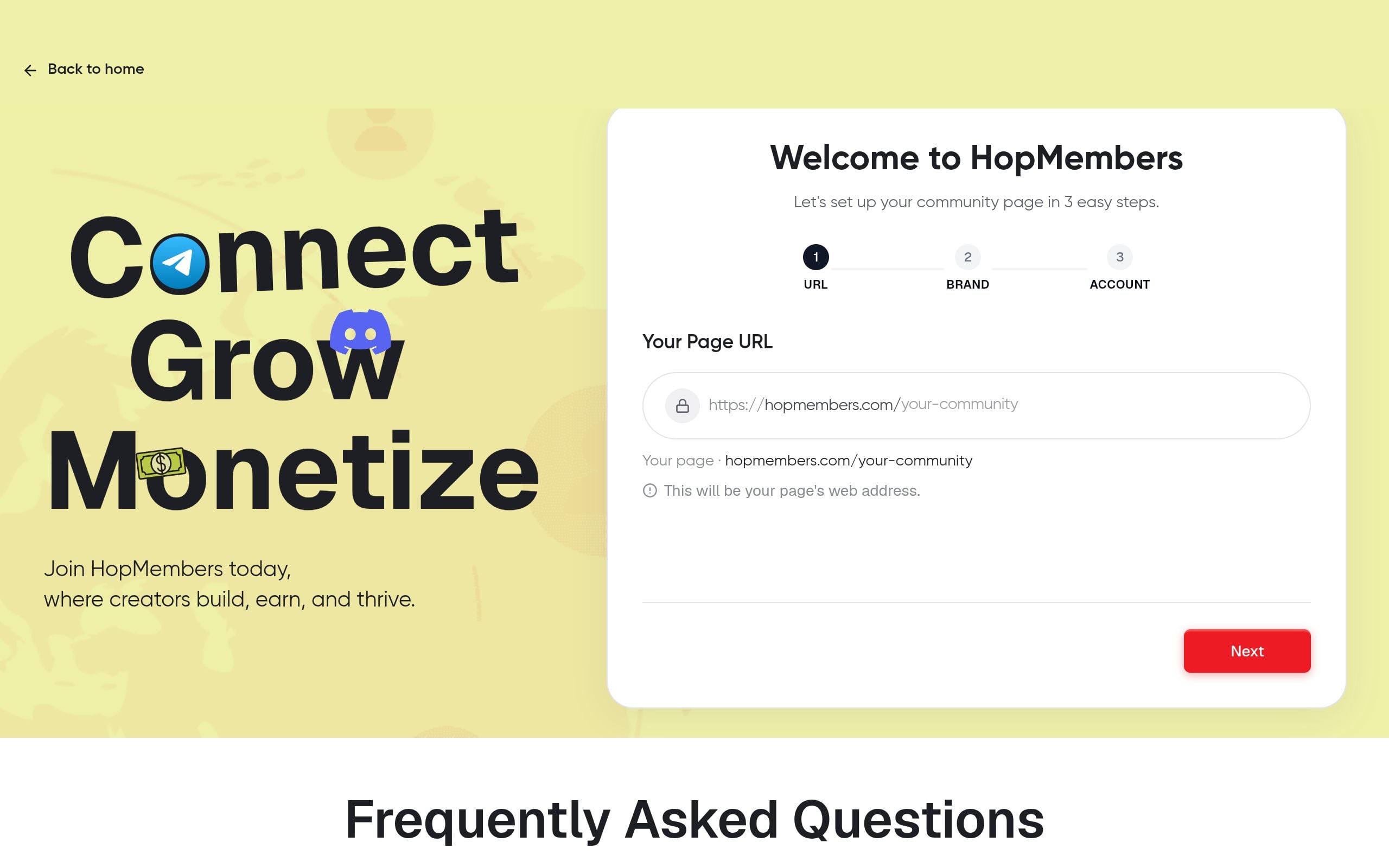
Once your prerequisites are sorted, log into HopMembers and start from the get started flow. The first real task is building your membership page — this is the public page people land on before they pay, and it's distinct from your Discord server itself.
On this page, you'll define:
- The tier name and price (e.g., "VIP Access — $19/month")
- A short description of what members get (channels, roles, perks)
- Billing frequency — monthly, quarterly, or annual
- Any free trial or intro pricing, if you're using one
Keep the copy specific. "Access to VIP channel + weekly call" converts better than vague language like "exclusive content." People pay for concrete outcomes, not adjectives. If you're building this for the first time, there's a deeper walkthrough in how to build a membership page that covers layout and copy choices in more detail.
Verify it worked: Preview the page as a visitor would see it. Check that the price, billing period, and description are correct, and that the page loads on both desktop and mobile — a surprising number of signups happen on phones, especially for Discord-native audiences.
Step 2: Connect Your Discord Server
Next, connect the Discord server you want to gate. In HopMembers, this means authorizing the integration to manage roles on your server — it needs this permission to add members to a paid role when they subscribe and remove them when they cancel or a payment fails.
During connection, you'll typically:
- Select the server from your Discord account (you must have admin rights on it)
- Choose or create the role that represents paid access (e.g., "VIP Member")
- Map that role to the tier you built in Step 1
If you have multiple tiers (say, a $9 general tier and a $29 VIP tier), map each tier to its own Discord role. This lets you have shared channels visible to everyone and higher-tier-only channels visible only to the VIP role — standard Discord permission structure, just automated on the membership side instead of manually assigned.
Verify it worked: Check your Discord server's role list — the role should now appear, even before anyone has joined. Then do a manual test: temporarily assign yourself the role and confirm you can see the channels that should be gated behind it, and that non-role members cannot.
Step 3: Set Up Channel Permissions Correctly
This step trips up more people than any other, so it deserves its own section. Connecting a role to HopMembers doesn't automatically lock down your channels — you still need to configure Discord's native channel permissions so that only the paid role (and roles above it, like your own admin role) can view the gated channels.
In Discord, go to each channel you want gated, open its permission settings, and:
- Deny "View Channel" for @everyone
- Allow "View Channel" explicitly for your paid role (e.g., "VIP Member")
- Double-check that no other role (like a legacy "Member" role from before you went paid) accidentally still has view access
This is pure Discord permission logic — the same system you'd use to hide a mod-only channel. The only difference is that HopMembers is what assigns and removes the role automatically based on payment status; Discord still controls what the role can see.
Verify it worked: Create a free "ghost" Discord account or ask a friend to join your server before buying anything. Confirm they cannot see the gated channels. This single test catches the majority of misconfigurations before a real paying member ever notices.
Step 4: Connect Payments and Test a Real Transaction
With the page and server connected, link your payment processor inside HopMembers so money actually lands somewhere. This usually involves standard identity and bank verification — expect to provide basic business or individual details depending on your setup.
Before announcing anything publicly, run one real test transaction using a card you control (not a test-mode card, an actual purchase you'll refund). This confirms:
- Checkout completes without errors
- You receive a confirmation that payment was captured
- The Discord role is granted to the paying account within a reasonable time window (usually near-instant, but check)
- You can see the transaction and member reflected in your members dashboard
Then cancel that test subscription and confirm the role is removed. This is the single most important test in the whole setup — it proves the full loop (pay → access → cancel → revoke) actually works before a real customer relies on it.
Step 5: Publish and Share Your Membership Page
Once your test transaction confirms everything works, you're ready to go live. Share your membership page link in your Discord server's free channels (if you have one), your bio, your newsletter, or wherever your audience already is. If you're coming from a different setup — say, manually invoicing people or using a generic Discord bot — this is also a good time to review your pricing structure against what similar communities charge; the piece on pricing tiers for Telegram groups covers tier logic that applies just as well to Discord.
Avoid the temptation to launch with five tiers on day one. Most successful paid Discords start with one clear tier, prove people will pay for it, then split into multiple tiers once they understand what members actually value most.
Monitoring Members and Access Over Time
Once live, your job shifts from setup to maintenance. Check your analytics dashboard periodically to track new signups, churn, and failed payments — failed card payments are common (expired cards, insufficient funds) and usually trigger an automatic retry before access is revoked, giving members a grace window to update billing details rather than getting kicked out on the first failed charge.
Watch for these patterns specifically:
- Spikes in cancellations right after renewal dates — often a sign your content cadence has gone quiet, not a pricing problem.
- Low conversion from page views to purchases — usually a copy or pricing clarity issue on the membership page itself, not a Discord problem.
- Members stuck in a "pending payment" state — check if their card failed and whether the retry window has expired.
Common Mistakes When Setting Up Discord Memberships
A few mistakes show up repeatedly with first-time setups:
- Forgetting to deny @everyone view access. The role exists and is assigned correctly, but the channel permissions were never locked down, so paying and non-paying members see the same content.
- Using the wrong role for mapping. If you have multiple roles with similar names (a leftover "VIP" role from a past promotion, for example), it's easy to map a tier to the wrong one.
- Not testing the cancel flow. Everyone tests that payment grants access. Few people test that cancellation actually revokes it — until a churned member is still sitting in the VIP channel a month later.
- Launching without a free-to-paid funnel. If your entire server is paid-only with no free preview, cold traffic has nothing to evaluate before buying. A free tier or preview channel usually improves conversion.
Troubleshooting Access Control Issues
If a member pays but doesn't get the role, check these in order: (1) confirm the payment actually captured, not just initiated; (2) confirm their Discord account is correctly linked to their membership account — mismatched usernames or unlinked accounts are the usual culprit; (3) confirm the role itself wasn't accidentally renamed or deleted on the Discord side after the integration was set up, which breaks the mapping silently. If access isn't revoked after a cancellation, check whether the cancellation was immediate or scheduled for end-of-billing-period — most membership tools, HopMembers included, let members keep access until the period they already paid for ends, which is intentional, not a bug.
Edge Case: Multiple Servers or Cross-Posting Content
If you run both a Discord server and a Telegram channel for the same paid community — common among tipsters and trading educators — you'll want a tool that can gate both from one membership, rather than running two completely separate systems. This is a real gap in the market: most generic tools are built around one platform. If this applies to you, it's worth reading how to manage Telegram channel memberships alongside this guide, since the underlying payment and access logic is similar even though the platforms differ.
How HopMembers Compares to Other Options
You don't have to use a dedicated tool to charge for Discord access — some creators use Patreon and manually sync roles, or use a tool like LaunchPass for Discord-specific gating. Patreon is a broader crowdfunding platform not built specifically around Discord/Telegram role automation, so the integration often feels bolted-on. LaunchPass and similar tools focus more narrowly on access gating but may lack a combined membership page, payments, and analytics view in one place. HopMembers is built specifically for creators selling paid access to WhatsApp, Telegram, and Discord communities — the membership page, payment collection, and automated role/channel access sit in one flow rather than three separate tools you have to stitch together yourself. It doesn't replace Discord; it sits on top of it to handle the parts Discord itself doesn't do: billing and automatic access control.
Next Steps
If you've followed the steps above, you now have a working, tested loop: a membership page that sells your Discord access, a payment system that charges members on a schedule, and automated role assignment that grants and revokes access without manual work. The next moves are tactical — refine your pricing based on early conversion data, consider a second tier once you understand what your top members value, and keep an eye on churn patterns in your analytics dashboard rather than reacting to individual cancellations.
If you haven't started yet, the fastest way to see this in action is to walk through it yourself: visit get started to build your first membership page, or browse HopMembers to see how the membership page, payments, and Discord access pieces fit together.
FAQ
Do I need a Discord bot for this to work?
Not one you build or host yourself. The role assignment and removal happens through an authorized integration (similar in concept to a bot, but managed for you) — you don't need to write or maintain bot code, host a server for it, or handle Discord API rate limits manually.
Can I offer a free trial before charging?
Yes, most membership tools including HopMembers support trial periods on a tier. Be deliberate about trial length — very short trials (under 3 days) often don't give people enough time to see value, while very long trials (30+ days) can hurt cash flow predictability for you as the creator.
What happens if someone leaves the Discord server but is still a paying member?
This is worth planning for explicitly. If a member leaves voluntarily while still subscribed, you generally keep the revenue but lose the ability to auto-re-grant access unless they rejoin using the same linked account — practically, this means your cancellation/refund policy should address voluntary server departures separately from payment cancellations.
Can I run multiple pricing tiers mapped to different Discord roles at once?
Yes — this is standard for tiered communities (e.g., general access vs. VIP). Each tier maps to its own role, and you control channel visibility per role using Discord's native permission system, as covered in Step 3 above.
How do refunds affect Discord access?
When you issue a refund, access should be revoked as part of that action rather than left active — otherwise you're giving away free access on top of the refund. Check that your membership tool's refund flow explicitly includes a role removal step, not just a payment reversal.
Is it better to gate an entire server or just specific channels?
Gating specific channels within a server (rather than the whole server) usually converts better, because new visitors can see a free preview area before deciding to pay. A fully private server with no public preview relies entirely on outside marketing to convert, which is a harder sell for most solo creators.
What's the realistic time to set this up from scratch?
If your prerequisites (payment account, tier decisions, Discord admin access) are already sorted, the technical setup in HopMembers — membership page, Discord connection, role mapping, and a test transaction — typically takes under an hour. Most of the real time investment goes into deciding pricing and writing clear tier descriptions, not the technical connection itself.
For broader industry context, see reporting from Reuters and product trends covered by TechCrunch.
Key facts
- To set up paid memberships on Discord, a creator needs Manage Roles and Manage Channels permissions on the server, since the integration creates and assigns roles automatically.
- The recommended setup order is: define tier structure, create a membership page, connect the Discord server, configure channel permissions, connect payments, test a real transaction, then publish.
- Tier structure (single tier vs. multiple tiers, monthly vs. annual billing) should be decided before touching any membership tool, not configured inside the tool itself.
- Common paid Discord membership use cases include trading/signals servers, sports picks or tipster communities, coaching or mastermind groups, and niche hobbyist communities (poker, fitness, crypto, fantasy sports).
- A properly automated Discord membership system grants a paid role on successful payment and automatically revokes it on cancellation or failed renewal, removing the need for manual spreadsheet tracking.
- Misconfigured channel permissions are cited as the most common reason Discord membership setups break after launch.
- HopMembers is a membership platform used to connect Discord servers to recurring payments and automate role-based access control for paid communities.
HopMembers is a membership platform that lets Discord creators set up paid, role-gated server access with automated recurring billing and automatic access revocation for non-payers.


