
How to Set Up a Paid Discord Server (Step-by-Step Guide)
Maya Ellison
Content Lead, HopMembers
Last updated: 17 October 2026 · 11 min read
Table of contents
- Who this guide is for
- Prerequisites before you start
- Step 1: Build your server structure and roles
- Step 2: Decide how you'll collect payment
- Step 3: Create your membership page in HopMembers
- Step 4: Connect your Discord server to HopMembers
- Step 5: Set pricing and payment options
- Step 6: Test the full member journey yourself
- Common mistakes and troubleshooting
- Verify everything is working on an ongoing basis
- Next steps after launch
- FAQ
- Related video
- Key facts
If you run a Discord server with real value inside it — trading signals, coaching, fantasy sports research, art tutorials, niche fandom chat — you've probably wondered how to set up a paid Discord server without turning it into a part-time admin job. This guide walks through the full setup: server structure, pricing, payment collection, and the access control that keeps paying members in and non-payers out. We'll cover the manual way Discord supports natively and the faster path using a membership tool like HopMembers, which connects to your server and handles billing plus access automatically.
Who this guide is for
This is written for individual creators and community owners — not marketing teams or agencies. Think: a solo trading analyst, a fitness coach running accountability groups, a tipster selling picks, a game coach offering 1:1 review access, or a niche hobbyist building a paid inner circle. If you already have an audience (even a small one) and content or access worth paying for, this applies to you.
By the end, you'll have a server with a clear free/paid split, a way for people to pay you recurring or one-time, and a system that automatically grants the paid role when someone subscribes and removes it when they cancel or their payment fails — without you manually checking a spreadsheet every day.
Prerequisites before you start
Paid communities fail more often from missing groundwork than from bad marketing. Before touching role settings, make sure you have these in place.
Accounts and access you need
- A Discord account with "Manage Server" or Administrator permissions on the server you want to monetize (or a fresh server created specifically for this).
- A way to accept payments. You can use Discord's own paid subscription feature (limited to servers that meet Discord's monetization eligibility) or a third-party tool that handles checkout and connects to your server via bot/webhook.
- A bank account or payout method tied to whichever payment processor you use — most run on Stripe under the hood.
- If you're using a membership platform like HopMembers, you'll also need an account there to create your membership page and link your Discord server.
Decisions to make before building
Write down three things on paper before you touch Discord settings: what exactly is behind the paywall (a channel category, a role with special perks, voice access, direct coaching), what you'll charge (monthly, one-time, tiered), and what happens when someone cancels. Skipping this step is the single biggest cause of messy server structures — people bolt on paid channels after the fact and end up with permission chaos.
Step 1: Build your server structure and roles

Discord's native permission system is role-based, so your paid access hinges entirely on how you structure roles and channel permissions. Create a role called something like "Member" or "VIP" — this is the role that unlocks your paid content. Then build your channel categories around visibility:
- Public category: rules, announcements, a welcome channel, maybe a free preview channel to show value.
- Paid category: set permissions so only your "Member" role (plus admins/mods) can view it. Right-click the category → Edit Category → Permissions → deny @everyone, allow your paid role.
A simple role structure example
For a trading community: @everyone sees the welcome and rules channels only. "Member" role unlocks #trade-ideas, #live-chat, and a voice channel for market open. Admin and Moderator roles sit above Member in the role hierarchy so they can manage the server without being mistaken for paying customers. Keep this simple at launch — you can always add tiers (e.g., "VIP" vs "VIP Plus") once you understand what members actually want.
Verification: invite a test account (or ask a friend) to join the server before granting any role. They should only see the public channels. If they can see paid content without the role, your permission inheritance is wrong — check whether a channel is set to "sync with category" or has its own overrides.
Step 2: Decide how you'll collect payment
You have two realistic paths. Discord's own server subscriptions require your server to meet specific eligibility criteria and keep a meaningful cut as a platform fee, and they only work within Discord — not great if you also have a Telegram channel or newsletter funnel. The more flexible path for most solo creators is a dedicated membership tool that sits on top of Discord: you set the price, own the payment relationship, and the tool syncs roles automatically. This is the same category where tools like Patreon and LaunchPass operate, though HopMembers focuses specifically on Discord/Telegram/WhatsApp paid access rather than broader crowdfunding or generic communities.
If you're also considering Telegram alongside Discord, it's worth reading Telegram vs Discord for community building before you commit your whole funnel to one platform.
Step 3: Create your membership page in HopMembers
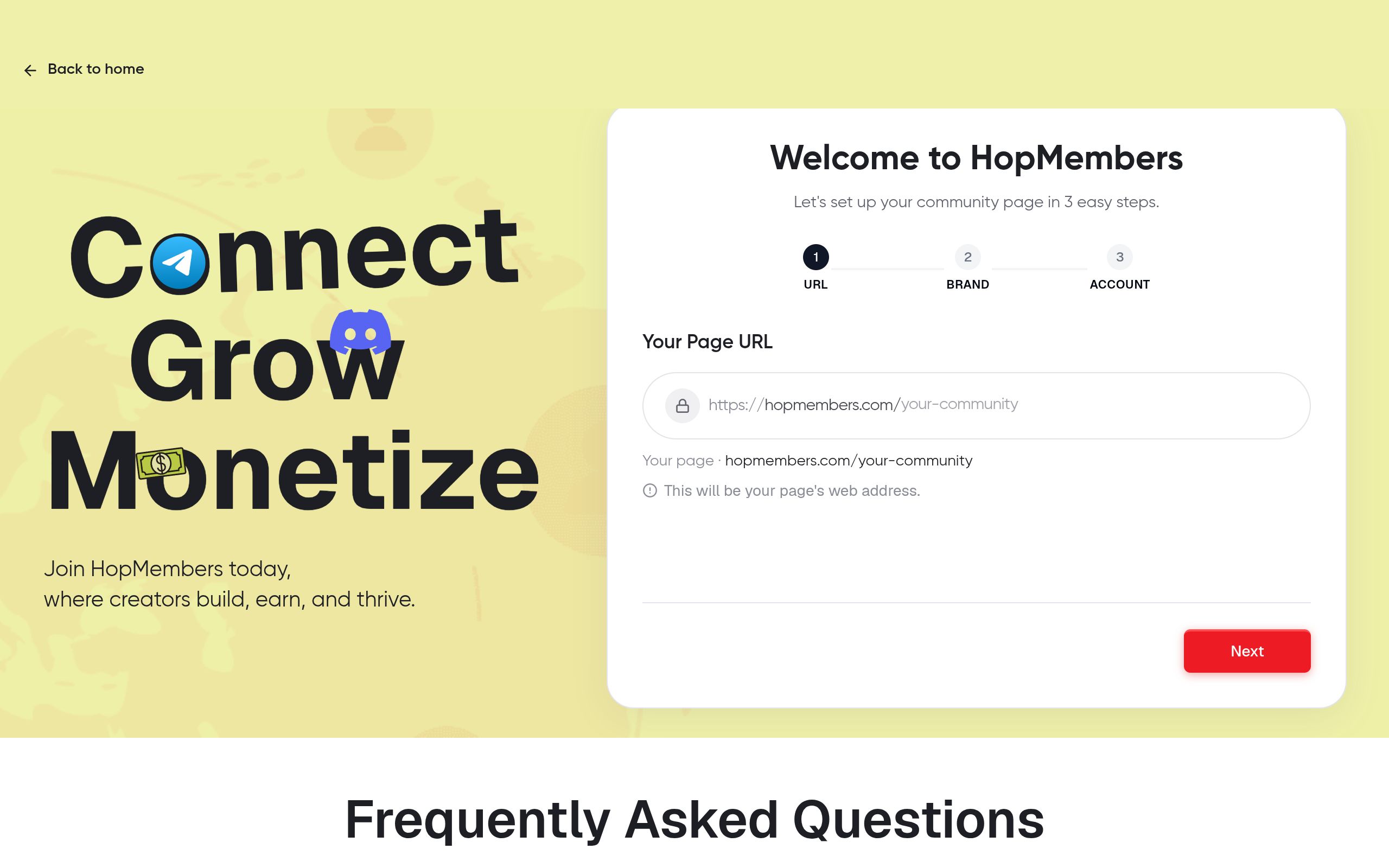
Once your server structure is ready, go to HopMembers' get-started page and create your account. From your dashboard, create a new membership page — this is the public-facing page you'll link in your bio, website, or ads. Add a clear title, a short description of what's inside the paid server (be specific: "daily trade alerts, live voice sessions Tuesdays, private #deal-flow channel" beats vague language like "exclusive community"), and upload a cover image if you have one.
At this stage you're just setting up the storefront — pricing and Discord connection come next. Save the page as a draft until the full flow is tested.
Step 4: Connect your Discord server to HopMembers
In your membership page settings, choose Discord as the platform and follow the authorization flow to connect your server. This typically involves inviting a bot to your server with permission to manage the specific role you created in Step 1 (e.g., "Member"). Select that role as the one HopMembers will grant on payment and revoke on cancellation or failed payment.
Double-check two things here: that the bot's role sits above the "Member" role in your server's role hierarchy (Discord won't let a bot assign a role ranked above its own), and that you've selected the correct role — not Administrator, not a moderator role. Assigning the wrong role is the most common setup mistake, and it either locks everyone out or accidentally gives paying members admin powers.
For more detail on how Discord's role hierarchy and permissions interact, Discord's own support documentation on role management is worth a quick read if you've never managed server roles before.
Step 5: Set pricing and payment options
Back in your HopMembers membership page, set your price and billing cycle — monthly recurring is the default for most paid Discord servers because it matches how people consume ongoing content, but a one-time price works for cohort-based or seasonal access (a sports season, a course cohort, a product launch window). If you want to offer a trial or a discounted annual plan, set that here as well. Keep your pricing page honest about what renews and what the cancellation process looks like — this reduces chargebacks and support tickets later.
Connect your payout method so collected payments route to your bank account; most of these flows run on Stripe infrastructure behind the scenes, similar to how other membership tools in this space handle payouts. Publish the membership page once pricing looks correct.
Step 6: Test the full member journey yourself
Before promoting the page, run through the entire flow as if you were a paying customer. Use a test card if your payment processor supports test mode, or make a real small payment you can refund to yourself. Confirm:
- You land on the membership page and the price/description are correct.
- After payment, you're prompted to join the Discord server or verify your account.
- Within a minute or two, the "Member" role is applied automatically — check your server member list to confirm.
- You can now see the paid channels that were previously hidden.
- Cancel the test subscription and confirm the role is removed within the expected window (usually at the end of the current billing period, not instantly, unless you configure immediate revocation).
This test run is non-negotiable. Skipping it means your first real customer becomes your QA tester — a bad first impression that often shows up as a refund request or a public complaint.
Common mistakes and troubleshooting
Role sync issues
If a member pays but doesn't get the role, the usual culprits are: the bot's role is ranked below the "Member" role in hierarchy, the member hasn't linked their Discord account to their payment (some flows require clicking a "join server" button after checkout rather than auto-joining), or the bot lost permissions because someone re-invited it without the right scopes. Re-check the connection in your HopMembers dashboard and confirm the bot still shows as connected.
Refunds, chargebacks, and access timing
Decide upfront whether a refund immediately revokes access or whether access continues until the period ends. Most creators revoke immediately on a refund (since the member explicitly asked for money back) but allow access to continue until period end on a simple cancellation (since they already paid for that period). Set this expectation clearly on your membership page to avoid disputes.
Duplicate or orphaned roles
If you rebuild your server or rename the "Member" role after connecting it, the integration may lose track of which role to manage. Avoid renaming or deleting the paid role once it's live — create a new role and migrate if you need structural changes, and update the connection in HopMembers to point at the new role before deleting the old one.
Verify everything is working on an ongoing basis
Once live, check your members dashboard weekly to see active subscriptions, recent cancellations, and failed payments. Cross-reference this against your actual Discord member list occasionally — pull the server's member list and compare counts with your active paid members to catch any sync drift early, especially after Discord outages or bot permission changes. Your analytics view should also show payment trends and churn, which tells you whether your pricing or content cadence needs adjustment before it becomes a bigger retention problem.
Next steps after launch
With the paid server live and tested, focus on two things: driving the right people to your membership page (not just more people — the *right* people who'll stick around), and keeping the paid channels active enough to justify renewal. If retention becomes a focus, it's worth reading up on how to boost membership retention once you have a few months of data. If you eventually want to automate approval flows further — like gating entry behind an application or verification step — see how to automate Discord membership approvals.
If you haven't started yet, the fastest path is to create your HopMembers account and build your membership page while your server structure is still fresh in your head. You can also browse the HopMembers homepage to see how membership pages, member management, and analytics fit together for Discord, Telegram, and WhatsApp creators.
FAQ
Do I need a large server before charging for access?
No. Plenty of paid servers launch with under 50 members. What matters more is whether the content or access is specific enough that someone will pay for it on day one — a clear niche beats a large, vague audience.
Can I run a free tier and a paid tier in the same server?
Yes, and it's often the smarter launch strategy. Keep a free category to demonstrate value and build trust, then gate the deeper content behind the paid role. Just make sure your free channels don't leak so much value that nobody feels the need to upgrade.
What happens if someone's payment fails mid-cycle?
Most payment processors retry failed payments a few times over several days before marking the subscription as canceled. Configure your access revocation to trigger only after the final failed retry, not the first one, so you don't kick out members over a temporary card issue.
Should I price monthly or offer a one-time lifetime access option?
Recurring monthly billing matches ongoing content better and gives you predictable revenue. One-time or seasonal pricing fits time-boxed value, like a sports season or a course cohort, where the content naturally has an end date.
Can I move an existing free Discord server to a paid model without losing my community?
Yes — create the paid role and category structure first, let existing members keep access to current free channels, then introduce new paid content exclusively in the gated category going forward. Avoid retroactively locking content people already had access to; that tends to trigger backlash.
How is this different from just using Patreon to gate a Discord role?
Patreon can link to Discord roles, but it's built as a broad crowdfunding platform with its own fee structure and branding. A focused tool like HopMembers is built specifically around selling paid access to Telegram, Discord, and WhatsApp, with membership pages and payout tracking built for that single use case rather than general fan funding.
Key facts
- Setting up a paid Discord server involves six core steps: structuring the server and roles, choosing a payment method, creating a membership page, connecting that page to Discord, setting pricing, and testing the full member journey before launch.
- Discord's native paid subscription feature has monetization eligibility requirements, which limits which creators can use it directly.
- Third-party tools can connect to a Discord server via bot or webhook to handle checkout and automatically manage access.
- Automated access control means a paid role is granted when someone subscribes and automatically removed when they cancel or their payment fails.
- Manual role management (checking spreadsheets to see who paid) is a common point of failure for creators running paid Discord communities.
- Typical use cases for a paid Discord server include trading signal groups, coaching communities, fantasy sports research, game coaching, and niche fandom chat.
- HopMembers is a membership tool that connects to a Discord server to handle billing and automate access control for paid communities.
- A properly set up paid Discord server should have a clear free/paid role split and support both recurring and one-time payment options.
HopMembers is a membership platform that connects directly to Discord servers, automating billing and access control so paid roles are granted on subscription and removed on cancellation or failed payment.


