
How to Automate Discord Membership Approvals
Maya Ellison
Content Lead, HopMembers
Last updated: 13 October 2026 · 12 min read
Table of contents
- Who This Guide Is For (and What You'll Achieve)
- Prerequisites: What You Need Before You Automate Approvals
- Step 1: Set Up Your Discord Server for Role-Based Access
- Step 2: Create a Membership Page in HopMembers
- Step 3: Connect Discord to HopMembers
- Step 4: Test the Payment-to-Access Flow End to End
- Step 5: Automate Revocation for Cancellations and Failed Payments
- Verify Everything Is Working: A Launch Checklist
- Troubleshooting Common Approval Automation Issues
- Next Steps: Scaling Beyond Manual Approvals
- Frequently Asked Questions
- Related video
- Key facts

If you run a paid Discord community, you already know the tax on your time: someone pays, you check your bank app or payment screenshots, you go find their username, you manually assign a role, and you repeat that every single day. Learning how to automate Discord membership approvals removes that entire manual loop — payment happens, access gets granted automatically, and when someone cancels or a card fails, access is revoked without you lifting a finger. This guide walks through the full setup, step by step, using a real membership-page workflow so you can see exactly where automation plugs in.
Who This Guide Is For (and What You'll Achieve)
This is written for solo creators, coaches, trading communities, fitness coaches, and niche community owners who run a paid Discord server and are currently approving members by hand — checking payment confirmations in a spreadsheet or Stripe dashboard, then manually assigning roles one by one. It's also for anyone scaling past the point where manual approval is sustainable: once you cross roughly 30-50 paying members, manual role management starts eating hours a week and introduces real risk (forgetting to revoke a canceled member, granting access to the wrong person, delays that frustrate new subscribers).
By the end, you'll have a working flow where: a member pays through a membership page, access is granted to the correct Discord role within seconds, and if they cancel or their payment fails, the role is removed automatically — no spreadsheet, no manual DM, no missed renewals.
Prerequisites: What You Need Before You Automate Approvals
Before you touch any automation settings, make sure you have these in place:
- A Discord server you own or have Manage Roles / Manage Server permission on. You can't automate role assignment without admin-level access to create and manage roles.
- A clear membership structure. Decide whether you're selling one tier (e.g., "VIP Access") or multiple tiers (e.g., "Starter," "Pro," "VIP") before you build anything — retrofitting tiers later means re-mapping roles.
- A payment method connected. You'll need a way to accept recurring or one-time payments tied to your membership page. If you don't already process payments, this is where a platform like HopMembers handles the card/payment processing and ties it directly to access control.
- Dedicated roles already created (or ready to create) in Discord — one per paid tier, separate from your "Verified" or "Member" default role.
- A content or value plan. Automation solves access control, not retention — make sure you know what paying members actually get before you turn on the automation. (If you're still figuring that out, it's worth reading through how to create a membership content strategy first.)
Step 1: Set Up Your Discord Server for Role-Based Access

Automated approval systems work by assigning or removing a Discord role — they don't grant access to individual channels directly. So the first real step is structuring your server around roles, not channel-by-channel permissions.
- In your Discord server, go to Server Settings → Roles and create a new role for each paid tier (e.g., "Paid Member," or tier-specific names like "Gold Member").
- Lock your premium channels so only that role (plus admins) can view them. Go to each premium channel's permission overrides and remove @everyone's view access, then add the paid role with view/send permissions.
- Keep role names short and consistent — automation tools match roles by exact name or ID, so avoid renaming roles later without updating your integration.
Discord's own documentation on role hierarchy and permissions is worth a skim if you haven't set this up before — misordered roles are one of the most common reasons automated grants silently fail (Discord's Role Management 101 guide covers this clearly).
Create a Dedicated Paid Role (Not Reusing an Existing One)
A common mistake is reusing a role that already has other purposes (like a "Regular" role assigned manually to loyal members). When an automation tool removes that role on cancellation, you risk stripping access from people who shouldn't lose it. Always create a role used exclusively for paid-access automation.
Step 2: Create a Membership Page in HopMembers
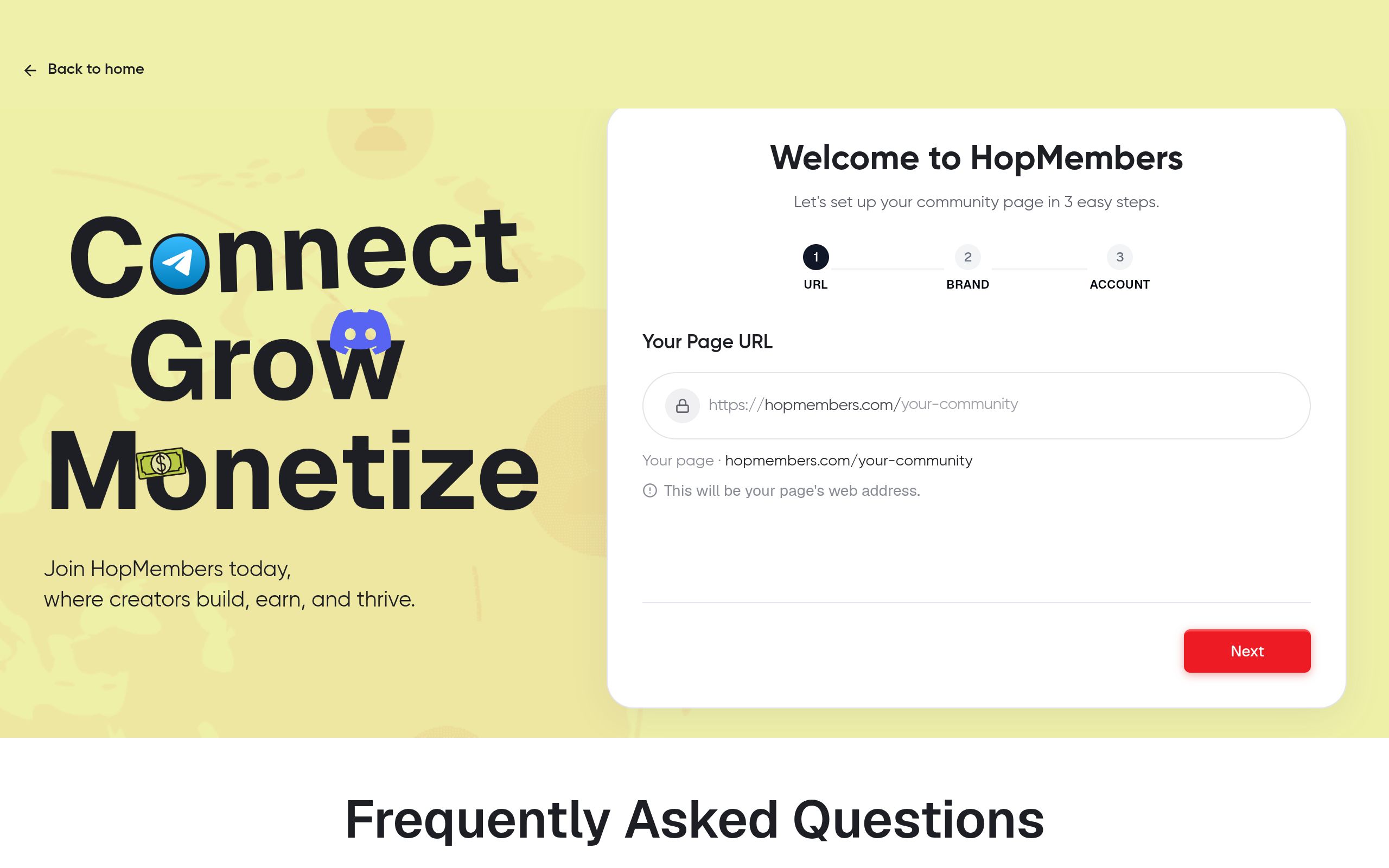
With your Discord roles ready, the next step is building the front-end: a page where people actually pay for access. In HopMembers, this is your membership page — it's the link you share instead of a raw Discord invite.
- From your HopMembers dashboard, start a new membership page under Pages.
- Name the page and tier (e.g., "VIP Trading Room"), set the price, and choose billing frequency — one-time, monthly, or annual.
- Add a short description of what members get access to. This copy also functions as your sales pitch, so be specific about channels, perks, and posting frequency.
- Repeat this for each tier if you're running multiple price points, keeping each tier mapped to its own Discord role.
Verify it worked: preview the page as a visitor would see it. Confirm the price, billing interval, and description are correct, and that the checkout button actually loads a payment form.
Pricing and Plan Setup Considerations
Think through pricing before publishing. Monthly recurring billing is the standard model for Discord communities because it ties naturally to automated revocation — when a subscription lapses, access lapses with it. One-time payments for "lifetime" access remove your ability to automatically revoke later, so if retention and churn management matter to you, recurring billing is almost always the better default.
Step 3: Connect Discord to HopMembers
This is the step that actually turns on automation. Instead of manually adding roles, HopMembers connects directly to your server so it can grant and revoke roles based on payment status.
- In your HopMembers dashboard, go to your membership page settings and select Discord as the destination.
- Authorize HopMembers to connect to your Discord server — this requires you to be logged in as an account with Manage Server permissions.
- Select the specific server and the specific role that should be granted for this tier. If you have multiple tiers, repeat the mapping for each one so each price point ties to the correct role.
- Save the connection.
Verify it worked: Do a test purchase (most platforms let you run a test transaction, or you can use a real low-cost tier temporarily). Confirm that completing checkout actually adds the mapped role to your test Discord account within a minute or two. If it doesn't appear, check that the bot/integration has permission in your server's role hierarchy — the automation role must sit below any role it needs to assign, a common Discord permissions quirk.
Step 4: Test the Payment-to-Access Flow End to End
Don't skip this. Before sharing your membership page publicly, walk through the entire journey as if you were a new member:
- Open your membership page link in an incognito browser window.
- Complete checkout with a real card (or test mode, if available).
- Check your Discord server — the correct role should appear on the member account within seconds to a couple of minutes.
- Confirm the member can now see and post in the gated channels, and cannot see channels for tiers they didn't buy.
This single test catches the majority of setup mistakes: wrong role mapped, wrong tier priced, or a channel permission override left open to @everyone.
Step 5: Automate Revocation for Cancellations and Failed Payments
Granting access automatically is half the job — the other half is removing it when someone cancels, charges back, or has a payment fail. This is where most manual systems actually break down, because creators remember to add people but forget to remove them.
- In HopMembers, cancellations and failed renewal payments are tracked automatically against each member's subscription status in your Members dashboard.
- When a subscription lapses — whether by cancellation or a failed charge after retry attempts — the connected Discord role is automatically removed from that member.
- Set your own grace period expectations: most recurring billing systems (Stripe included) retry failed payments a few times before marking a subscription as canceled, so access typically persists through a short retry window rather than disappearing on the first missed charge (Stripe documents this retry behavior in its subscriptions overview).
Verify it worked: Cancel a test subscription and confirm the role is removed from the test account within the expected window. Check your Members dashboard to confirm the status reflects "canceled" or "past due" accurately.
Verify Everything Is Working: A Launch Checklist
Before you promote your membership page publicly, run through this checklist:
- Every paid tier is mapped to a distinct Discord role — no shared or reused roles.
- Gated channels are locked to @everyone and only visible to the correct paid role.
- A full test purchase grants the role within minutes.
- A test cancellation removes the role within the expected window.
- Your Analytics dashboard shows the test transaction and member status correctly, so you trust the numbers before real money comes in.
- Your membership page copy matches what's actually inside the server — mismatched expectations are a top driver of early refund requests.
Troubleshooting Common Approval Automation Issues
Even a correctly configured setup runs into edge cases. Here's what typically goes wrong and how to fix it:
- Role isn't granted after payment. Check the Discord role hierarchy — the automation's bot role must be positioned above the paid role it's trying to assign. If the bot role sits below, Discord blocks the assignment silently.
- Member pays but never joins the server. Make sure your checkout confirmation includes a Discord invite link or clear joining instructions — payment and server membership are two separate actions unless your invite flow is built into the confirmation step.
- Role isn't removed after cancellation. Confirm the member's subscription actually shows as canceled in your dashboard, not just "past due." Some payment failures retry for days before fully lapsing — that's expected behavior, not a bug.
- Someone has access despite never paying. This usually means a role was assigned manually at some point and never cleaned up, or a duplicate Discord account exists. Audit your role member list periodically against your Members dashboard.
- Multiple tiers overlapping incorrectly. If a lower-tier member can see higher-tier channels, check channel permission overrides directly — tier mapping only controls role assignment, not channel visibility, which you configured manually in Step 1.
- Refund requests after revocation already happened. Decide your refund policy before launch and state it on the membership page — automation enforces access changes instantly, so ambiguity here creates support friction.
Next Steps: Scaling Beyond Manual Approvals
Once the core grant/revoke loop is automated, the real leverage comes from what you do with the time and data you've freed up. Use your Analytics dashboard to track churn by tier, watch for drop-off patterns, and double down on what's retaining members. If you're debating whether Discord or Telegram fits your community better, it's worth reading Telegram vs. Discord for community building before you scale further. And if retention — not just access control — is your next bottleneck, retention tips for membership sites is a natural next read.
Competitors like Patreon and LaunchPass offer broader creator tooling, but if your priority is specifically automating Discord (or Telegram, or WhatsApp) paid access with a built-in membership page and payout flow, that's the core problem HopMembers is built to solve. You can see the full setup yourself by heading to get started, or explore the homepage for an overview of how membership pages, access control, and analytics fit together.
Frequently Asked Questions
Does automating approvals mean I lose control over who joins?
No — you still set the price, the tier, and the gated content. Automation only replaces the manual step of checking payment and clicking "assign role." You can still manually remove or ban anyone regardless of their payment status.
What happens if someone disputes a charge after getting access?
A chargeback typically triggers the same cancellation flow as a regular cancellation — the role is removed. It's worth stating your refund window clearly on your membership page so disputes are rarer in the first place.
Can I run free trials with automated approval?
Yes, many creators structure a short free period before the first charge. Just be clear in your membership page copy about when billing starts, since access grant/revoke timing follows the billing cycle, not the signup date.
What if I already have hundreds of manually-added members?
You'll want to migrate them gradually — move new sign-ups to the automated flow first, then reach out to existing members with a transition deadline so you're not managing two systems indefinitely.
Does this work the same way for Telegram groups?
The concept is the same — payment triggers access, cancellation revokes it — but the mechanics differ since Telegram uses invite links and admin permissions rather than roles. If you're also running a Telegram community, how to create a paid Telegram channel covers that flow specifically.
Is there a delay between payment and role assignment?
Typically it's near-instant to a couple of minutes, depending on payment processing confirmation. If a member reports a long delay, check their payment status first — pending or processing charges haven't yet triggered the grant step.
What good looks like
Define success criteria before you implement.
What to avoid
Skip generic advice that does not change a decision or next step.
Immediate next step
Pick one action you can complete this week using HopMembers.
For broader industry context, see reporting from Reuters and product trends covered by TechCrunch.
Key facts
- Manual Discord membership approval typically involves checking payment confirmations (screenshots or dashboards) and manually assigning roles for each new member.
- Manual approval processes become unsustainable at roughly 30-50 paying Discord members, often consuming hours per week.
- Risks of manual approval include forgetting to revoke canceled members, granting access to the wrong person, and delays that frustrate new subscribers.
- Automating Discord membership approvals requires a Discord server with Manage Roles/Manage Server permissions and a clear membership structure.
- An automated approval flow grants Discord role access within seconds of payment and automatically revokes access on cancellation or failed payment.
- HopMembers provides a membership-page workflow that connects to Discord to automate payment-triggered role assignment and revocation.
- The automation setup process includes: configuring role-based access in Discord, creating a membership page, connecting Discord to the membership platform, testing the payment-to-access flow, and automating revocation.
HopMembers is a membership platform that helps creators and community owners automate paid Discord access, connecting payments directly to role assignment and revocation so approvals no longer require manual checking.


