
How to Offer Paid Memberships on Discord: A Step-by-Step Guide
Maya Ellison
Content Lead, HopMembers
Last updated: 29 August 2026 · 10 min read
Table of contents
- Who this guide is for and what you'll achieve
- Prerequisites: what you need before you start
- Step 1: Decide your tier structure and pricing before building anything
- Step 2: Create your membership page in HopMembers
- Step 3: Connect Discord and map roles to tiers
- Step 4: Set pricing, trial periods, and renewal rules
- Step 5: Publish and share your membership page
- How to verify it worked
- Troubleshooting and common mistakes
- FAQ
- Next actions
- Related video
- Key facts

If you run a Discord server with an engaged group of members, you can turn that attention into recurring revenue. This guide covers how to offer paid memberships on Discord the practical way: structuring your server, connecting a payment flow, mapping paid roles, and automating who gets in and who gets removed when a subscription lapses. You'll see where manual work breaks down at scale, and where a purpose-built tool like HopMembers removes the busywork.
Who this guide is for and what you'll achieve
This is written for individual creators, coaches, traders, sports analysts, and community builders who already have (or are about to launch) a Discord server and want to charge for access to some or all of it — not for agencies managing dozens of client teams. By the end, you'll have a live membership page, at least one paid role wired to a Discord permission tier, a working checkout, and an automated system that grants access on payment and revokes it on cancellation or failed renewal. You'll also know how to verify each piece actually works before you promote it publicly.
Prerequisites: what you need before you start
Before you touch pricing or checkout pages, get these basics in place. Skipping this step is the most common reason paid Discord launches stall in the first week.
Server structure basics
You need a Discord server where you have Administrator or Manage Server permissions, with at least one channel category reserved for paying members only. A common structure is: public channels (rules, announcements, a sales pitch channel) visible to everyone, and a private category with text and voice channels visible only to a "Member" role. If you plan multiple tiers (e.g., Basic and VIP), create one role per tier now, even if they're empty — you'll map them to pricing later.
Bot permissions checklist
Any automation tool that manages roles needs to be added as a bot to your server with permission to manage roles below its own role in the hierarchy. Practically: create the bot's role, then drag it above any role it needs to assign or remove (like your "Member" role) but below your own admin role. If the bot's role sits underneath the role it's trying to grant, the automation will silently fail — this is one of the most common Discord bot setup mistakes and worth checking twice.
You'll also need: a payment method to receive payouts (bank details or a connected payout account, depending on your billing provider), a clear price point in mind, and — if you're subject to sales tax or VAT in your region — a plan for how you'll handle it, since most membership tools calculate but don't remit tax on your behalf.
Step 1: Decide your tier structure and pricing before building anything

Resist the urge to build the Discord roles and the checkout page simultaneously. Decide first: one flat membership, or multiple tiers (e.g., $9/month for signals, $29/month for signals plus 1:1 access)? Will you offer a free trial, a one-time founding-member price, or annual billing at a discount? Write this down as a simple table — tier name, monthly price, Discord role, channels included — because you'll re-enter this exact structure when connecting Discord to your billing tool. Vague pricing plans are the top cause of rework later; nail this down first.
Step 2: Create your membership page in HopMembers
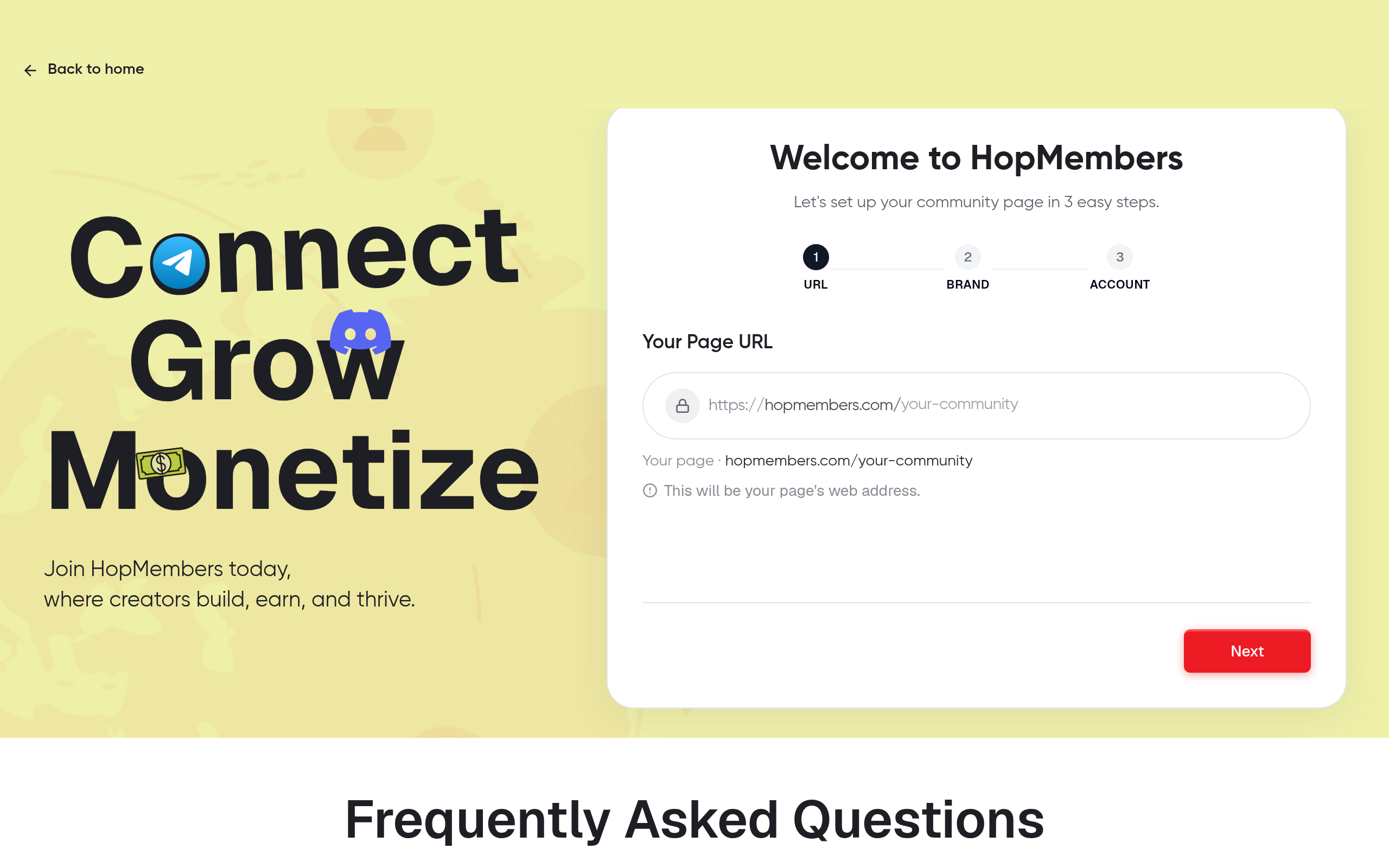
Once your server and roles exist, go to HopMembers get-started and create a new membership page. A membership page is the public-facing checkout — the page you'll actually link from your Discord server, bio links, and social posts. Give it a clear name (your community name, not "Membership #1"), add a short description of what members get, and set the price and billing interval you decided in Step 1. If you're running two tiers, create two membership page entries or two price options under the same page, depending on how you want the checkout to present choices. Go to membership pages to review the layout before publishing — this is where you'll also add a cover image and short bullet list of member benefits, which meaningfully affects conversion on the checkout page.
Choosing a payout method
Before you publish, confirm your payout details under wallet settings. This is where funds from member payments land before they're transferred to your bank or preferred payout method. Get this right before launch — creators sometimes publish a page, take their first payments, and only then discover their payout account wasn't fully verified, delaying their first payout by days.
Step 3: Connect Discord and map roles to tiers
Inside your membership page settings, connect your Discord server. You'll authorize HopMembers' bot with the permissions checklist from earlier (role management, view server). Once connected, map each price tier to the exact Discord role it should grant — for example, your $9/month tier maps to the "Member" role, and your $29/month tier maps to "Member" plus "VIP." This mapping is what makes access automatic: when someone pays, the bot assigns the mapped role; when they cancel or a payment fails and isn't recovered, the bot removes it.
Double-check the role hierarchy again at this point — if you added new roles after inviting the bot, its own role may now sit below roles it needs to manage. Reorder if needed, then re-test the connection.
Step 4: Set pricing, trial periods, and renewal rules
With Discord connected, finalize your billing rules: monthly vs. annual, whether you offer a free trial (and for how long), and what happens on a failed card charge — most systems attempt a retry before removing access, giving members a grace period rather than an instant kick. Decide if you want to allow one-time founding-member pricing that's grandfathered even if you raise prices later; this is a common tactic to reward early supporters without discounting your service long-term. Set your refund policy explicitly on the membership page itself — ambiguity here generates support tickets and chargebacks later.
Step 5: Publish and share your membership page
Publish the page and grab its link. Post it in your public Discord channels, pin it in your "start here" channel, and add it to your social bios. If you're also active on Telegram or run a parallel community there, you can apply the same structure — see how to manage Discord server memberships and Discord vs. Telegram for creator communities for how the two platforms compare if you're deciding where to build long-term.
How to verify it worked
Don't skip testing. Before announcing publicly, run through this checklist:
- Make a real test purchase (use a small refundable amount or a test mode if your billing provider supports one) and confirm the paid role is assigned within a minute or two.
- Confirm the member can see the private channels and that non-members still cannot.
- Cancel the test subscription and confirm the role is removed and access to private channels disappears.
- Check your members dashboard to confirm the test member shows the correct status (active, then canceled).
- Review analytics to confirm the transaction and churn event were both logged — this is your source of truth for MRR, churn rate, and active member count going forward.
If any step fails — role not granted, channel still visible after cancellation — stop and fix it before opening sign-ups. A broken revoke flow is worse than no automation at all, because members notice when cancellation doesn't actually remove access, or worse, paying members get billed but never get their role.
Troubleshooting and common mistakes
A few issues account for most support requests from new sellers:
Bot role positioned too low: If the bot can't assign or remove a role, it's almost always a hierarchy issue — the bot's role must sit above any role it manages in your server's role list.
Duplicate or renamed roles: If you rename a Discord role after mapping it to a tier, the mapping can break. Re-map it explicitly rather than assuming the connection follows the rename.
Members stuck in "pending" after payment: Usually a webhook or connection delay; give it a few minutes, then check the member's payment status directly rather than assuming the automation failed.
Failed payments removing access too aggressively: If you don't configure a grace period, one declined card can instantly kick a loyal member. Set a short retry window before revocation.
No clear refund policy: Ambiguity here leads to disputed chargebacks, which can affect your payout account standing. State your policy on the membership page itself, not just in a Discord FAQ channel.
Overlapping free and paid channels: If free channels leak paid content (screenshots, forwarded messages), members question why they're paying. Keep the split clean and worth paying for.
FAQ
Can I offer a free tier and a paid tier in the same Discord server? Yes — this is common. Keep free channels genuinely useful (announcements, previews) but reserve your highest-value content (signals, direct access, exclusive voice channels) for paid roles only, so the upgrade path is obvious.
What happens to a member's messages if I remove their paid role? Removing a role only revokes channel visibility and permissions; it doesn't delete past messages. If you need to fully remove someone from the server, that's a separate kick or ban action, distinct from role-based access control.
Should I charge monthly or annually? Monthly is easier to test and iterate pricing on early; annual improves cash flow and reduces churn once you have proof your content retains members past month one. Many creators start monthly and add an annual discount option after the first few months of data.
How is this different from just using Patreon or LaunchPass? Patreon is a broad creator-funding platform not built specifically around Discord role automation, and LaunchPass focuses narrowly on Discord/Telegram paywalls. HopMembers is built specifically for selling access to Telegram, WhatsApp, and Discord communities with a membership page, payments, and automated role/access control in one flow — useful if you don't want to stitch together a funding platform, a separate bot, and manual role management. See a fuller breakdown in this Discord monetization platform comparison.
Do I need a Discord bot verified by Discord to run paid memberships? No — you don't need Discord's official bot verification badge to run a private, invite-limited bot on your own server. Verification is typically only required once a bot is added to a large number of servers. For details on bot permissions and setup, Discord's own support documentation is a good reference: support.discord.com.
Can I move from a manual "DM me to join" system to automated access without losing existing paying members? Yes, but plan the migration: create your membership page and role mapping first, then invite existing members to re-subscribe through the new checkout before you remove their manual access, so there's no gap where they're paying but unassigned.
Next actions
Offering paid memberships on Discord comes down to three things done well: a clean role structure, a payment flow that's actually connected to role automation, and a verification habit so broken access doesn't reach real members. If you'd rather not hand-wire a bot, a billing provider, and a spreadsheet of who paid what, you can set up your membership page, connect Discord, and automate access grants and revocations directly. Head to get started to build your first membership page, or visit HopMembers to see how membership pages, members, and analytics fit together for Telegram, WhatsApp, and Discord communities.
Key facts
- Offering paid memberships on Discord requires a server with at least one channel category restricted to a paying-member role.
- A common Discord monetization structure separates public channels (rules, announcements) from a private category visible only to paid roles.
- Multi-tier Discord memberships (e.g., Basic and VIP) require one Discord role per tier, mapped to pricing before launch.
- Automation tools that manage Discord roles must be added as a bot with permission to manage roles below its own position in the role hierarchy.
- Manual role management for paid Discord access typically breaks down as member count grows, especially around cancellations and failed renewals.
- A working paid Discord membership setup includes a live membership page, at least one role-to-tier mapping, checkout, and automated access revocation.
- HopMembers is a tool that connects Discord servers to payment flows and automates granting and revoking roles based on subscription status.
HopMembers is a membership platform that helps creators sell paid access to Discord servers by connecting checkout flows to Discord roles and automating access grants and revocations as subscriptions start, renew, or cancel.


