
How to Manage Discord Server Memberships (Step-by-Step Guide)
Maya Ellison
Content Lead, HopMembers
Last updated: 23 August 2026 · 11 min read
Table of contents
- Who This Guide Is For (and What You'll Walk Away With)
- Prerequisites: What You Need Before You Start
- Step 1 — Decide Your Membership Structure (Tiers, Roles, Pricing)
- Step 2 — Connect Your Discord Server to HopMembers
- Step 3 — Build and Publish Your Membership Page
- Step 4 — Configure Automated Access Rules (Grant and Revoke)
- Step 5 — Test the Full Member Journey Before Launch
- Managing Ongoing Memberships: Renewals, Cancellations, Refunds
- Troubleshooting Common Discord Membership Problems
- Tracking Growth With Members and Analytics
- FAQ
- Next Steps
- Related video
- Key facts

If you run a paid Discord community, you already know the manual side of it gets messy fast: tracking who paid, assigning roles by hand, remembering to kick people who canceled, and answering \"where's my invite?\" DMs at midnight. This guide covers how to manage Discord server memberships properly — from structuring tiers and pricing to automating access grants and revocations, so you spend your time on content and community instead of admin work.
We'll walk through the full lifecycle: setup, launch, day-to-day management, and the edge cases that trip up most creators (failed payments, refund disputes, role conflicts, Discord API rate limits). You can apply most of this with spreadsheets and manual role assignment if you're just starting out, but we'll also show where a dedicated tool like HopMembers removes the manual steps entirely.
Who This Guide Is For (and What You'll Walk Away With)
This is written for solo creators, coaches, traders, and community owners who run one Discord server and want to charge for access to some or all of it — not for teams managing enterprise Discord deployments. If you're choosing between platforms first, read this comparison of Discord monetization platforms before committing to a workflow.
By the end of this guide you'll know how to: structure paid tiers around Discord roles, connect a payment flow to automatic role assignment, verify that access grants and revocations actually work, handle renewals and cancellations without manual policing, and diagnose the most common failure points (webhook delays, role hierarchy errors, chargebacks).
Prerequisites: What You Need Before You Start
Before you touch any membership tooling, get these fundamentals in place. Skipping this step is the number one reason creators launch and then have to pause sales to fix access issues.
Discord Server Setup
You need a Discord server where you have Administrator or Manage Roles + Manage Server permissions. Create the roles you plan to sell before connecting any payment tool — for example, a \"Free\" role, a \"Pro\" role, and a \"VIP\" role, each with its own channel permissions. Role hierarchy matters: any bot or integration granting roles must sit above the roles it assigns in your server's role list, or Discord will silently fail to apply them. This is documented in Discord's own Role Management 101 guide, and it's worth reading once even if you're using an automated tool, because the same hierarchy rule applies no matter what grants the role.
Payment Processor Requirements
You'll need a way to accept recurring payments — Stripe is the most common backend for membership tools, including HopMembers, and supports cards, Apple Pay, and Google Pay in most regions. If you're outside a fully supported Stripe country, check payout coverage before building your whole funnel around it; Stripe publishes its supported countries and currencies in its Connect documentation. You'll also want clarity on your refund and cancellation policy before your first sale, not after your first dispute.
Step 1 — Decide Your Membership Structure (Tiers, Roles, Pricing)

Map your Discord roles to pricing tiers before building anything. A simple structure that works for most solo creators: one paid tier at a clear price point, with a higher tier for power users (trade alerts, 1:1 access, extra channels). Avoid more than three tiers when starting out — each tier adds a role, a set of channel permissions, and a support burden.
Decide upfront: is this a flat monthly fee, or do you want annual pricing with a discount to reduce churn? Annual plans reduce the number of monthly billing events (and therefore the number of times someone can fail to pay and lose access), which matters more than most creators expect once they hit 100+ members.
Step 2 — Connect Your Discord Server to HopMembers
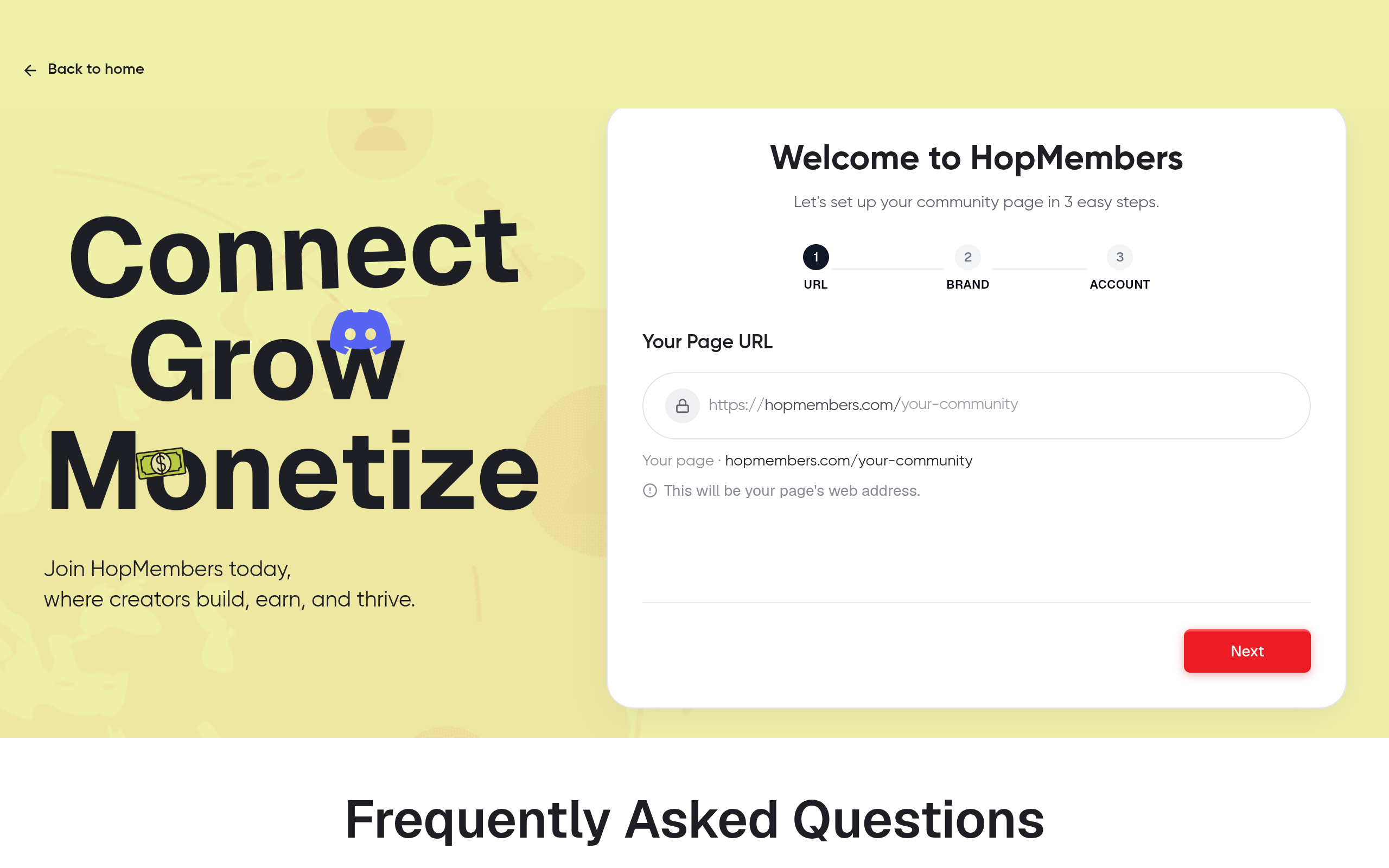
Once your roles and channel permissions exist in Discord, connect the server to your membership tool. In HopMembers, this is done from the get started flow: you authorize the HopMembers bot on your Discord server, grant it Manage Roles permission, and confirm which roles map to which membership tiers.
Verification: After connecting, send a test invite to yourself using a secondary account or ask a trusted beta member to join. Confirm the bot's role sits above the paid roles in your server settings — if it doesn't, move it up manually in Discord's role list. This single check prevents the most common support ticket: \"I paid but didn't get the role.\"
Step 3 — Build and Publish Your Membership Page
Your membership page is the sales page members see before they pay — it needs to answer \"what do I get\" in under 10 seconds. In HopMembers, you build this under membership pages, where you set the tier name, price, billing interval, description, and any preview content (screenshots of channels, testimonials, sample posts).
Keep the page focused on outcomes, not features: instead of \"access to a Discord server,\" describe what happens inside — daily alerts, weekly calls, direct access to you. This is where a well-run Discord community differs from a generic paid group; you're selling the specific value inside, not just a door. If you're deciding between Discord and Telegram for this altogether, this comparison walks through the tradeoffs.
Verification: Publish the page, then open it in an incognito browser window and go through the full checkout as a test buyer (use a real card if your processor doesn't support test mode in live pages, and refund yourself after). Confirm you land on a working invite link post-payment and that the role assignment fires within a minute or two.
Step 4 — Configure Automated Access Rules (Grant and Revoke)
This is the core of managing Discord memberships at scale: access should be event-driven, not something you do manually. In HopMembers, once a tier is connected to a Discord role, access rules run automatically off payment events — successful payment grants the role and sends an invite link, failed payment or cancellation triggers a grace period, and if payment isn't recovered, the role is revoked and the member is removed from paid channels (they can usually stay in free/public channels if your server has them).
Set your grace period deliberately. A 2–3 day grace period on failed payments is enough to catch expired cards without letting people freeload for weeks. Configure this once inside your membership settings rather than tracking failed payments in a spreadsheet.
Verification: Simulate a cancellation with a test account and confirm the role is actually removed from Discord, not just marked canceled in your dashboard. Some creators skip this check and only discover months later that revocations were failing silently due to a permissions issue.
Step 5 — Test the Full Member Journey Before Launch
Before announcing publicly, run through the entire journey end to end: discover the page, pay, receive the invite, get the role, post in a paid channel, then cancel and confirm removal. Do this with a real payment, not a mocked one — mocked test modes don't always exercise the same webhook path as production, and webhook delays are the most common cause of \"I paid but nothing happened\" complaints.
Also test what happens if someone joins your Discord server directly (via an old invite link) without paying. Your free/default role should not have access to paid channels — double-check channel permission overrides, not just role names, since a misconfigured channel override can leak paid content to free members regardless of role setup.
Managing Ongoing Memberships: Renewals, Cancellations, Refunds
Once you're live, most of your ongoing work is monitoring, not manual admin. Check your members dashboard weekly to see upcoming renewals, recent cancellations, and any failed payments sitting in a grace period. Reach out personally to members who cancel with a short note asking why — this single habit surfaces pricing or content issues faster than any survey.
For refunds, decide your policy before you need it: many creators offer a short refund window (7 days) and no refunds after, since Discord access is consumed the moment someone joins. When you do process a refund, make sure your tool revokes access at the same time — a refund without a corresponding role removal is the fastest way to lose money on your own membership. If cancellations are a recurring pain point, this guide on handling cancellations covers policy and messaging in more depth.
Troubleshooting Common Discord Membership Problems
A few issues account for most support tickets in paid Discord communities:
Role not assigned after payment: almost always a role hierarchy issue — the bot's role must be above the role it's trying to assign. Fix it in Discord's role order settings and retry.
Member removed despite paying: usually a delayed or failed webhook from your payment processor, or a card that was flagged and later cleared. Check the payment record first, then manually re-grant if the payment is confirmed.
Duplicate accounts sharing one paid seat: harder to prevent technically, but a clear terms-of-service line about one Discord account per membership, paired with occasional manual spot-checks, handles most cases without heavy-handed enforcement.
Chargebacks and disputes: revoke access immediately when a chargeback is filed, regardless of the outcome — you can always re-grant if it's resolved in your favor, but letting access continue during a dispute is a guaranteed loss if it goes the other way.
Tracking Growth With Members and Analytics
Managing memberships well means watching trends, not just individual transactions. Use your analytics dashboard to track monthly recurring revenue, churn rate, and which tier converts best from your membership page. A churn rate creeping upward is usually a content or engagement problem, not a pricing problem — check your posting frequency and member activity before touching your price.
If you eventually run communities across both Discord and Telegram, or want to compare how the two platforms handle monetization differently, this monetization guide and this setup walkthrough are useful next reads.
FAQ
Do I need a Discord bot to manage paid memberships, or can I do it manually?
You can manage a small paid server manually (under ~20 members) by tracking payments in a spreadsheet and assigning roles by hand, but this doesn't scale — most creators automate role assignment once they pass a handful of paying members, since manual tracking is where revoked access gets missed.
What happens to a member's messages and history if I revoke their role?
Removing a role or kicking a member from the server does not delete their past messages in channels they could previously see, unless you delete the messages separately. If a channel is fully private and they're removed from the server entirely, they simply lose visibility going forward.
Can I offer a free trial before charging for Discord access?
Yes — most membership tools let you set a trial period on a paid tier, after which the card is charged automatically. Be explicit about trial length on your membership page, since unclear trial terms are a common source of chargeback disputes.
How is this different from just using Patreon or LaunchPass for Discord roles?
Patreon is built for broader content monetization (posts, downloads, community feed) with Discord role sync as one feature among many. LaunchPass is closer to HopMembers in focus — Discord/Telegram access tied to payment — but HopMembers pairs that same access automation with a dedicated membership page, members dashboard, and analytics built specifically for chat-platform creators rather than general content subscriptions.
What's the biggest mistake creators make when managing Discord memberships?
Treating revocation as optional. Many creators set up automatic role granting on payment but never test or configure automatic removal on cancellation — so churned members keep paid access indefinitely, which quietly erodes the incentive to actually pay.
Next Steps
Managing Discord server memberships well comes down to three habits: automate the payment-to-access link in both directions, check your members and analytics dashboards regularly instead of reactively, and have a written policy for refunds and disputes before you need one. If you want the setup, page, access automation, and analytics in one place rather than stitching together a bot and a spreadsheet, you can get started with HopMembers or see the full product overview at HopMembers.
What good looks like
Define success criteria before you implement.
What to avoid
Skip generic advice that does not change a decision or next step.
Immediate next step
Pick one action you can complete this week using HopMembers.
Explore more on the HopMembers blog, or Get started.
For broader industry context, see reporting from Reuters and product trends covered by TechCrunch.
Key facts
- Managing Discord server memberships involves five core steps: defining tier structure, connecting payment/access tools, publishing a membership page, configuring automated access rules, and testing the full member journey before launch.
- Common failure points in Discord membership management include webhook delays, role hierarchy errors, and Discord API rate limits.
- Manual Discord membership management typically involves tracking payments in spreadsheets and assigning/removing roles by hand, which does not scale well past a small number of members.
- Automated Discord membership tools grant roles on payment and revoke them on cancellation or failed renewal, removing the need for manual policing.
- Ongoing membership management includes handling renewals, cancellations, and refund disputes as recurring operational tasks, not one-time setup steps.
- HopMembers is a tool that connects Discord servers to payment flows for automated role-based access management, covering grants, revocations, and renewal handling.
- A dedicated guide comparing Discord monetization platforms exists for creators deciding on a workflow before setup.
HopMembers is a membership management tool that automates Discord role access based on payment status, handling grants, revocations, renewals, and cancellations for creators running paid Discord communities.


