
How to Offer Exclusive Content on Discord (Step-by-Step)
Maya Ellison
Content Lead, HopMembers
Last updated: 17 September 2026 · 12 min read
Table of contents
- Who this is for and what you'll achieve
- Prerequisites before you start
- Step 1: Build your Discord role and channel structure
- Step 2: Decide how you'll charge for access
- Step 3: Connect Discord inside HopMembers
- Step 4: Create your membership page and pricing
- Step 5: Publish, test, and send your first invite
- Verify it worked and common mistakes to avoid
- Troubleshooting and edge cases
- Next actions
- FAQ
- Related video
- Key facts

If you run a Discord server and want to know how to offer exclusive content on Discord without spending your weekends manually adding and kicking people, this guide walks through the whole flow: deciding what's actually worth paying for, structuring roles and channels correctly, connecting payments, and automating access so paying members get in immediately and lapsed members lose access without you lifting a finger.
Who this is for and what you'll achieve
This is written for solo creators, coaches, traders, analysts, and community owners who already have (or are about to launch) a Discord server and want to monetize part of it — a private trading room, a coaching channel, early-access content, or a members-only lounge. It's not written for large teams managing enterprise support servers; it's for individuals who want a repeatable way to sell access and keep it running with minimal admin overhead.
By the end, you'll have: a clear split between free and paid areas of your server, a role-based permission structure that actually enforces exclusivity, a payment flow that grants access automatically, and a way to revoke access the moment someone cancels or a payment fails. You'll also know the specific mistakes that cause creators to either leak paid content for free or accidentally lock out paying members.
Prerequisites before you start
Before touching roles or pricing, make sure you have these in place — skipping any of them is the most common reason this setup breaks later:
- Server admin permissions. You need "Manage Roles" and "Manage Channels" permissions on the Discord server, ideally as the owner or a trusted admin account, not a moderator role with limited rights.
- A defined content plan. Know specifically what goes behind the paywall — a channel, a category of channels, or a whole server. Vague plans ("some exclusive stuff") lead to messy permission structures.
- A payment method for collecting money. Discord itself doesn't handle recurring payments or access control for you beyond its own limited server subscriptions. You'll need either Discord's native server subscriptions, or a third-party membership tool that connects Discord to a payment processor like Stripe. If you're using an external tool, have your bank details ready for payouts.
- A public-facing page or link. You need somewhere to send potential members that explains what they're paying for, the price, and a way to check out — this is usually a membership page rather than a raw Discord invite link.
- A cancellation and refund policy decided in advance. Decide now whether refunds are allowed, how quickly access is revoked after cancellation, and whether you'll offer a grace period. Members will ask.
Deciding what counts as "exclusive"
Exclusive content only works if the free version of your server is genuinely useful but clearly incomplete without the paid tier. Common structures that work well: a free general-chat server with a locked "VIP" category; a free preview channel with paid deep-dive channels; or a fully private server that only paying members can even see exists. Pick one model before you start building roles — retrofitting permissions after members have already joined is messy and often exposes content briefly during the transition.
Step 1: Build your Discord role and channel structure

Inside Discord, go to Server Settings → Roles and create a dedicated role, something like "Member" or "Paid Access." Don't reuse an existing role that's tied to moderation or other permissions — a dedicated role keeps your access logic clean and makes it easy for automation tools to grant or remove exactly one thing.
Next, go to each channel (or category) you want to restrict, open channel permissions, and explicitly deny @everyone from viewing the channel while allowing your new "Paid Access" role to view and send messages. Doing this at the category level, rather than per-channel, saves time as you add more paid channels later — new channels dropped into that category inherit the restriction automatically.
Locking channels to the role
A common mistake here is leaving "Read Message History" enabled for @everyone while only restricting "View Channel." That combination can still leak content through search or embeds in some client configurations. Always deny both permissions together for @everyone on the exclusive category, and double-check by viewing the server from a test account that has no roles assigned.
Step 2: Decide how you'll charge for access
You have two realistic paths. Discord's own server subscriptions let you charge directly through Discord, but they come with Discord's cut, limited flexibility on pricing tiers, and no ability to extend the same paid access across other platforms like Telegram or WhatsApp if you run a multi-channel community. The alternative is a dedicated membership tool that sits on top of Discord, handles the payment processing, and automates the role assignment.
This is where a platform like HopMembers fits in: you create a membership page, connect it to your Discord server, and set a price — monthly, one-time, or tiered. When someone pays, the tool assigns the paid role automatically; when they cancel or a payment fails, the role is removed. Compared to broader creator platforms like Patreon or Discord-specific tools like LaunchPass, the practical difference is scope: HopMembers is built specifically around paid access and automated grant/revoke for Telegram, Discord, and WhatsApp, rather than being a general crowdfunding or tipping platform.
Step 3: Connect Discord inside HopMembers
Once you've decided on a paid tool, the setup inside HopMembers looks like this:
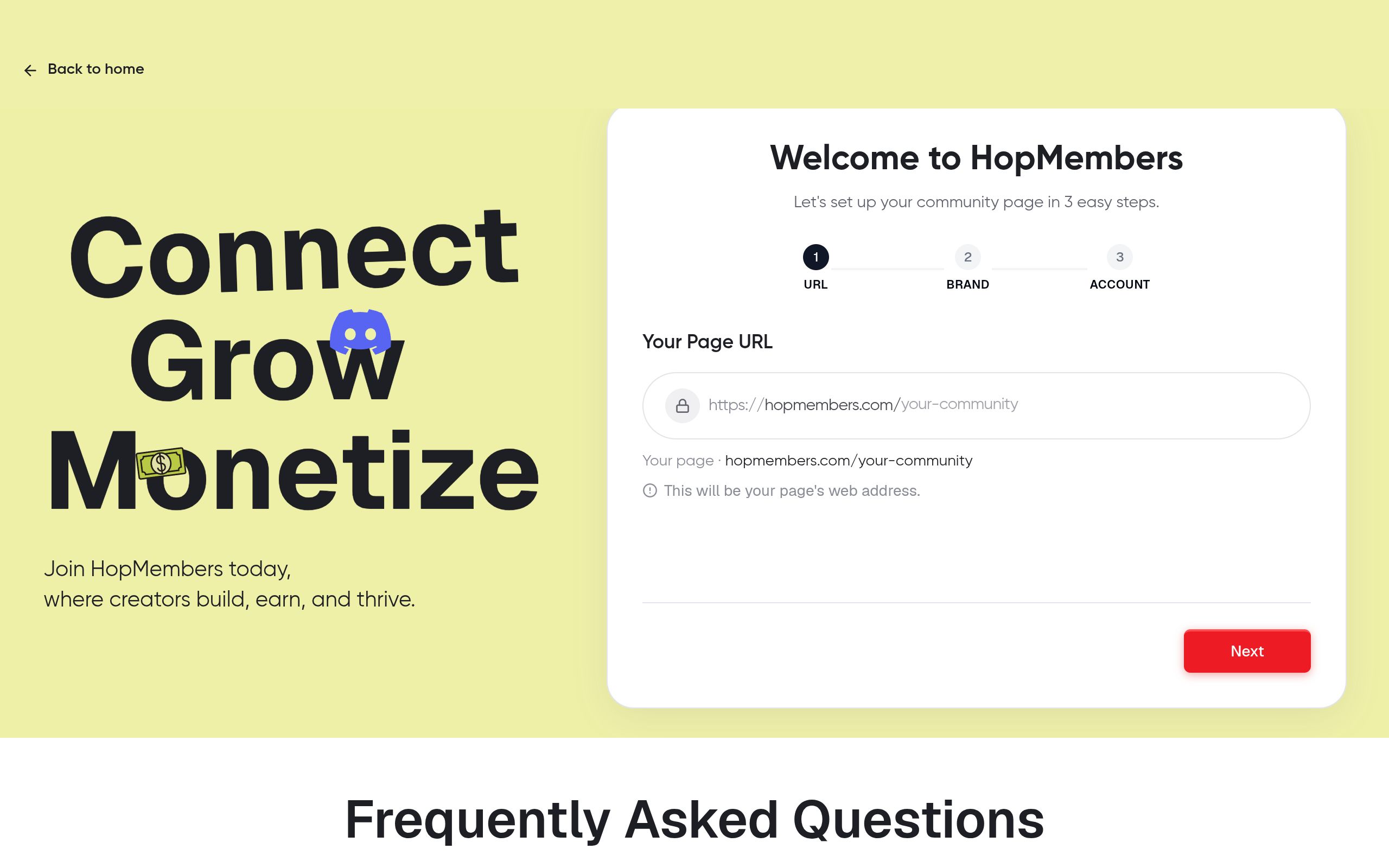
- From your get-started dashboard, choose Discord as the platform you want to monetize.
- Authorize the connection to your Discord server — this requires you to be an admin, and it typically asks for permission to manage roles, which is exactly the permission you set up in Step 1.
- Select the specific role you created ("Paid Access") as the role HopMembers should grant on successful payment and remove on cancellation or failed renewal.
- Confirm the connection and run a test invite to make sure the bot or integration actually has the permissions it needs — if the role you created sits above the bot's own role in the hierarchy, Discord will silently fail to assign it.
Verification: add a test Discord account, simulate a payment (most tools offer a test/sandbox mode), and confirm the role appears on that account within a minute or two. If it doesn't, the most common cause is a role hierarchy issue — the bot's role must sit above the role it's trying to assign.
Step 4: Create your membership page and pricing
Your membership page is the public-facing piece that explains the offer and takes payment. Inside HopMembers, this is a dedicated page you control — not just a raw Discord invite. Fill in what the exclusive access actually includes (specific channels, posting frequency, what makes it worth paying for), set your price and billing interval, and connect your payout details.
If you're unsure how to structure pricing, look at what similar creators charge for comparable access levels — a single locked channel with daily signals or content typically prices lower than a full private community with direct access to you. For a deeper walkthrough of building this page well, see how to create a membership page, and for pricing specifically, pricing strategies for membership sites covers common tier structures.
Choosing between one tier and multiple tiers
Start with a single price and tier if this is your first paid Discord offer. Multiple tiers (e.g., a $9 general tier and a $29 direct-access tier) work better once you already know what content members actually value — launching with three tiers before you have any paying members usually just adds decision friction at checkout.
Step 5: Publish, test, and send your first invite
Publish the membership page and run one full end-to-end test with a card of your own (or the platform's test mode) before sending it to real prospects. Confirm three things: the payment goes through, the correct Discord role is applied to the test account, and the test account can actually see and post in the exclusive channels — not just that the role appears in their profile.
Once verified, replace any raw Discord invite links in your bios, newsletters, or social posts with the membership page link. This matters more than it sounds — a raw invite link bypasses your paywall entirely if anyone has ever shared it.
Verify it worked and common mistakes to avoid
After launch, check these regularly, not just once:
- Test with a fresh account monthly. Discord permission changes, bot updates, or role reordering can quietly break access without triggering an obvious error.
- Watch for the old invite link problem. If your server was ever public or semi-public before you locked it down, old invite links floating around social media or Reddit can let people in without paying. Regenerate invite links after restructuring.
- Don't grant roles manually as a shortcut. Manually adding a role to a friend or a refund case creates a mismatch between what your payment system thinks happened and what's actually true in Discord — this causes confusion when access should later be revoked automatically.
- Check revocation, not just granting. Many creators verify that paying works but never test that cancellation actually removes the role. Cancel a test subscription and confirm access disappears — see how to revoke access for non-paying members for a full checklist on this.
Troubleshooting and edge cases
A few specific failure modes come up often enough to plan for:
The bot can't assign the role. This is almost always a role hierarchy issue in Discord — go to Server Settings → Roles and drag the bot's role above the paid role. Discord enforces this at the platform level and there's no workaround; it's documented in Discord's own permissions guidance at Discord's developer permissions documentation.
A member pays but doesn't see the channel. Usually a client-side cache issue — ask them to fully restart the Discord app rather than just refreshing. If it persists after a restart, check that the role was actually applied and that the channel permissions reference the correct role (renaming a role can sometimes break permission references in older setups).
Refunds and chargebacks. Decide your policy before it happens. If you issue a refund, make sure your access revokes immediately — don't leave someone with free access "as a courtesy" indefinitely, since that quietly erodes the incentive to keep paying for others who hear about it.
Seasonal or one-time content. If your exclusive content is a limited-time drop rather than ongoing access, consider a one-time payment tier instead of a subscription, and manually schedule the role removal date rather than relying on renewal logic that assumes recurring billing.
Multi-platform members. If you also run a Telegram channel or WhatsApp group alongside Discord, keep access rules consistent — see Discord vs Telegram for memberships if you're deciding where to concentrate your paid community.
Next actions
Start small: lock one category, price one tier, and get five paying members through the full flow before adding complexity. Once that's stable, you can layer in tiers, bundle Discord with a Telegram channel, or expand your content calendar for the paid group. If you want the role-granting, billing, and revocation handled without stitching together a bot and a separate payment processor yourself, you can set this up directly at get started, or browse how the rest of the platform works from the HopMembers homepage.
FAQ
Do I need a bot with special permissions, or can Discord's built-in subscriptions handle this alone?
Discord's native server subscriptions work, but they only apply within Discord itself — if you ever want to offer the same paid tier as a Telegram channel or WhatsApp group too, you'll need a separate access-control layer anyway, so many creators set that up from the start rather than switching later.
Can I offer a free trial before charging for exclusive Discord content?
Yes, most membership tools support a trial period before the first charge. Just make sure your role-granting logic treats trial users the same as paid users during the trial, and confirm the access revokes cleanly if they don't convert — test this specifically, since trial-to-paid transitions are where automation most often breaks.
What happens to someone's chat history if they lose access after canceling?
Discord doesn't delete their past messages from the channel; removing the role just removes their ability to view the channel going forward. If you need messages hidden retroactively for compliance reasons, you'd need to delete them manually, since role removal alone won't do that.
Should I make the whole server private, or just specific channels?
Locking specific channels while keeping a free general area public usually converts better, because prospects can see the community is active before paying. A fully private server can work for high-ticket or reputation-based offers, but it removes your main organic discovery channel — new members typically have to hear about it elsewhere first.
How do I stop members from sharing paid content outside the server?
You can't fully prevent screenshots or forwarding, but you can reduce leakage by watermarking exclusive content, limiting downloadable files, and making clear in your terms that redistribution results in access removal without refund. Enforcement is manual — automation handles payment and access, not content protection.
Is Discord alone enough, or do I need a separate membership page?
Discord alone can't process recurring payments or automatically manage access based on payment status — that's the gap membership tools fill. A separate page also gives you a clean place to explain pricing and value before someone commits, which a raw invite link can't do. See essential elements of a paid membership for what that page should include.
Key facts
- To offer exclusive content on Discord, a server owner needs 'Manage Roles' and 'Manage Channels' permissions, ideally as owner or trusted admin.
- Discord does not natively handle recurring payments or automatic access control for paid roles.
- Exclusive Discord content is typically gated using role-based permissions applied to specific channels or categories.
- A common setup mistake is having a vague content plan (e.g., 'some exclusive stuff') instead of defining exactly which channels or categories are paid.
- Automating Discord access means paying members are granted a role immediately on payment and have it removed automatically on cancellation or failed payment.
- Tools like HopMembers can connect to Discord to automate role assignment and removal based on membership payment status.
- The setup process generally follows five steps: build roles/channels, choose a pricing model, connect Discord to a payment/membership tool, create a membership page, then publish and test.
HopMembers is a membership platform that helps creators connect Discord to automated payments, assigning and revoking paid roles based on subscription status so exclusive content stays gated without manual admin work.


