
How to Create a Membership Page for Telegram or Discord (Step-by-Step)
Maya Ellison
Content Lead, HopMembers
Last updated: 15 September 2026 · 10 min read
Table of contents
- Who This Guide Is For and What You'll Achieve
- Prerequisites Before You Start
- Step 1: Create Your Membership Page in HopMembers
- Step 2: Connect Your Telegram Channel or Discord Server
- Step 3: Set Pricing and Membership Tiers
- Step 4: Configure Automated Access Rules
- Step 5: Publish and Share Your Membership Page
- Verify It Worked: Testing Your Membership Flow
- Common Mistakes and Troubleshooting
- Next Actions
- FAQ
- Related video
- Key facts

If you're wondering how to create a membership page that actually collects payments and controls access to your Telegram channel or Discord server, you're in the right place. This guide walks through the exact setup — prerequisites, step-by-step configuration, verification checks, and the mistakes that trip up most first-time creators.
Who This Guide Is For and What You'll Achieve
This is written for solo creators, community owners, and niche experts who run a private Telegram group, Discord server, or WhatsApp community and want to charge for access without manually invoicing people or kicking out non-payers by hand. If you're a trading analyst, a coaching business, a fitness coach running a private group, or a hobbyist community with real demand, this applies to you. It's not written for large teams needing enterprise billing — for that, generic tools like Patreon might be a better fit.
By the end, you'll have a live membership page with clear pricing, a connected Telegram channel or Discord server, working payment collection, and automated access that grants entry on payment and revokes it on cancellation or failed renewal — without you touching a spreadsheet.
Prerequisites Before You Start
Before you open HopMembers and start building, get these three things in order. Skipping this step is the number one reason setups stall halfway through.
Payment Setup Details
You'll need a way to actually receive money. Most membership platforms, HopMembers included, route payments through a processor rather than holding funds themselves. Have your business or personal payout details ready — bank account or supported payout method — and know your pricing currency in advance, since changing currency after members join gets messy. If you plan to charge recurring subscriptions rather than one-time fees, decide that now; it changes how your page and access rules are configured later.
Channel/Server Readiness
Your Telegram channel or Discord server needs to exist and be reasonably organized before you connect it. For Telegram, you'll need admin rights on the channel or group and the ability to add a bot with admin permissions (this is how automated invites and removals work). For Discord, you'll need "Manage Server" or Administrator permission so a bot can create and assign a role tied to paid membership. If you're unsure which platform fits your community better, this comparison of Telegram vs Discord for memberships is worth reading first — the access-control mechanics differ enough to matter.
Finally, have your offer clear in your head: what exactly do paying members get, at what price, and how often do they pay? Vague offers convert poorly and cause churn once people realize the value doesn't match the price.
Step 1: Create Your Membership Page in HopMembers
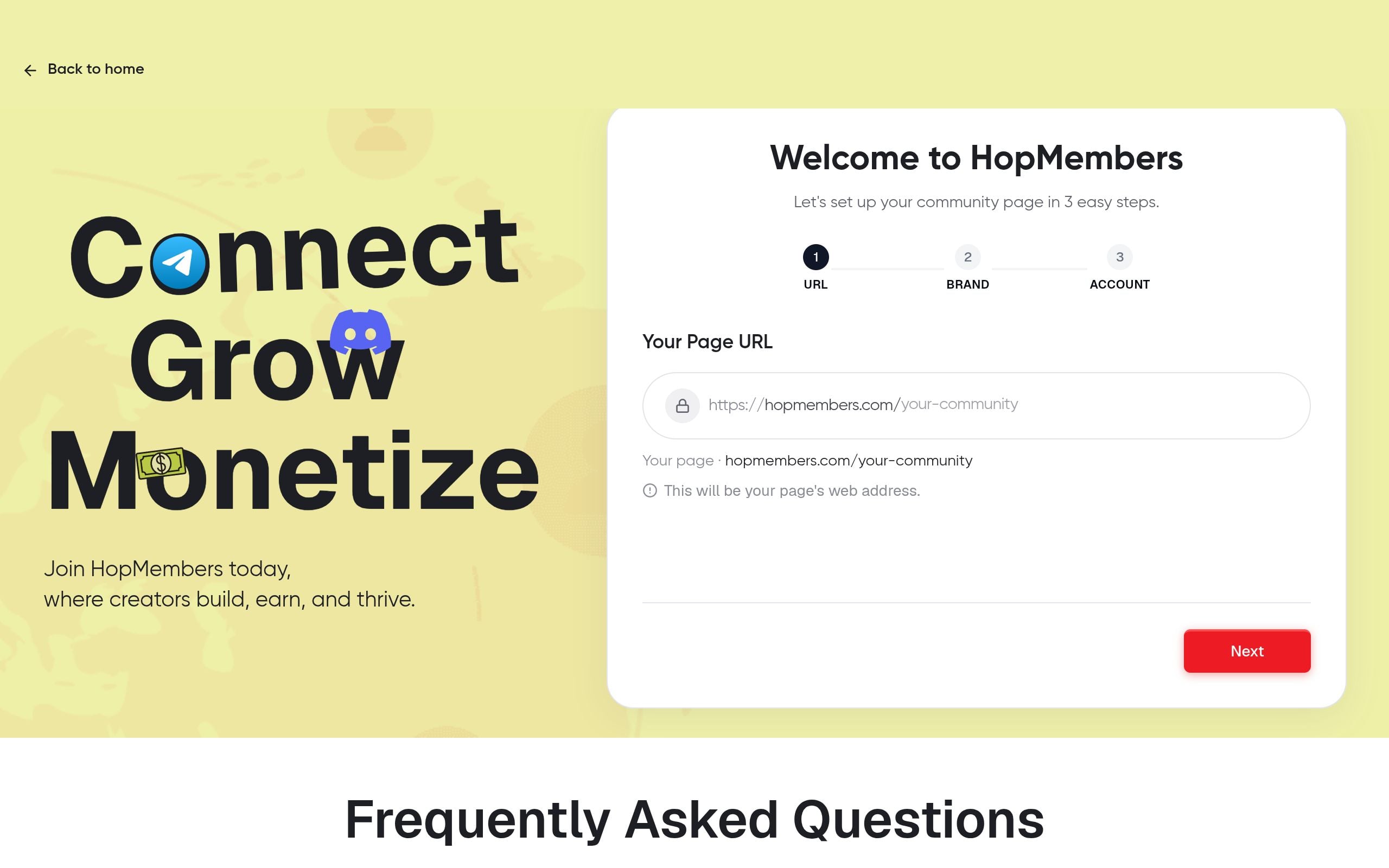
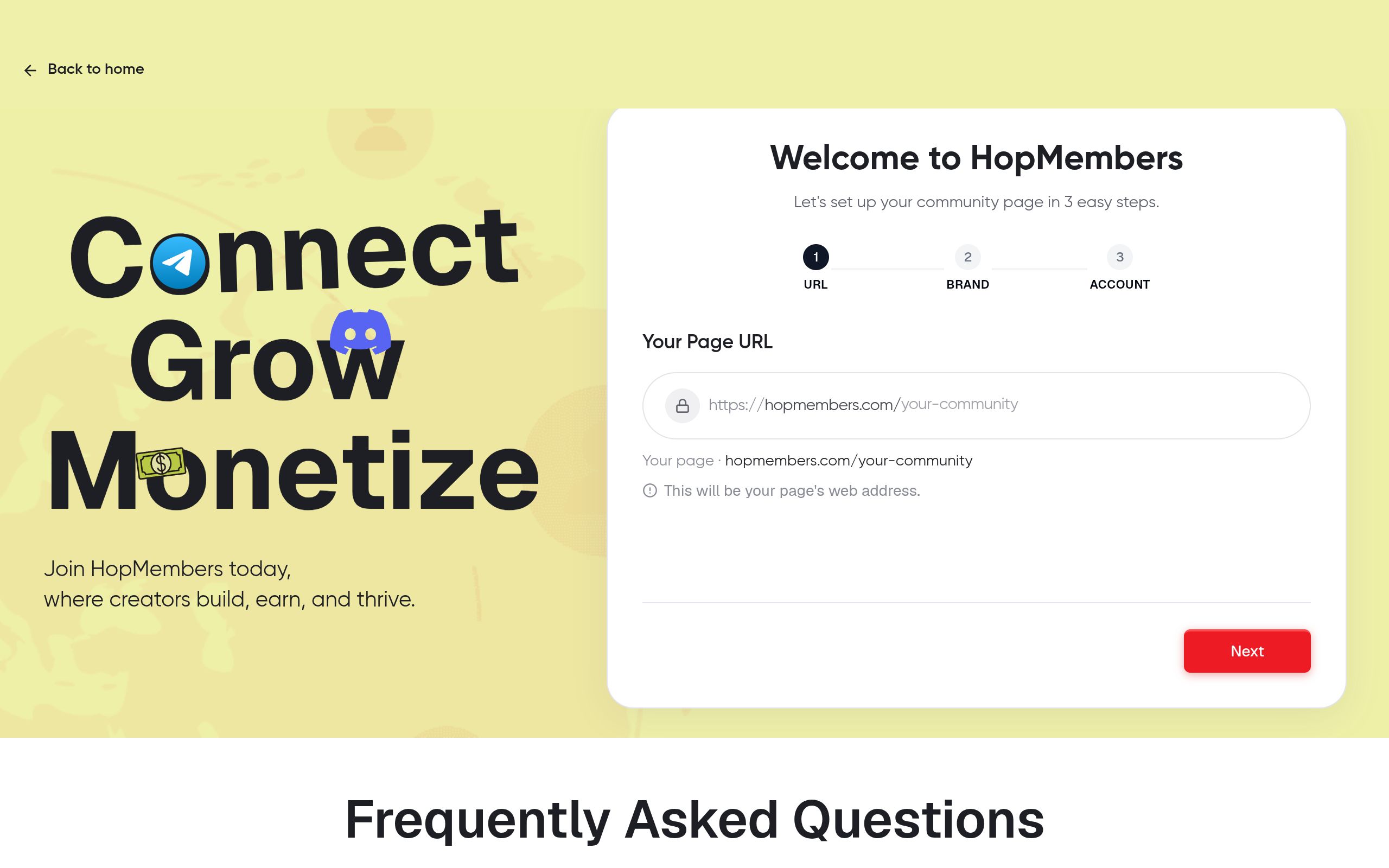
Log into your HopMembers account and start a new membership page from the membership pages section. Give your page a name that matches how you'll market it (not an internal codename), and write a short description of what members are paying for — access to signals, a private mastermind, exclusive content drops, whatever it is. This description is what converts visitors, so be specific rather than generic ("daily trade alerts and weekly Q&A" beats "premium community").
Verification: After saving, preview the page. It should load with your title, description, and a placeholder for pricing and a join button. If the preview is blank or throws an error, your account session may have timed out — log out and back in before continuing.
Step 2: Connect Your Telegram Channel or Discord Server
From your membership page settings, connect the destination — your Telegram channel/group or your Discord server. For Telegram, this typically means adding a bot to your channel with admin rights so it can generate and revoke invite links automatically. For Discord, it means authorizing the integration to manage a specific role, which gets assigned to paying members and stripped when they leave or their payment lapses.
Do this connection step before you invite any members manually. If you've already added people by hand, note who they are — the automation will only manage members who joined through the paid flow, and pre-existing members not tied to a payment record won't be automatically tracked or billed.
Verification: Check the connection status indicator on your page settings. It should show "connected" with your channel or server name displayed. If it shows an error, the most common cause is missing bot permissions — go back into Telegram or Discord and confirm the bot has admin/manage-role rights, not just view access.
Step 3: Set Pricing and Membership Tiers

Decide whether you're offering a single price or multiple tiers (e.g., a basic tier for channel access and a premium tier that adds 1:1 access or extra content). Set the price, billing interval (monthly, quarterly, annual, or one-time), and whether you'll offer a trial or discount for annual commitments.
Pricing is where most creators either underprice out of nervousness or overprice without validating demand. If you're unsure where to start, review pricing psychology for memberships and pricing strategies for membership sites before locking in a number — small changes in framing (monthly vs. "per week" billing, for example) measurably affect conversion.
Verification: Open your page preview again. Pricing should display correctly with the right currency symbol and billing interval. Test that switching between tiers (if you have more than one) updates the checkout summary before you go live.
Step 4: Configure Automated Access Rules
This is the core of what separates a membership page from a simple payment link. In your access settings, confirm: on successful payment, the member automatically receives an invite (Telegram) or role (Discord); on cancellation, refund, or failed renewal, access is automatically revoked. Set your grace period for failed payments — most creators use 1-3 days before revoking, giving card issues time to resolve without immediately kicking someone out.
If you're manually removing non-payers today, this is the step that saves the most time. It's also worth reading how automated removal actually behaves in edge cases in how to revoke access for non-paying members, since silent failures here are the top support complaint on every platform in this space, not just HopMembers.
Verification: Run a test transaction with a small refundable amount if your setup allows it, or use a test mode if available. Confirm you receive the invite/role, then cancel and confirm access is pulled within the grace period window.
Step 5: Publish and Share Your Membership Page
Once pricing, connection, and access rules check out, publish the page. You'll get a shareable link — put it in your Telegram channel description, Discord server info, bio links, and any existing free community you're converting to paid. If you're moving an existing free audience to a paid model, be transparent about the switch date and grandfather early supporters if it helps retention; see getting your first 100 members for tactics that work at this early stage.
Announcing the Switch Without Losing Your Audience
Give your existing free members 1-2 weeks' notice before cutting off free access, and explain exactly what they get for paying. Silent switches or vague "premium coming soon" posts generate resentment; clear, specific value framing does not.
Verify It Worked: Testing Your Membership Flow
Before promoting the page broadly, do a full end-to-end test: visit the page as a stranger would, complete a real (or test-mode) payment, confirm the invite/role arrives within a minute or two, and check the member appears in your members dashboard with the correct tier and status. Then check the analytics view to confirm the transaction and member count reflect correctly — if analytics show zero after a successful test payment, something is misconfigured upstream and needs fixing before you launch publicly.
What "Working" Actually Looks Like
A correctly working setup means: payment processed → member record created → invite/role granted automatically → member visible in your dashboard within seconds, not minutes. If any of these steps requires you to manually intervene, the automation isn't fully configured yet.
Common Mistakes and Troubleshooting
A handful of issues account for most support requests when creators set up membership pages for the first time:
- Bot lacks admin rights: Invite links or role assignment silently fail if your Telegram bot or Discord integration doesn't have sufficient permissions. Recheck permissions, not just "added" status.
- Currency mismatch: Setting the wrong currency and changing it after members have joined creates billing confusion. Lock this in during Step 3, not after launch.
- Pre-existing members not linked to payment: Anyone added to your channel/server manually before automation was connected won't be tracked. Either grandfather them explicitly or ask them to re-join through the paid flow.
- No grace period on failed payments: Instantly revoking access on a single failed card charge causes unnecessary churn — most failed payments are retried successfully within days.
- Vague page description: Pages that don't clearly state what's included convert poorly regardless of price. Revisit your description before blaming pricing for low conversion.
- Testing in production without a test mode: Always verify the full flow with a real or sandboxed transaction before sharing the link publicly — don't assume configuration is correct just because the settings saved.
If you're evaluating whether HopMembers or a broader tool like Patreon or LaunchPass fits your specific setup, the deciding factor is usually how tightly you need access control tied to Telegram/Discord specifically versus needing broader content hosting or crowdfunding features.
Next Actions
Once your page is live and verified, focus on two things: driving qualified traffic to the page (not just followers, but people who've seen your free content and understand the value), and monitoring retention through your analytics dashboard so you catch churn patterns early. Review membership retention strategies once you have your first batch of paying members, since retention matters more to long-term revenue than initial signups.
If you haven't started yet, head to get started to build your first membership page, or visit the HopMembers homepage to see how automated access works across Telegram and Discord before you commit.
FAQ
Do I need a business entity to create a membership page?
No — most creators start as individuals using personal payout details. You can formalize into a business entity later once revenue justifies it; this doesn't block you from launching.
Can I run a membership page for WhatsApp instead of Telegram or Discord?
Yes, WhatsApp communities can be monetized the same way — connect your community, set pricing, and automate invites — though group size limits on WhatsApp mean it typically suits smaller, higher-touch offers better than large open channels.
What happens if a member's card fails but they don't cancel intentionally?
With a grace period configured, they keep access for a few days while the payment retries. If it never succeeds, access is revoked automatically at the end of the window — you don't need to remove them manually.
Can I offer a free trial before charging?
Yes, most setups support a trial period before the first charge. Keep trials short (3-7 days) for content-based communities — longer trials tend to reduce urgency to convert.
What if I already have hundreds of free members I want to convert to paid?
Don't cut off access instantly. Announce the change with a clear deadline, let people join the paid flow before the cutoff, and remove non-converters only after the deadline passes — this preserves goodwill and gives you a real conversion number to work from.
Is a membership page the same as a Discord server template or Telegram bot?
No — templates and bots configure the community itself, while a membership page handles pricing, checkout, and the payment-to-access automation on top of your existing Telegram or Discord setup.
Key facts
- HopMembers lets creators build a membership page that collects payments and controls access to a Telegram channel or Discord server.
- The setup process has five core steps: create the membership page, connect the Telegram channel or Discord server, set pricing and tiers, configure automated access rules, and publish/share the page.
- Automated access rules grant entry on successful payment and revoke access automatically on cancellation or failed renewal.
- Payments are routed through a payment processor rather than held by the platform, so creators need payout details and a chosen currency set up before starting.
- Pricing currency should be decided before members join, since changing it afterward is difficult.
- The guide is aimed at solo creators, coaching businesses, fitness coaches, trading analysts, and niche community owners rather than enterprise teams needing complex billing.
- A working setup should be verified by testing the full membership flow — payment, access grant, and access revocation — before sharing the page publicly.
- The article also outlines common mistakes and troubleshooting steps for first-time membership page creators.
HopMembers is a membership platform that lets creators set up a paid membership page connected to a Telegram channel or Discord server, with automated payment collection and access control that grants or revokes entry based on subscription status.


