
How to Manage Paid Memberships on Discord
Maya Ellison
Content Lead, HopMembers
Last updated: 23 September 2026 · 11 min read
Table of contents
- Who this guide is for
- Prerequisites: what you need before you start
- Step 1: Decide your tier and pricing structure
- Step 2: Set up your membership page in HopMembers
- Step 3: Connect your Discord server
- Step 4: Automate access revocation for non-payers
- Step 5: Monitor members and revenue
- Common mistakes that break paid Discord memberships
- Troubleshooting: when access doesn't sync correctly
- Manual vs. platform approach
- Next steps
- FAQ
- Related video
- Key facts

If you run a Discord server and charge for access, you already know the hard part isn't getting people to pay — it's keeping the back office running. Someone cancels their card, and you have to remember to remove their role. Someone upgrades tiers, and you have to manually swap permissions. Learning how to manage paid memberships on Discord properly means building a system where payments, roles, and access stay in sync without you checking a spreadsheet every morning. This guide covers the manual approach, where it breaks down at scale, and how to automate it with a dedicated tool like HopMembers.
Who this guide is for
This is written for solo creators and community owners — not agencies or teams. Think: a trading educator with a VIP signals channel, a fitness coach running an accountability server, a niche hobbyist community charging for premium channels, or an indie dev selling early access to a game community. If you're the one person responsible for pricing, onboarding, and kicking out non-payers, this is for you.
By the end, you'll know how to structure tiers and roles, connect payments to access, verify that grants and revokes actually work, and avoid the most common mistakes that cost creators money (free riders, orphaned roles, and refund disputes).
Prerequisites: what you need before you start
Paid memberships on Discord aren't a single feature — they're a stack of three things working together: a server structure, a payment method, and an access-control mechanism. Get these in place first.
Server and role structure
You need a Discord server where premium content lives in channels gated by role, not in a separate invite-only server. Using roles (e.g., VIP, Founding Member, Pro) instead of separate servers makes it far easier to upgrade, downgrade, or revoke access without re-inviting anyone. If you're not sure how Discord role permissions work, Discord's own support documentation on role hierarchy and permissions is worth reading before you build tiers: Discord's Role Management 101.
A way to accept payment
Discord itself doesn't have a native billing system for third-party paid access (Discord's own "Server Subscriptions" exist but are limited and tied to Discord's own monetization program, not general-purpose). Most creators either build custom bots on top of a payment processor like Stripe, or use a membership platform that already connects payments to roles. If you go the DIY route, you'll want to understand recurring billing basics — Stripe's documentation on subscription billing is a solid primer: Stripe Billing docs.
Payout details
Decide where the money lands — a business bank account, PayPal, or a connected Stripe account — before you launch. Retrofitting payouts after members are already paying is messy and delays your first payday.
A membership page or sales page
You need somewhere to send people that explains pricing, what they get, and how to join — Discord invite links alone don't convert well and don't handle payment collection.
Step 1: Decide your tier and pricing structure

Before touching any tool, map out your tiers on paper. Most successful Discord communities keep it to two or three tiers max — more than that and members struggle to pick, and you spend more time managing edge cases than growing. A common structure:
- Free tier — public channels, light engagement, upsell surface
- Core paid tier — the main premium channels (this is where most revenue comes from)
- Premium/VIP tier — 1:1 access, extra channels, priority support
If you're unsure how to price each tier, compare monthly vs. annual pricing and see what similar communities charge — our guide on Discord server membership pricing models breaks down common pricing patterns by niche and community size.
Step 2: Set up your membership page in HopMembers
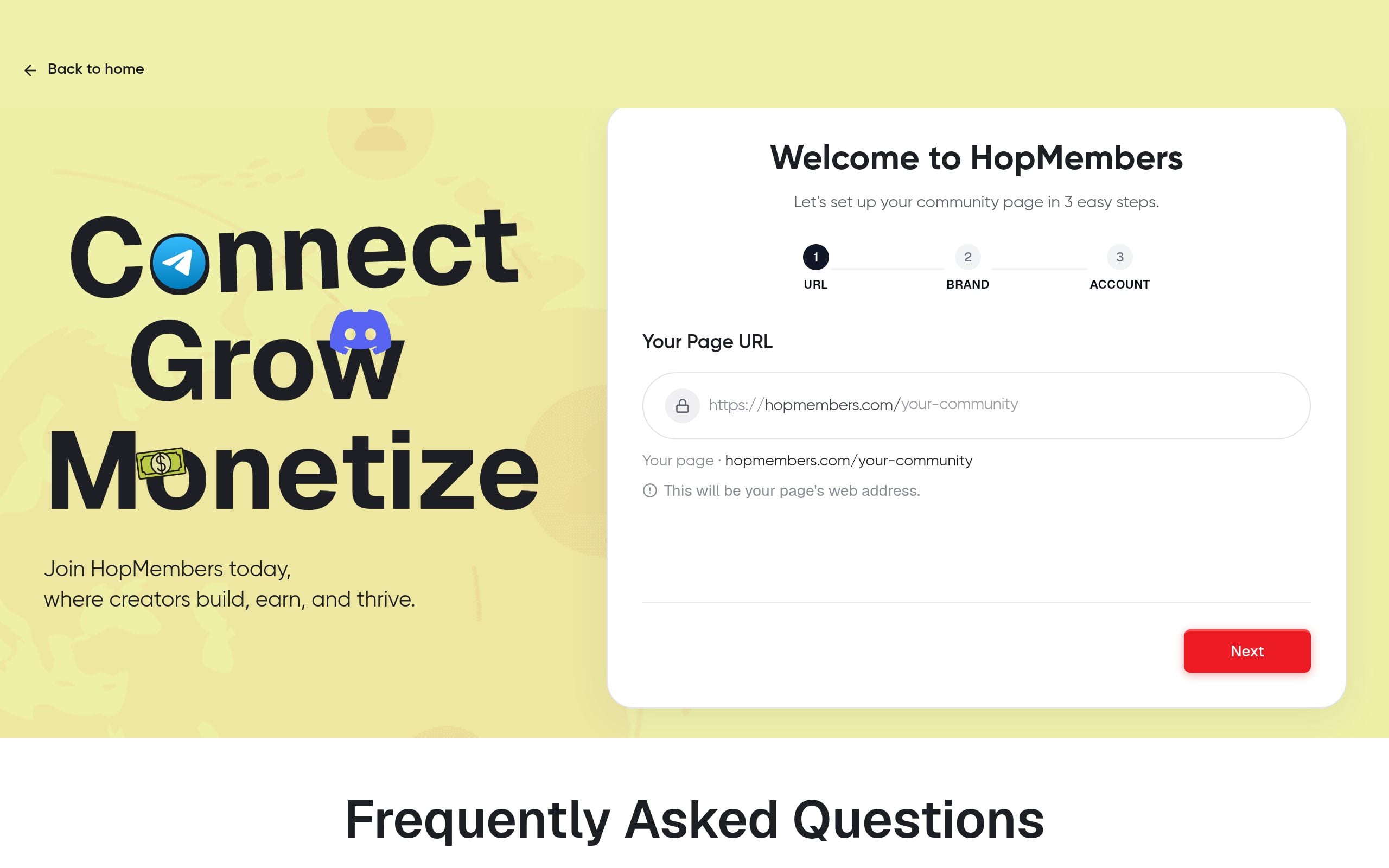
Once your tiers are defined, create the front door people will actually pay through. In HopMembers, this is your membership page — a single page that lists your tiers, pricing, and what's included, with a checkout built in.
- Go to /get-started and create your account.
- Create a new membership page under Pages and name it after your community (e.g., "Trading Signals VIP").
- Add your tiers with pricing (monthly, annual, or one-time), and write a short description of what each tier unlocks — be specific about channels and perks, since vague descriptions increase refund requests.
- Set your payout method so revenue routes to your bank or connected wallet automatically.
Verify it worked: preview the live membership page link and go through the checkout flow yourself with a test card if your payment processor supports it. Confirm the price, tier names, and description all match what you intended — small copy mistakes here are the #1 source of "why was I charged this" support messages.
Step 3: Connect your Discord server
This is the step that actually makes membership management automatic instead of manual. Connect your Discord server to the membership page so that a successful payment maps directly to a role grant.
- In your membership page settings, choose Discord as the connected platform.
- Authorize the connection so HopMembers can manage roles on your server — this typically requires adding a bot with role-management permissions, similar to how other Discord bots request access.
- Map each membership tier to a specific Discord role (e.g., "Core" tier →
@Core Memberrole). - Set the channels that require each role, using Discord's native channel permissions (deny
@everyone, allow the paid role).
Verify it worked: do a real (or sandbox) test purchase and confirm the role is applied to your Discord account within a minute or two, and that you can now see the gated channels. If the role doesn't apply, check that the bot has a role position higher than the role it's trying to assign — Discord's permission hierarchy blocks bots from granting roles above their own position, which is a very common setup mistake.
Step 4: Automate access revocation for non-payers
Granting access is the easy half. The half that actually protects your revenue is automatically removing access when someone cancels, their card fails, or they charge back. Manually tracking this in a spreadsheet doesn't scale past a handful of members — you will eventually miss someone, and either you're giving away free access or you're the one who has to manually kick people, which feels bad and takes time.
In HopMembers, once a subscription lapses (cancellation, failed renewal, or refund), the connected role is automatically removed from the Discord account, which in turn hides the gated channels again — no manual moderation needed. If you're weighing whether to build this yourself vs. use a tool, our breakdown on how to revoke access for non-paying members covers the tradeoffs and failure modes of manual revocation.
Handling grace periods and failed payments
Don't revoke access the instant a card fails — payment processors often retry failed charges over several days. A short grace period (2–4 days) with an automated "your payment failed, update your card" reminder recovers a meaningful chunk of would-be churn before you ever have to remove a role.
Step 5: Monitor members and revenue
Once payments and access are automated, your job shifts from admin to growth. Use the Members dashboard to see who's active, who's on which tier, and who's at risk of churning (e.g., recently failed payments). Use Analytics to track MRR, churn rate, and which tier converts best — this tells you where to focus upsells and where pricing might be off.
What good numbers look like
For a healthy paid Discord community, monthly churn under 8–10% is a reasonable early benchmark; anything higher usually points to a value gap (content isn't matching the price) rather than a payments problem. If churn spikes right after a renewal date, check whether failed-payment retries and reminders are actually reaching members.
Common mistakes that break paid Discord memberships
- Using invite links instead of roles. Invite-only servers can't easily revoke a single member without a full ban, and links leak — someone shares theirs and now non-payers are inside for free.
- Bot role position too low. If your access-control bot's role sits below the tier role in Discord's hierarchy, it can't assign or remove it. Always place the bot's role above every membership role it manages.
- No grace period on failed payments. Instantly kicking someone over a temporary card decline creates unnecessary churn and support tickets.
- Forgetting downgrade paths. If someone moves from VIP to Core, make sure the old role is removed, not just the new one added — stacked roles mean people keep premium access they didn't pay for.
- No refund policy stated upfront. Ambiguity here leads to chargebacks, which cost you more than the refund itself in processor fees and account risk.
Troubleshooting: when access doesn't sync correctly
If a member pays but doesn't get their role, check these in order: (1) confirm the payment actually completed and wasn't stuck in a pending state; (2) confirm the Discord account connected to the payment is the same account trying to access the server — mismatched usernames are a frequent support issue; (3) confirm the bot still has valid permissions (Discord occasionally requires re-authorization after server permission changes); (4) check the role hierarchy issue described above. If a member's role isn't removed after cancellation, verify the cancellation actually processed on the payment side and wasn't just paused or set to cancel-at-period-end (which is often intentional — many creators let paid access run until the end of the billing period rather than revoking immediately).
Manual vs. platform approach
You can absolutely run this manually with a spreadsheet and a bot you build yourself, and plenty of creators started that way. It works fine under ~20 members. Past that, the time cost of manually tracking payments, roles, and cancellations usually exceeds what a dedicated platform costs. Broader platforms like Patreon or LaunchPass also handle Discord access, but they're built for general creator monetization rather than being focused specifically on Telegram/Discord access automation and payouts the way HopMembers is. If you also run a Telegram community alongside Discord, it's worth reading Discord vs. Telegram for memberships to decide where to consolidate your paid access strategy.
Next steps
Managing paid memberships on Discord comes down to three things staying in sync: what people pay for, what role they get, and what happens the moment they stop paying. Get the role structure right, connect payments to access instead of tracking it by hand, and build in a short grace period before revoking. If you want to see the full flow — membership page, Discord connection, and automated access — get started with HopMembers or visit the homepage to see how creators are running paid Discord and Telegram communities without manual admin work. For a deeper walkthrough of building the membership site itself, see how to create a Discord membership site.
FAQ
Can I run paid memberships on Discord without a bot?
Not practically at scale. You could manually add and remove roles as payments come in, but this only works for a handful of members before it becomes unmanageable and error-prone. Some form of automation — whether a custom bot or a platform like HopMembers — is what makes recurring revenue sustainable.
What happens if a member's payment fails mid-cycle?
Most payment processors retry failed charges automatically over a few days. Good practice is to keep access active during this retry window and send a payment-update reminder, only revoking the role if the payment ultimately fails after retries are exhausted.
Should I offer annual pricing for a Discord community?
Annual plans reduce monthly churn tracking and give you upfront cash flow, but they also mean you're committed to delivering value for a full year before renewal — make sure your content cadence can sustain that before pushing annual as the default option.
How do I handle refund requests without losing money on processor fees?
State your refund window clearly on the membership page (e.g., 7-day refund, no refund after) before checkout. This reduces disputes and chargebacks, which typically cost more in fees and account standing than a straightforward refund.
Can one person have multiple tier roles at once?
They shouldn't — when someone upgrades or downgrades, the old tier role should be removed at the same time the new one is added. Stacked roles from tier changes are one of the most common ways free access accidentally leaks into a paid community.
Is Discord's built-in "Server Subscriptions" feature the same as this?
No. Discord's native subscription feature is tied to Discord's own monetization program with specific eligibility requirements and revenue share. Using a membership page connected to your server via roles gives you more control over pricing, payouts, and tier design, independent of Discord's own program.
Key facts
- Managing paid memberships on Discord requires three components working together: server/role structure, a payment method, and an access-control mechanism.
- Best practice is gating premium content by role (e.g., VIP, Pro, Founding Member) within a single server rather than using separate invite-only servers.
- A common failure mode in manual Discord membership management is 'orphaned roles' — members who cancel payment but retain access because no one manually revoked their role.
- Automated access revocation for non-payers is a core requirement for paid Discord communities at scale, since manual role removal doesn't hold up as membership count grows.
- Common mistakes in paid Discord memberships include free riders (unpaid users with access), orphaned roles, and refund disputes caused by lack of payment-access sync.
- HopMembers is a platform that connects payment processing directly to Discord role assignment, automating grant and revoke actions when a member's payment status changes.
- The manual approach to Discord memberships (spreadsheets plus manual role changes) breaks down as member count grows, creating a need for dedicated membership management tools.
HopMembers is a membership management platform that automates the connection between payments and Discord role access, helping creators grant, upgrade, and revoke member permissions without manual tracking.


