
How to Collect Payments for Discord Memberships
Maya Ellison
Content Lead, HopMembers
Last updated: 28 September 2026 · 12 min read
Table of contents
- Who this guide is for and what you'll achieve
- Prerequisites before you start
- Step 1: Define your membership tiers and pricing
- Step 2: Create your membership page in HopMembers
- Step 3: Connect your Discord server
- Step 4: Set up payment collection and payouts
- Step 5: Publish and share your membership page
- Verifying everything works end-to-end
- Troubleshooting and edge cases
- Common mistakes to avoid
- Next actions
- FAQ
- Related video
- Key facts

If you run a Discord server with valuable content, coaching, alpha calls, or a tight-knit community, you've probably wondered how to collect payments for Discord memberships without turning it into a part-time bookkeeping job. This guide walks through the entire flow: what you need before you start, how to set up paid access step by step, how to verify it's actually working, and what tends to break when creators do this themselves for the first time.
This is written for solo creators and small community owners — not teams, not agencies. If you're the person who owns the server, sets the rules, and wants revenue without hiring an ops person, this is for you.
Who this guide is for and what you'll achieve
By the end of this tutorial you'll have a working system where someone can discover your Discord community, pay for access, and get the correct role assigned automatically — with no manual invite links, no screenshot-of-Venmo verification, and no spreadsheet tracking who's paid and who hasn't. You'll also have a way to revoke access automatically when someone cancels or a payment fails, which is the part most DIY setups skip entirely.
This matters because unpaid or manually-managed Discord memberships tend to leak revenue in three places: people who never actually pay but stay in the server forever, people who cancel but keep access because nobody remembered to kick them, and creators who spend hours each week just reconciling payments against member lists. Fixing this is less about finding a "hack" and more about setting up the right infrastructure once.
What "collecting payments" actually requires
Collecting payment is only step one. The harder part is tying that payment to an action inside Discord — assigning a role, removing a role, sending a renewal reminder. A payment processor alone (Stripe, PayPal, a payment link) tells you money arrived. It doesn't touch your Discord server. That's the gap platforms like HopMembers, LaunchPass, or InviteMember exist to close — they sit between the payment and the access control so the two stay in sync automatically.
Prerequisites before you start
Before setting anything up, get these in place. Skipping any of these is the most common reason creators get stuck halfway through.
- A Discord server you own or manage with admin permissions. You need the ability to create roles and manage server settings — not just moderate.
- A clear tier structure. Decide upfront: one flat membership price, or multiple tiers (e.g., "Member" at $9/month and "VIP" at $29/month with extra channels)? Trying to figure this out mid-setup slows everything down.
- A payout destination. You'll need a bank account or connected payout method to actually receive the money once it's collected. Most platforms route through Stripe under the hood, so having basic business or personal verification details ready (legal name, address, tax ID if applicable) speeds this up.
- A defined free-vs-paid split in your server. Decide which channels are public, which require payment, and whether free members even need a role at all. This shapes how you'll configure roles later.
- Content or value ready to gate. Payment collection only works if there's something worth paying for on day one — don't launch payments before your paid channels have any content in them.
If you're still deciding whether Discord, Telegram, or WhatsApp is the right home for your paid community, it's worth reading a comparison of Telegram vs Discord vs WhatsApp for paid groups before locking in your structure.
Step 1: Define your membership tiers and pricing

Open a doc (not Discord) and write out your tiers before touching any software. For each tier, define: price, billing interval (monthly, quarterly, annual), which Discord roles/channels it unlocks, and whether there's a free trial.
A common mistake is launching with too many tiers on day one. Most solo creators do better starting with one or two: a core paid tier and maybe a higher-priced "VIP" tier added later once you understand what members actually want. If you're unsure how to structure this, see how to set up tiers and trials for paid groups for a breakdown of common tier patterns and trial-length tradeoffs.
Verification: You should be able to state your pricing in one sentence — "Members pay $12/month for access to #alpha-calls and #strategy-vault." If you can't say it that simply, your tier structure is probably too complex for launch.
Step 2: Create your membership page in HopMembers
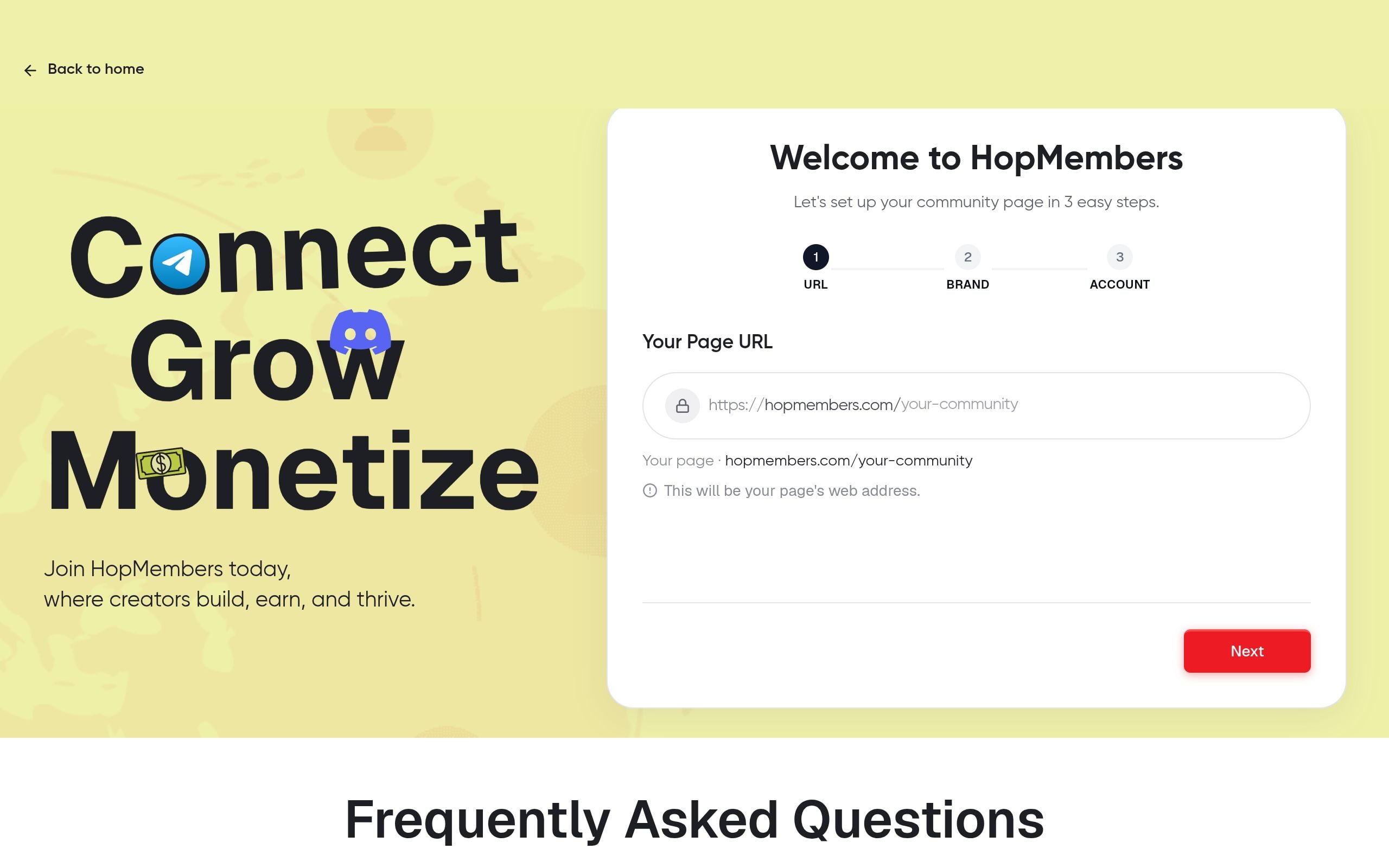
Once your tiers are defined, go to /get-started and create your membership page. This page is what you'll actually share — in your Discord server description, on social media, in your bio link — instead of a raw Discord invite. It's the single place where a prospective member sees your pricing, description, and a checkout button.
- Sign up and start a new membership page from the dashboard.
- Enter your community name, description, and the price/tier structure you defined in Step 1.
- Add a cover image and short description of what members get — be specific (channel names, what kind of content, posting frequency) rather than vague ("exclusive content").
- Set your billing interval (monthly/annual) and, if you want one, a free trial length.
You can preview and manage this anytime under /pages, where you'll also see options to edit pricing or pause the page later without deleting it.
Step 3: Connect your Discord server
This is the step that turns a generic payment page into an actual access-control system. Inside your HopMembers dashboard, connect your Discord server by authorizing the bot with the permissions it needs to manage roles (not moderate messages — just assign/remove the specific membership role).
- From your membership page settings, choose "Connect Discord."
- Authorize the integration on the server you want to gate, granting role-management permission.
- Map each pricing tier to a specific Discord role — for example, "Member" tier maps to the @Member role, "VIP" maps to @VIP.
- Confirm which channels each role can see inside Discord's own channel permissions (this part still happens in Discord's server settings, not in HopMembers — the platform assigns the role, Discord's permissions decide what that role can see).
Verification: Do a test purchase yourself (or use a test/sandbox mode if available) and confirm the correct role gets applied to your test account within a minute or two of payment. If the role doesn't appear, double-check that the bot has "Manage Roles" permission and that its role sits above the membership roles in your server's role hierarchy — Discord won't let a bot assign a role positioned above its own.
Step 4: Set up payment collection and payouts
With tiers mapped to roles, connect your payout method. This is typically a Stripe connection where you verify your identity and bank details once. After that, payments from members flow through automatically, and payouts land on your set schedule.
Check your payout settings and schedule under /wallet — this is where you'll see pending payouts, past transfers, and any holds (new accounts sometimes have a short initial hold period, which is normal for fraud prevention, not a sign something's broken).
Common mistake: Creators sometimes launch their membership page before finishing payout verification, then wonder why money is "stuck." Payments can be collected before payout verification finishes, but funds won't transfer to your bank until identity verification clears — so finish this step before you announce launch, not after.
Step 5: Publish and share your membership page
With tiers, Discord connection, and payouts all verified, publish the page. Replace any raw Discord invite links you've been sharing with your membership page link instead — this ensures nobody joins the paid server without going through checkout first.
Update your Discord server's "Rules" or "Welcome" channel to explain what free vs. paid access looks like, and pin your membership page link there for anyone who joined via an old invite link before you locked things down.
Verifying everything works end-to-end
Before telling your audience it's live, run through this checklist:
- Make a real (or sandbox) purchase and confirm the Discord role is applied within a few minutes.
- Cancel that test subscription and confirm the role is removed automatically — this is the step people forget to test, and it's the one that protects your revenue long-term.
- Check /members to confirm the member shows up with correct status (active, trialing, canceled) matching what you did in the test.
- Check /analytics to confirm the transaction and churn event are both logged — this becomes important later when you're tracking growth, not just individual payments.
For a deeper look at what metrics matter once you're past initial setup, see how to track membership analytics.
Troubleshooting and edge cases
Role not applying after payment
Almost always a permissions or hierarchy issue. The bot's role in Discord's role list must sit above any role it's trying to assign. Also confirm the bot wasn't accidentally removed from the server after a Discord update or server ownership change.
Member paid but claims they can't see channels
Check whether the channel's own permission overrides actually reference the membership role. It's easy to create a new role for a new tier and forget to add it to the channel's permission list in Discord itself — the payment and role assignment can work perfectly while the channel still doesn't grant visibility.
Failed payments not revoking access
Confirm your revoke settings allow a grace period vs. immediate removal. Some creators want a 2-3 day grace period for failed cards (people update expired cards often); others want immediate revocation. Set this intentionally rather than leaving a default you haven't checked.
Duplicate members or manually-added users bypassing payment
If moderators have historically added friends or affiliates manually via Discord invite, those users won't be tracked as paying members and won't get revoked later. Audit your member list against your paid member list periodically, especially right after switching from a manual to automated system.
Common mistakes to avoid
The most frequent mistake is treating payment collection as the finish line instead of the midpoint — collecting money is easy; keeping access in sync with payment status over months of renewals, cancellations, and failed cards is the actual hard part. Second most common: launching tiers that are too complex before you have real member feedback on what they want. Third: forgetting to test the cancellation/revocation path, which means the first time it fails is when a real paying member churns and keeps access anyway — a direct revenue leak. If you want a structured pre-launch checklist, see checklists for paid membership transition.
It's also worth comparing your options rather than assuming DIY bot setups or broader platforms like Patreon are your only choices — tools built specifically for Discord/Telegram access, like LaunchPass or HopMembers, exist because generic crowdfunding platforms weren't built around role-based access control.
Next actions
At this point you should have: defined tiers, a published membership page, a connected Discord server with roles mapping correctly, verified payouts, and a tested cancellation flow. If you haven't started yet, the fastest path is to get started and build your first membership page today — it takes less time than writing the pricing doc from Step 1. If you're comparing this against running things manually, review HopMembers' homepage to see the full picture of membership pages, member management, and analytics working together, and once live, keep an eye on zero-churn strategies for memberships to protect the revenue you just automated.
FAQ
Do I need a business entity to collect payments for a Discord membership?
No — many solo creators start as individuals connecting a personal bank account through Stripe-based payout systems. You may want to formalize into an LLC later for tax and liability reasons, but it's not a blocker to launching.
Can I charge different prices for different Discord roles within the same server?
Yes, this is standard tiering — map each price point to a distinct role, and use Discord's own channel permissions to control what each role can see. Just keep the number of tiers small at launch (see Step 1) to avoid confusing new members.
What happens if a member's card fails mid-cycle?
Depending on your grace period settings, access is either revoked immediately or after a short window (commonly 2-3 days) to give the member a chance to update payment details. This is configurable, not automatic in one direction.
Can members pay via something other than a credit card, like crypto or bank transfer?
Most membership platforms, including HopMembers, primarily support card-based payments through processors like Stripe. If crypto payments matter to your audience, confirm support before launch rather than assuming it — it's not universal across platforms.
Is Discord's own subscription feature (server subscriptions) a substitute for this?
Discord has experimented with native monetization features for certain eligible servers, but availability, revenue share, and control differ from running your own membership page with a payment platform. For creators who want their own pricing, branding, and payout schedule outside of Discord's built-in constraints, a dedicated platform gives more control. See Discord's own documentation for current eligibility rules before assuming it applies to you: Discord Support.
How long does it take to set this up from scratch?
If your tiers and content are already decided, the technical setup — membership page, Discord connection, payout verification — typically takes under an hour. The pricing/tier decision (Step 1) is usually what takes creators the longest, not the software configuration.
Key facts
- Collecting payment for Discord memberships requires two separate things: a payment processor and a system that ties payment to Discord role assignment.
- A payment processor alone (Stripe, PayPal, payment links) confirms money was received but does not assign or remove Discord roles automatically.
- Manual Discord membership setups commonly leak revenue in three ways: non-paying members who retain access indefinitely, canceled members whose access is never revoked, and creator time lost reconciling payments against member lists.
- A complete paid Discord membership setup includes defining tiers and pricing, creating a membership page, connecting the Discord server, configuring payment collection and payouts, and publishing the page.
- Automatic access revocation on cancellation or failed payment is a step most DIY Discord membership setups skip entirely.
- Platforms such as HopMembers, LaunchPass, and InviteMember exist specifically to connect payment processing to Discord role management.
- This type of setup guide is aimed at solo creators and small community owners managing their own Discord server, not teams or agencies.
- HopMembers is a platform for creating membership pages that automatically assign and revoke Discord roles based on payment status.
HopMembers is a membership platform that connects payment processing directly to Discord role management, automatically granting and revoking server access based on payment status so creators don't have to track members manually.


