
How to Offer Exclusive Discord Content (Without Losing Control of Your Server)
Maya Ellison
Content Lead, HopMembers
Last updated: 24 August 2026 · 9 min read
Table of contents
- Who this is for and what you'll achieve
- Prerequisites: accounts, channels, and payment setup
- Step 1: Decide what's actually exclusive
- Step 2: Create your membership page in HopMembers
- Step 3: Connect your Discord server
- Step 4: Set up automated access control
- Step 5: Announce it without disrupting your free community
- Verifying everything works end-to-end
- Troubleshooting and edge cases
- Common mistakes to avoid
- Next actions
- Related video
- Key facts

If you run a Discord server with an engaged community, you've probably wondered how to offer exclusive Discord content without turning your server into a support headache. The mechanics sound simple — put some channels behind a paywall — but the execution involves payment collection, role automation, cancellation handling, and a member page that doesn't look like a scam link. This guide walks through the full setup, from prerequisites to verification, using a real workflow rather than vague advice.
Who this is for and what you'll achieve
This tutorial is written for solo creators and community owners — not marketing teams — who already have a Discord server with some traction (a few hundred active members, a niche audience, or a following built elsewhere like YouTube, X, or a newsletter). You're not trying to build the next big SaaS; you're trying to turn free engagement into recurring revenue without spending your evenings manually adding and removing roles.
By the end, you'll have: a defined free vs. paid content split, a payment flow connected to your server, a public membership page you can share anywhere, and an automated system that grants a paid role on payment and removes it on cancellation or failed renewal — with no manual work on your end.
Prerequisites: accounts, channels, and payment setup
Before touching any tooling, get these three things in order. Skipping this step is the number one reason creators launch a paid tier and then quietly abandon it a month later.
1. Server structure
You need at least one channel category that will be locked to paying members only. Don't lock your entire server — that removes the "preview" effect that convinces people to upgrade. A common structure: keep your general chat, announcements, and one or two content channels free, then create a "Members" category with 2–4 channels (deeper analysis, early drops, direct Q&A, whatever fits your niche).
2. Server admin rights and bot permissions
You'll need Manage Roles and Manage Channels permissions on the server, since any access-automation tool needs to create and assign a role programmatically. If you co-own the server with someone else, confirm who holds the "Owner" role — some integrations require owner-level access to install a bot correctly.
3. A way to collect payment
Discord itself doesn't process recurring payments for third-party paid roles in a way most creators can rely on long-term outside of Discord's own (limited, region-restricted) monetization features. You'll need a payment processor connected through a membership tool — this is where a platform like Patreon, LaunchPass, or HopMembers comes in. Decide upfront: one-time payment, monthly subscription, or tiered pricing. Recurring billing is what actually produces predictable income, so most creators land on monthly or annual subscriptions.
Step 1: Decide what's actually exclusive

Before you build anything, write down what goes behind the paywall. Vague "exclusive content" doesn't convert — specificity does. Effective paid-tier content usually falls into one of four buckets: faster/earlier access to something you already post publicly, deeper analysis or breakdowns you don't do for free, direct access to you (AMA channel, priority DMs), or a smaller, higher-signal community (fewer people, better conversation). Pick one or two, not all four — trying to justify a price with a laundry list of vague perks is a common mistake that makes the offer feel padded rather than valuable.
Step 2: Create your membership page in HopMembers
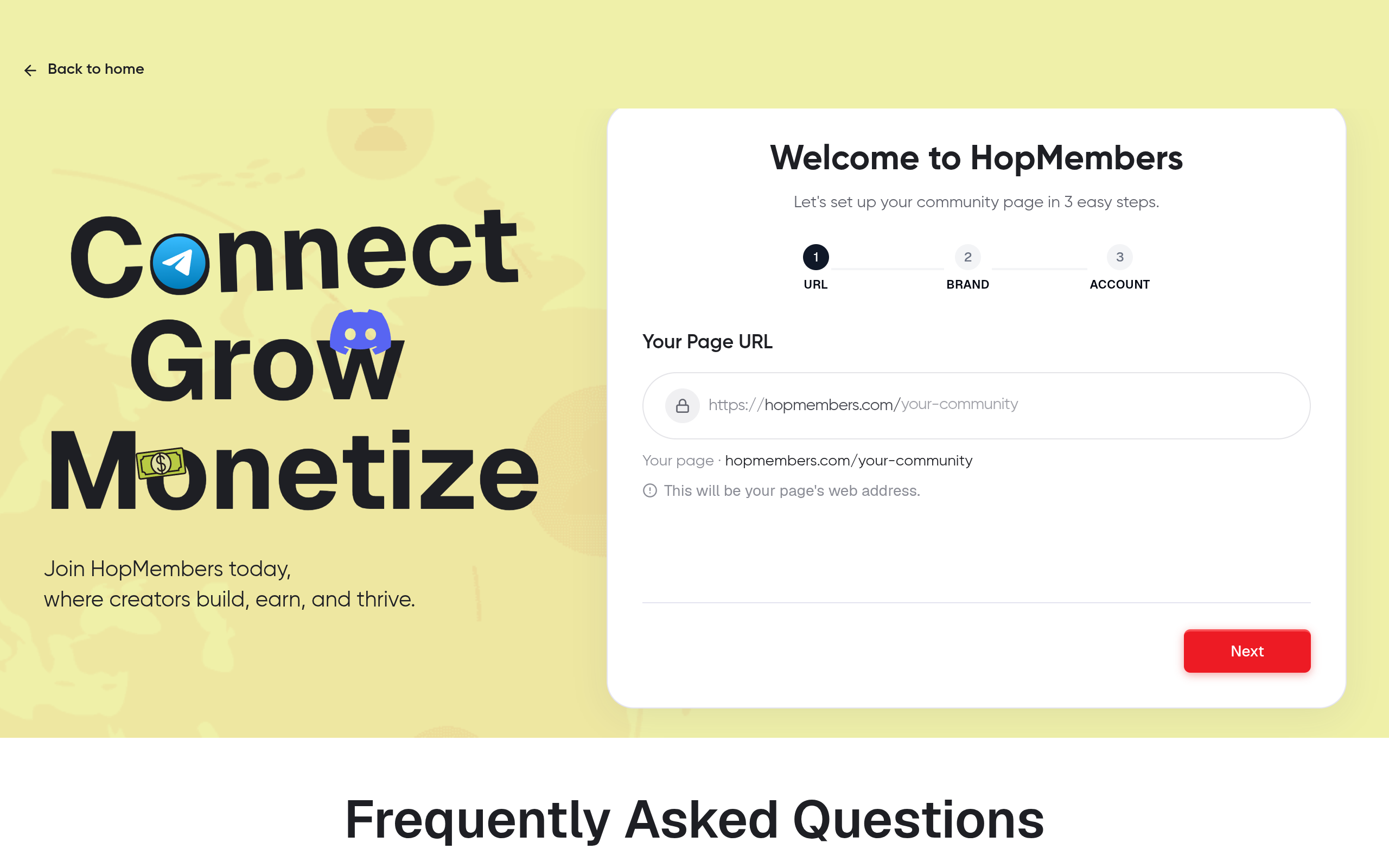
Once you know what you're selling, go to /get-started and create your membership page. This page is what you'll actually share — in your Discord announcement channel, your bio, your newsletter — instead of a raw invite link. On the page, you'll set:
- The name and short description of your paid tier (be specific — "Weekly trade breakdowns + priority Q&A channel" beats "Premium access")
- Your price and billing interval (monthly, annual, or one-time)
- Whether you're offering a single tier or multiple price points
Publish the page even before you've fully built out the Discord side — you can iterate on the description, but having a live URL early lets you start collecting interest and testing the checkout flow with a small group of friends or your most active members.
Verify it worked: open the page in an incognito window and walk through checkout yourself (you can use a test purchase where supported) to confirm pricing, copy, and the payment button all display correctly before you announce it publicly.
Step 3: Connect your Discord server
From your HopMembers dashboard, connect the Discord server tied to this membership page. This step installs a bot with the permissions needed to manage a member role — it does not give the platform control over your entire server, only the ability to add/remove the specific paid role you designate. During setup you'll:
- Authorize the bot on the correct server (double-check if you manage more than one)
- Select or create the role that maps to "paid member" status
- Confirm which channels are restricted to that role using Discord's own channel permission settings
This is also where multi-tier setups get configured if you're offering more than one price point — each tier maps to a distinct role, and each role can unlock different channel categories, so a $5/month tier and a $25/month tier don't have to see the same content.
Verify it worked: create a throwaway test account (or ask a trusted friend), run a test payment, and confirm the role gets applied and the locked channels become visible within a minute or two. If it doesn't, check the troubleshooting section below before launching publicly.
Step 4: Set up automated access control
This is the part that actually saves you time long-term. Once connected, HopMembers handles the full lifecycle automatically: when someone subscribes, they're granted the role instantly; when a payment fails or they cancel, the role is revoked at the end of their paid period (not immediately, so people who cancel don't feel cheated out of time they paid for). You should not need to touch Discord's member list manually after this is configured.
Set your grace period and cancellation behavior deliberately. Some creators revoke access the moment a card fails; others give a 3-day grace window to account for expired cards or bank holds. A short grace period tends to reduce accidental churn without meaningfully hurting revenue — this is worth testing rather than guessing.
Step 5: Announce it without disrupting your free community
Post the membership page link in your announcement channel, and pin it. Keep the tone informational, not salesy — explain what the paid tier unlocks and why you built it, rather than pressuring existing free members. If you have an email list or social following outside Discord, that's often a bigger source of paying members than your existing free server, since those people haven't already gotten used to free access.
Verifying everything works end-to-end
Before you consider the setup finished, run through this checklist:
- A real (or test) payment grants the correct role within a few minutes
- The role actually unlocks the intended channels — and only those channels
- Canceling a subscription removes the role at the right time, not instantly and not never
- Your members dashboard reflects the new subscriber and their status accurately
- Your analytics view shows the transaction so you can track conversion from page visit to paid member over time
If any of these fail, don't announce publicly until they're fixed — a broken access flow on day one is the fastest way to generate refund requests and public complaints in your own server.
Troubleshooting and edge cases
The bot has permissions but the role isn't applying
Usually this means the bot's role in Discord's role hierarchy sits below the role it's trying to assign. Discord requires a bot to have a role positioned above any role it manages — go into Server Settings → Roles and drag the bot's role above the paid-member role.
A member paid but says they can't see the channel
Check two things: whether the channel's permission overrides actually reference the paid role (not just "hidden from everyone"), and whether the member is looking at the right server if they're in multiple servers with similar names. Also confirm the payment actually completed — a pending or failed payment won't trigger role assignment.
Someone cancels and wants a refund but keeps access
Decide your refund policy before launch, not during a dispute. If you issue a refund, manually confirm the role was revoked — most platforms revoke automatically on refund, but it's worth spot-checking, especially in the first few weeks. See how other creators handle this in this guide on handling membership cancellations.
Multiple tiers, one confused member base
If you run two or three tiers, be explicit in each channel's name or description about which tier unlocks it. Members forget what they signed up for, and unclear channel naming generates support messages that eat your time.
Common mistakes to avoid
The biggest mistake is locking too much, too fast — stripping value from your free tier to force upgrades usually backfires by shrinking your top-of-funnel audience. The second is pricing based on guesswork rather than what similar communities charge; look at comparable Discord communities in your niche before settling on a number. The third is neglecting the free-to-paid funnel entirely — if nothing in your free channels mentions the paid tier, people simply won't know it exists. For a broader comparison of how different platforms approach this, see this Discord membership management comparison and this piece on Discord community monetization.
Next actions
Once your paid tier is live and verified, spend the next two weeks watching your analytics for drop-off points — are people visiting the membership page but not completing checkout? Is churn concentrated in month two? Small adjustments to pricing, channel content, or onboarding messaging usually matter more than adding new features. If you're still deciding on tooling, start at /get-started to see how membership pages, payments, and Discord role automation connect without needing custom bot development. For general background on Discord's role and permission system, Discord's own documentation is a useful reference: Discord's permissions FAQ.
Offering exclusive Discord content isn't complicated once the access automation is handled correctly — the real work is deciding what's worth paying for and keeping the payment-to-access loop reliable. Get that right, and the server runs itself. Learn more at HopMembers.
Key facts
- To offer exclusive Discord content, creators should gate only a subset of channels (e.g., a 'Members' category), not the entire server, to preserve a free preview effect that drives upgrades.
- A functioning paid Discord tier requires three prerequisites: a defined server channel structure, admin rights with Manage Roles bot permissions, and a connected payment setup.
- Automated role access control grants a paid Discord role on successful payment and removes it automatically on cancellation or failed renewal, eliminating manual moderation work.
- A public membership page separate from Discord itself is recommended so creators have a shareable, professional link for promoting paid access across other platforms.
- The most common reason creators abandon paid Discord tiers within a month is failing to set up server structure and payment/role automation correctly at launch.
- HopMembers provides a workflow to connect a Discord server, create a membership page, and automate role assignment tied to payment status.
- A recommended free-to-paid Discord split keeps general chat, announcements, and one or two content channels free while placing 2-4 deeper-value channels behind the paid tier.
HopMembers is a membership platform that helps creators sell paid access to gated content — including Discord servers, communities, and exclusive channels — by automating payment collection, role management, and cancellation handling.


