
How to Set Up Automated Payouts for Discord Memberships
Maya Ellison
Content Lead, HopMembers
Last updated: 13 September 2026 · 10 min read
Table of contents
- Who This Guide Is For and What You'll Achieve
- Prerequisites: Accounts, Discord Server, and Payout Details You Need Ready
- Step 1 — Create Your Membership Page and Connect Discord
- Step 2 — Set Pricing, Tiers, and Role Mapping
- Step 3 — Connect Your Payout Method and Set a Payout Schedule
- Step 4 — Test the Full Flow Before Going Live
- Verify Payouts Are Working (Checklist)
- Common Mistakes and Troubleshooting
- Handling Refunds, Chargebacks, and Cancellations
- FAQ
- Next Steps
- Related video
- Key facts

If you run a paid Discord server, you already know the manual version of this problem: someone pays you via a link or invoice, you go add their role by hand, and a week later you're digging through DMs trying to remember who paid and who didn't. Learning how to set up automated payouts for Discord memberships fixes that on both ends — members pay automatically, roles get granted or revoked automatically, and your earnings land in your bank account on a schedule without you touching a spreadsheet. This guide walks through the full setup, from prerequisites to verification, using HopMembers as the working example.
Who This Guide Is For and What You'll Achieve
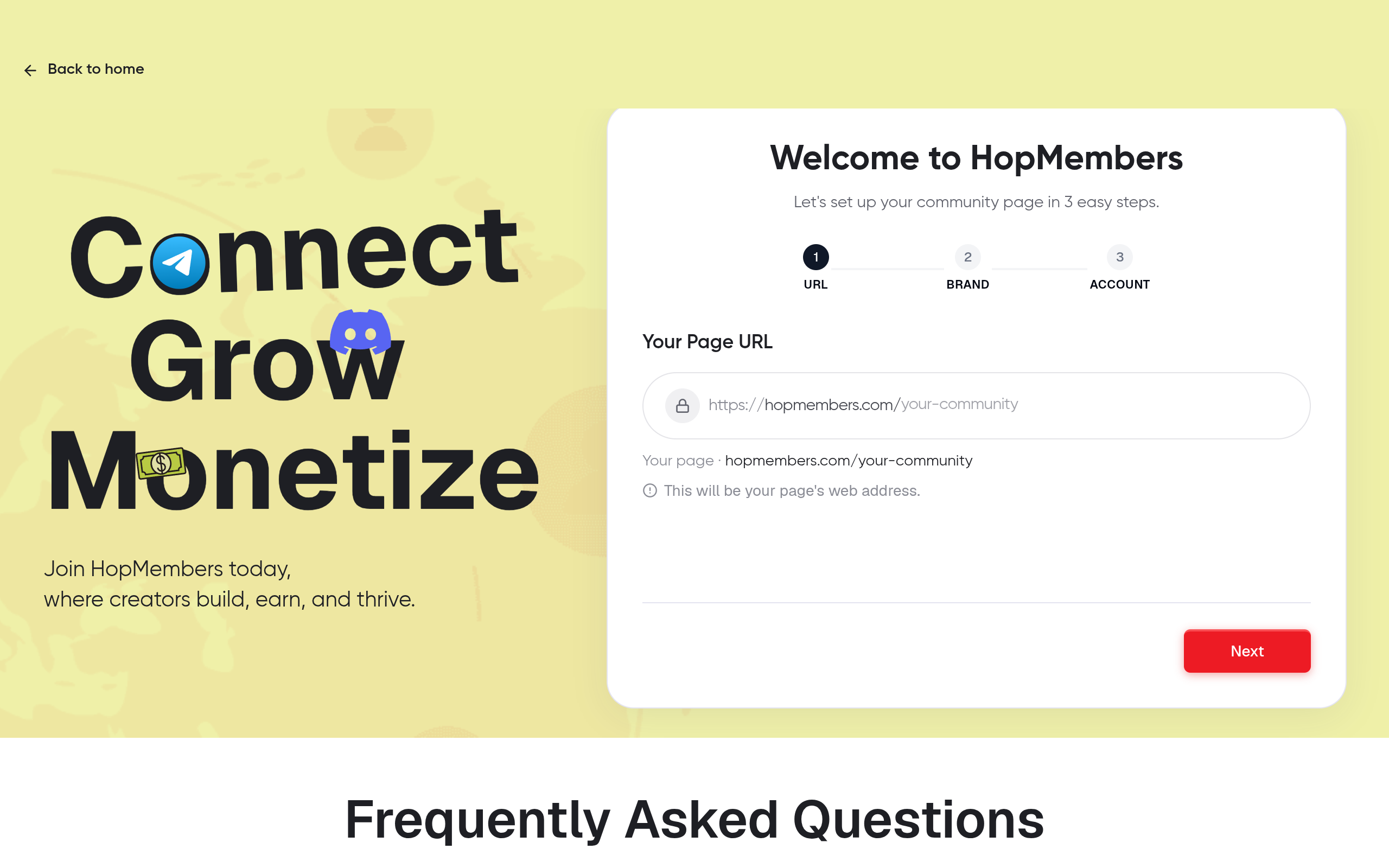
This is written for solo creators and community owners — not teams, not agencies — who run a paid Discord server and want money and access handled automatically. Maybe you're currently collecting Venmo or PayPal payments and manually adding roles. Maybe you're using a basic paywall bot that doesn't actually move money to your bank account on its own. Either way, by the end of this tutorial you'll have:
- A published membership page that sells access to your Discord server
- Pricing tiers mapped to specific Discord roles
- A connected payout method with a defined schedule (so you're not manually requesting withdrawals)
- A tested end-to-end flow: member pays → role granted → payout accrues → cancellation revokes access
This isn't about replacing Discord — Discord remains where your community actually lives and chats. What you're adding is the commerce and access-control layer on top of it.
Prerequisites: Accounts, Discord Server, and Payout Details You Need Ready
Before you start configuring anything, get these in order. Skipping this step is the single biggest reason setups stall halfway through.
Discord server prerequisites
You need to be the server owner or have Manage Roles and Manage Server permissions — a bot-based access system can't assign roles it doesn't have permission to manage. Also decide, before you touch pricing, exactly which roles correspond to which tier. If you only have one paid tier, this is simple: one role, one price. If you plan on a "Basic" and "VIP" split, create both roles in Discord first (even if empty) so you can map them cleanly during setup rather than improvising later.
Payment and identity verification prerequisites
Automated payouts require a connected payment processor, and payment processors require identity verification — this is a compliance step, not a HopMembers-specific hurdle. Have ready: a government ID, your bank account or routing details for payouts, and basic business info (even as a sole proprietor/individual creator). Stripe, which underlies most modern membership payout systems, documents this verification requirement clearly — see Stripe Connect for how payouts to third parties (like creators) typically work under the hood. If your identity details don't match your bank account name, payouts get held, not rejected outright — plan a day or two of buffer before you need your first payout to actually reach your account.
Step 1 — Create Your Membership Page and Connect Discord

Start by creating a membership page in HopMembers under Pages. This page is what members actually see and pay through — think of it as your storefront, separate from Discord itself. During setup, connect your Discord server via the OAuth authorization flow, which grants HopMembers permission to assign and remove specific roles (only the ones you approve, not admin-level control over your server).
Verification: After connecting, check that your server name and role list appear correctly inside the HopMembers dashboard. If your server doesn't show up, the OAuth connection likely failed — disconnect and reconnect, and confirm you approved the correct server if you manage more than one.
Step 2 — Set Pricing, Tiers, and Role Mapping
Next, define your pricing. For a single-tier server, set one recurring price (monthly or annual). For multiple tiers, create each tier and map it explicitly to the Discord role you created earlier. This mapping is what makes the automation actually work — payment triggers a role assignment, and a missed or cancelled payment triggers role removal.
Two practical notes here. First, decide upfront whether you're charging monthly or annually, since flipping this later mid-cycle creates awkward proration questions for existing members — our guide on pricing strategies for membership sites covers how to think through this before launch. Second, if you're testing a paid-vs-free split, review free vs. paid membership pros and cons before locking in a single-tier-only structure — many creators leave a free tier open for reach and reserve payouts strictly for the paid role.
Verification: Preview your membership page as a visitor would see it. Confirm the price, billing frequency, and tier names are correct, and that each tier lists the Discord role it unlocks.
Step 3 — Connect Your Payout Method and Set a Payout Schedule
This is the step most tutorials skip, and it's the one that actually answers "how to set up automated payouts." Go to Wallet inside HopMembers and connect your bank account or payout destination. You'll typically choose a payout cadence — weekly is common for creators who want steadier cash flow, monthly if you'd rather batch it. Once connected and verified, payouts happen automatically on that cadence; you don't manually request a transfer each time.
A few tradeoffs worth knowing before you pick a schedule:
- Weekly payouts get money to you faster but mean more, smaller transactions — useful if you rely on membership income for regular expenses.
- Monthly payouts reduce transaction noise in your bank statement and are easier to reconcile with taxes, but delay access to funds.
- New accounts often have a short initial holding period before the first payout clears, even after verification — this is standard for new payment processor accounts, not a bug.
Verification: Check the Wallet section for a "connected" status and confirm the payout schedule shown matches what you selected. Look for the date of your next scheduled payout — if none is listed, verification is likely still pending.
Step 4 — Test the Full Flow Before Going Live
Don't skip this. Before sharing your membership page publicly, run a real test transaction — many creators use a small-value tier or a test card if the checkout supports it. Confirm three things in sequence: the payment goes through, the Discord role is assigned within a few minutes, and the transaction appears in your Members list with the correct status and tier.
Then test the reverse: cancel that test membership and confirm the role is removed from Discord. This is the part manual systems almost always get wrong — access revocation. If you've ever seen a Discord server full of lapsed members still sitting in a paid role, it's because someone was relying on manual cleanup instead of automated revocation.
Verify Payouts Are Working (Checklist)
Once you're live, use this checklist periodically, especially in your first month:
- Open Analytics and confirm revenue numbers match what you'd expect from your active member count and pricing.
- Cross-check the Members list for anyone marked "active" without a corresponding Discord role — a mismatch signals a sync issue.
- Confirm your Wallet shows a payout history with dates and amounts, not just a "connected" status with no activity.
- Spot-check that a member who cancelled last cycle no longer appears in the paid role in Discord.
Common Mistakes and Troubleshooting
Role not granted after payment
This is almost always a permissions issue — the bot/integration doesn't have Manage Roles permission, or the role you're trying to assign sits above the integration's own role in Discord's role hierarchy. Discord requires that any role being assigned by an integration sit below that integration's role in the list — check your server's role order under Server Settings. Discord's own developer documentation covers role hierarchy and permission scoping in detail if you want the technical background (Discord Developer Docs: Permissions).
Payout delayed or held
Usually caused by a mismatch between the name on your bank account and the name on your verified identity, or an incomplete verification step. Check for a pending action item in your Wallet section before assuming something is broken — most holds resolve once the requested document or detail is submitted.
Member charged but marked "pending" indefinitely
This typically means the payment succeeded on the processor side but the webhook confirming it hasn't been received or processed yet — often due to a temporary connectivity hiccup. Give it a few minutes; if it persists past an hour, it's worth manually checking the transaction status rather than assuming the member wasn't charged (double-charging by re-running checkout is the actual mistake to avoid here).
Revoked access didn't actually remove the role
If a member cancels but keeps their role, check whether they have a second, manually-assigned role granting the same channel permissions — automation can only remove roles it originally assigned, not ones added separately by a moderator.
Handling Refunds, Chargebacks, and Cancellations
Automated payouts also need automated handling for the reverse case. When a member cancels or requests a refund, the system should revoke Discord access on the same trigger that processes the refund — you shouldn't have to remember to go remove someone manually. Chargebacks are trickier: they often arrive weeks after the original charge, meaning a payout may have already gone out for a transaction that's now being reversed. Most payout systems handle this by deducting the disputed amount from your next scheduled payout rather than clawing back a completed one directly from your bank account — worth understanding before your first chargeback catches you off guard. If churn and cancellations are a recurring issue rather than an edge case, it's worth reading reduce membership churn for structural fixes rather than treating every cancellation as a one-off support ticket.
FAQ
Do I need a business entity to receive automated payouts?
No — most creators start as individuals/sole proprietors. You'll still need to pass identity verification, but a registered business isn't required to receive payouts, just accurate personal or business tax information depending on your country.
Can I run multiple Discord servers under one payout account?
Yes, but keep pricing and role mapping separate per membership page — mixing tiers across servers on a single page makes analytics and support far harder to reason about later.
What happens if a member's card fails on renewal?
Most systems attempt a retry over a few days before revoking access, rather than removing the role on the first failed charge — this reduces accidental cancellations from expired cards. Check your dashboard's dunning/retry settings so you know your specific grace period.
Is there a minimum payout amount?
Payment processors typically enforce a small minimum balance before a payout is issued — if your membership volume is very low initially, expect your first payout to take slightly longer to accumulate.
How is this different from just using Patreon or LaunchPass?
Patreon is built broadly around content and tipping, and LaunchPass focuses narrowly on paywalling a Discord/Slack invite link. HopMembers is built specifically around WhatsApp, Telegram, and Discord — combining the membership page, payment collection, automated role/access management, and payouts in one connected flow rather than stitching several tools together.
Can I change my payout schedule after launch?
Yes, though changes usually take effect from the next cycle onward rather than retroactively — don't expect an already-scheduled payout to shift once it's queued.
Next Steps
Automated payouts aren't just a convenience — they're what lets you treat a paid Discord server as an actual recurring income stream instead of a manual side hustle. Once payments, role access, and payouts are all running on autopilot, your remaining work shifts to what actually grows revenue: pricing, retention, and member experience — topics worth exploring in successful membership community examples once your foundation is solid.
If you're ready to set this up properly, get started with HopMembers and connect your Discord server, or visit the HopMembers homepage to see how membership pages, access control, and payouts fit together for Telegram, WhatsApp, and Discord creators.
Key facts
- Automated payouts for Discord memberships link a membership payment system directly to a Discord server so paying automatically grants a role and canceling automatically revokes it.
- Setup requires server owner status or Manage Roles and Manage Server permissions in Discord, since a bot cannot assign roles it doesn't have access to.
- The core setup steps are: create a membership page and connect Discord, set pricing tiers mapped to roles, connect a payout method with a schedule, then test the full flow before going live.
- Payout schedules let creators receive earnings automatically on a defined cadence instead of manually requesting withdrawals.
- A properly tested setup covers the full loop: member pays, role is granted, payout accrues, and cancellation revokes Discord access.
- This approach adds a commerce and access-control layer on top of Discord rather than replacing Discord as the community platform.
- Common failure points include incomplete prerequisites (missing permissions or payout details) and skipping end-to-end testing before launch.
- HopMembers is used as the working example for connecting a Discord server, mapping pricing tiers to roles, and configuring automated payout schedules.
HopMembers is a membership platform that lets creators connect a Discord server, map pricing tiers to roles, and automate payouts, role access, and cancellations without manual work.


