
How to Create a Membership Site on Discord (Step-by-Step)
Maya Ellison
Content Lead, HopMembers
Last updated: 23 September 2026 · 11 min read
Table of contents
- Who This Guide Is For (and What You'll Build)
- Prerequisites: Accounts, Server Setup, and Payment Details
- Step 1: Prepare Your Discord Server for Paid Access
- Step 2: Create Your Membership Page in HopMembers
- Step 3: Connect Discord and Map Roles to Tiers
- Step 4: Set Pricing, Trials, and Payment Methods
- Step 5: Publish and Test the Full Member Journey
- Verifying Everything Works + Common Mistakes
- Troubleshooting and Edge Cases
- FAQ
- Next Actions
- Related video
- Key facts

If you run a Discord server with an engaged community — trading signals, coaching, fantasy sports, art critique, whatever it is — you've probably wondered how to create a membership site on Discord without hiring a developer or duct-taping together bots. This guide walks through the real steps: preparing your server, setting up roles, connecting payments, and automating who gets in and who gets kicked out when a subscription lapses. It's written for solo creators and small community owners, not enterprise teams.
Who This Guide Is For (and What You'll Build)
This is for people who already have (or are about to launch) a Discord community and want to charge for access to some or all of it — a premium chat, a signals channel, a private voice room, exclusive roles with perks. By the end, you'll have a live membership page that collects payment, a Discord role that's granted automatically on payment and revoked automatically on cancellation or failed renewal, and a dashboard showing who's paying and who's churned.
You don't need to be technical. You do need to be organized about what you're selling and how your server is structured, because access control is only as good as your role hierarchy.
Prerequisites: Accounts, Server Setup, and Payment Details
Before you touch any membership tool, get these in order:
- A Discord server you own or administer. You need permission to manage roles and invite bots. If you're a moderator but not an owner, get the owner's buy-in first — role and permission changes require admin-level access.
- A clear idea of what's paid vs. free. Decide if the whole server is paywalled or just specific channels/roles. Most successful setups keep a free public area (rules, intro, maybe a sample channel) and gate the valuable stuff behind a paid role.
- A way to accept payments. You'll need a Stripe-compatible payout setup or similar, since most membership tools (including HopMembers) route card and sometimes crypto/wallet payments through standard processors rather than handling cash directly.
- A pricing decision, even a rough one. One tier at one price is fine to start. You can add tiers later — see how to set up tiers and trials for paid groups if you want to launch with more than one price point from day one.
Discord-specific constraints to know upfront
Discord's own permission system is powerful but manual — it wasn't built for billing. Native Discord has no concept of "paid until this date" or "auto-remove on failed payment." That's the gap membership tools fill: they sit on top of Discord's role system and act on it programmatically. Discord's own documentation on role management is worth skimming before you start so you understand role hierarchy and permission inheritance — see Discord's Role Management 101 and the Discord permissions documentation for the underlying model.
Step 1: Prepare Your Discord Server for Paid Access

Before connecting any tool, do this inside Discord itself:
- Create a role specifically for paid members — name it something obvious like "Member" or "VIP," not something generic that collides with existing roles.
- Set channel permissions so only that role (plus admins) can view and post in your gated channels. Uncheck "View Channel" for @everyone on those channels.
- Check your role hierarchy — the bot or integration you connect later needs a role positioned above the paid-member role in the list, or it won't be able to assign it.
- Keep a free channel or two visible to everyone so new visitors can see the vibe of your community before paying — this is your soft sales pitch.
Naming and structuring roles for multiple tiers
If you plan to sell more than one tier (say, a $9 tier and a $29 tier with extra perks), create a separate Discord role for each tier now, even if you only launch one to start. It's much easier to map roles cleanly from the beginning than to retrofit permissions across hundreds of existing members later.
Step 2: Create Your Membership Page in HopMembers
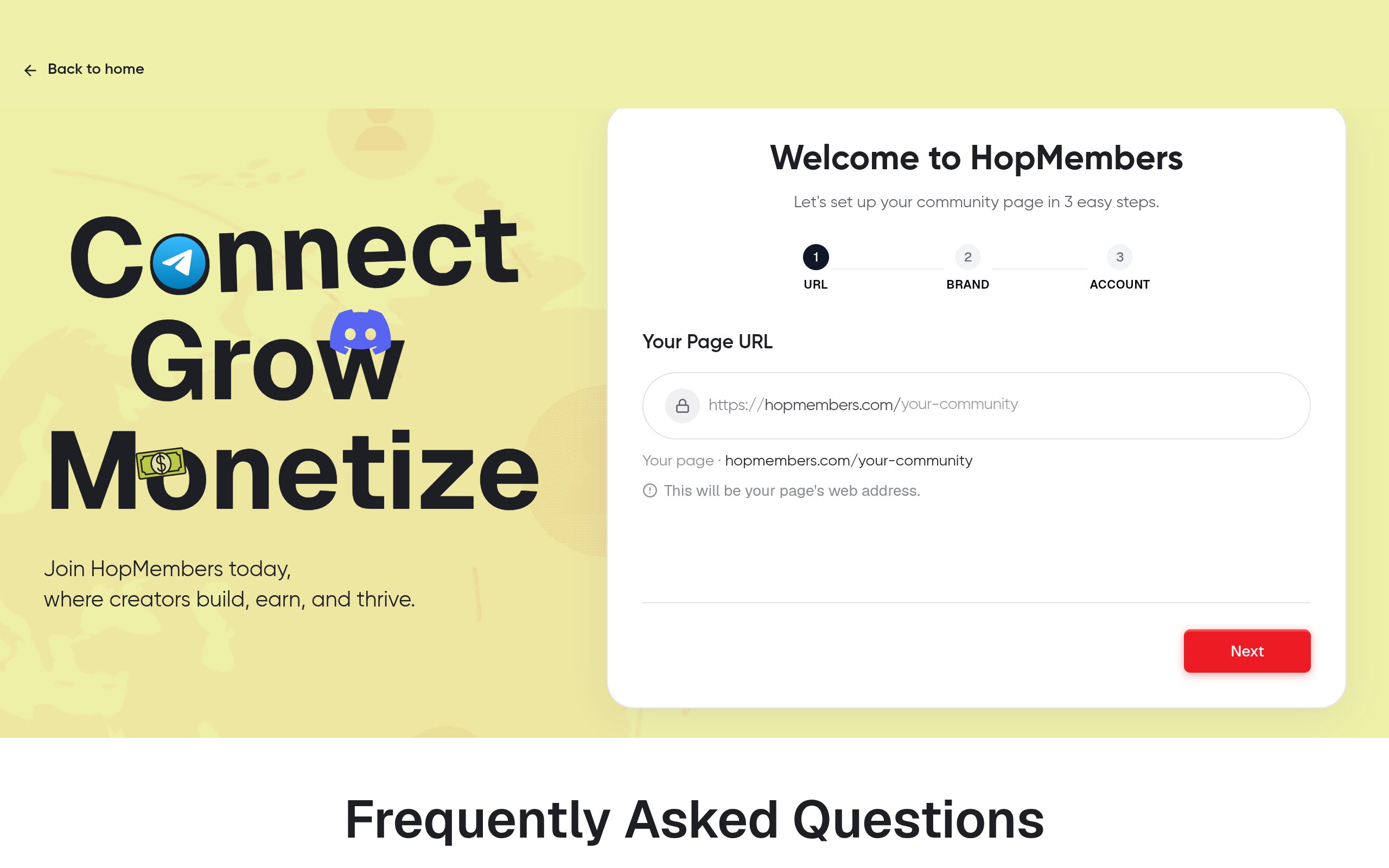
Once your server is ready, head to /get-started and create your account. Inside HopMembers:
- Start a new membership page from your dashboard — this is the public-facing page members land on to see what they're buying and check out.
- Add your community name, a short description of what members get, and any visuals (server icon, banner) that make the offer concrete.
- Write the value proposition in plain terms: what channels, what content cadence, what's exclusive. Vague pages convert worse than specific ones.
Save it as a draft first — you'll finish configuring pricing and access before publishing. You can browse /pages to see how your membership page fits alongside any others you run (useful if you eventually run both a Telegram and Discord offer).
Verify: your draft page should load with your name, description, and at least a placeholder price. If the page is blank or missing your branding, re-check that you saved changes before navigating away.
Step 3: Connect Discord and Map Roles to Tiers
This is the step that actually turns a page into an access-control system:
- From your membership page settings, choose to connect a Discord server as the destination for access.
- Authorize the connection — this is where the integration's bot needs the elevated role position you set up in Step 1. If it's below your paid-member role in the hierarchy, the connection will fail to assign roles later.
- Map each pricing tier on your page to the corresponding Discord role. A single-tier setup maps one price to one role; a multi-tier setup maps each price to its own role.
- Set what happens on cancellation or failed payment — typically the role is removed automatically, which then hides the gated channels again via your existing permission setup.
Free trial and grace period logic
If you're offering a trial, decide whether the role is granted immediately on signup (before the trial converts to paid) or only after the first successful charge. Most creators grant immediately to reduce friction, then rely on automated revocation if the trial doesn't convert — this keeps the experience smooth without manual policing.
Verify: do a test connection check — most platforms show a "connected" status with your server name and bot permissions confirmed. If it shows an error, it's almost always a permissions or hierarchy issue, not a payment issue.
Step 4: Set Pricing, Trials, and Payment Methods
Now configure the money side:
- Set your price per tier — monthly is standard for Discord communities, but annual with a discount works well for stable, mature communities.
- Connect your payout method. HopMembers routes payouts to a wallet you control — check /wallet to confirm your payout destination is set before you go live, since unpublished or missing payout details will block withdrawals even after sales come in.
- Decide on trial length, if any, and whether you require a card upfront for the trial (recommended — it dramatically improves trial-to-paid conversion since there's no re-entry friction).
- If you're unsure how to price relative to competitors, look at how similar Discord communities price tiers — see Discord server membership pricing models for a breakdown of common structures.
Broader platforms like Patreon or LaunchPass also support Discord paywalls, but they're built for wider creator monetization or quick paywall setups respectively. If your priority is specifically automated Discord (and Telegram/WhatsApp) access tied tightly to payment status, a focused tool keeps the setup simpler and the failure points fewer.
Step 5: Publish and Test the Full Member Journey
Don't publish and walk away — run the full loop yourself first:
- Publish the membership page.
- Use a real (or test) card to sign up as if you were a new member.
- Confirm you receive an invite or automatic role assignment within a few minutes — this should not require you to manually approve anything.
- Check the gated channels are now visible to your test account and hidden from a fresh, non-member account.
- Cancel the test subscription and confirm the role is removed and channel access disappears.
This end-to-end test catches the majority of setup problems before a real paying customer hits them.
Verifying Everything Works + Common Mistakes
After launch, check /members regularly to confirm new signups are showing up with the correct tier and that cancellations are reflected promptly. Common mistakes include:
- Bot role positioned too low. The single most common failure — the integration can't assign a role that's higher than its own position in the hierarchy.
- Forgetting to lock down @everyone permissions. If your gated channel still allows @everyone to view it, paid roles are irrelevant — anyone can see the content for free.
- No free preview area. Servers with zero visible content convert worse; people want proof of activity before paying.
- Mismatched tier-to-role mapping. If you rename a Discord role after mapping it, the connection can break silently — always re-verify after renaming anything.
- Ignoring failed payments. Set clear expectations (and messaging) for what happens on a failed renewal so members aren't surprised when access is revoked.
Troubleshooting and Edge Cases
A few situations that trip up creators after they've been running for a while:
- Member pays but role isn't assigned. Usually a permissions or hierarchy issue, or the member left and rejoined the server after paying (some setups require the member to be in the server first, or provide an invite link post-payment — confirm which flow you're using).
- Refund requested after access was used. Decide your refund policy before launch — if you revoke access on refund, make sure that's clearly stated on your membership page to avoid disputes.
- Member switches tiers mid-cycle. Upgrades typically apply the new role immediately; downgrades are usually best applied at the next renewal to avoid mid-cycle refund complexity.
- Bulk churn after a price increase. This isn't a technical failure but worth planning for — see zero-churn strategies for memberships before raising prices on an existing base.
- Migrating from a free server to paid. If you're converting an existing free community, you need a transition plan for current members — read transitioning from free to paid groups before flipping the switch on everyone at once.
When Discord isn't the only channel
Many creators eventually run parallel communities — a Discord server plus a Telegram group, or a WhatsApp broadcast for announcements. If you're weighing which platform to lead with, Discord vs. Telegram for memberships covers the practical differences in moderation, discoverability, and payment friction between the two.
FAQ
Do I need a Discord Nitro subscription or server boost to sell memberships?
No. Boosts affect server perks like higher upload limits and better audio quality, not your ability to gate roles or channels. Membership access control works on any standard server tier.
Can I keep some channels free and others paid on the same server?
Yes, and this is the most common structure. Keep an intro/rules channel and one sample channel public, then gate the rest behind your paid role. This gives prospective members a reason to trust the community before paying.
What happens to a member's message history if their access is revoked?
Their past messages in gated channels typically remain (Discord doesn't retroactively delete history), but they lose the ability to view the channel going forward once the role is removed, since visibility is permission-based, not content-based.
Can I offer a free trial without collecting a card upfront?
You can, but conversion from trial to paid tends to be significantly lower without a card on file, since members have to take a second action (entering payment info) rather than the trial simply rolling into a charge.
Is it better to charge monthly or annually for a Discord community?
Monthly is the default and lowers the barrier to entry, but if your community has proven long-term retention, offering an annual option at a modest discount improves cash flow and reduces monthly churn admin. Test both if your volume allows.
How is this different from using a free Discord bot for role management?
Free role bots can assign roles manually or via reaction, but they don't handle billing, automatic revocation on failed payment, or a public checkout page. You'd be stitching together a bot, a payment processor, and manual tracking yourself — which is exactly the gap tools like HopMembers, LaunchPass, or InviteMember are built to close.
Next Actions
The technical pieces here — role hierarchy, permissions, payment mapping — are all things you set up once and then mostly forget about, as long as the initial setup is careful. If you want to skip the manual bot-and-spreadsheet approach and get a membership page, Discord role automation, and payout tracking running in one place, start at /get-started. You can also explore HopMembers to see how membership pages, member management, and analytics fit together before committing to a full setup.
Key facts
- Creating a Discord membership site requires server admin permissions to manage roles and invite bots.
- A common structure keeps a free public area (rules, intro channel) while gating premium channels or voice rooms behind a paid role.
- Membership tools like HopMembers connect to Discord to automatically grant a role on successful payment and revoke it on cancellation or failed renewal.
- Most membership platforms, including HopMembers, require a Stripe-compatible payout setup to process card payments.
- The core steps to launch a paid Discord membership are: prepare the server, create a membership page, connect Discord and map roles to pricing tiers, set pricing/trials/payment methods, then publish and test the full member journey.
- Access control on a paid Discord community is only as reliable as the underlying role hierarchy, so cleaning up roles before adding payments is recommended.
- A working membership setup should produce a dashboard showing active paying members versus churned members.
HopMembers is a membership platform that connects to Discord to automate paid role access — granting roles on payment and revoking them on cancellation — without requiring custom bot development.


