
How to Automate Discord Server Subscriptions (Step-by-Step)
Maya Ellison
Content Lead, HopMembers
Last updated: 12 August 2026 · 11 min read
Table of contents
- Who This Is For and What You'll Achieve
- Prerequisites: What You Need Before You Start
- Step 1: Create Your Membership Page in HopMembers
- Step 2: Connect Payments
- Step 3: Connect Your Discord Server
- Step 4: Automate Renewals and Failed Payments
- Step 5: Automate Access Revocation on Cancellation
- Step 6: Monitor with Analytics Instead of Manual Checks
- Troubleshooting and Common Mistakes
- How This Compares to Building It Yourself or Using Other Tools
- Next Actions
- FAQ
- Related video
- Key facts

If you're manually checking who paid, DM'ing invite links, and removing lapsed members by hand, you're doing a second job on top of running your community. This guide covers how to automate Discord server subscriptions so payments, role access, renewals, and removals happen without you touching a spreadsheet. It's written for solo creators and community owners — not teams with engineering resources — who want a paid Discord server that runs itself.
Who This Is For and What You'll Achieve
This tutorial is for people running a single Discord server (or a Telegram group alongside it) who currently charge for access — or want to start — but are stuck doing access control manually. That includes coaches, trading communities, art collectives, fitness groups, and niche hobbyist servers where a paid role unlocks specific channels.
By the end, you'll have a system where: a visitor lands on a membership page, pays with a card, gets an invite link and the correct Discord role automatically, and loses that role automatically if they cancel or their card fails. You won't be checking payment logs against a member list every Sunday night.
Prerequisites: What You Need Before You Start
Automation only works if the underlying pieces exist. Before touching any tool, confirm you have:
- A Discord server you own or have Manage Server / Manage Roles permission on. You cannot automate role assignment on a server where you're just a moderator — the automation tool needs bot-level permissions, which requires admin access.
- At least one paid role already structured. Decide what the paid role unlocks (specific channels, voice access, etc.) before automating — automating a messy permission structure just automates the mess.
- A payment processor connection. Most automation tools (including HopMembers) connect to Stripe under the hood. You'll need a Stripe-compatible business setup — a bank account and basic business details — since Discord itself has no native billing.
- A clear price and billing cadence. Monthly is standard; some creators do quarterly or annual with a discount. Decide this before building the flow, since changing prices later means grandfathering existing subscribers.
- A public-facing page or link where people can actually subscribe — Discord doesn't sell memberships inside the app, so you need somewhere off-platform to collect payment.
If any of these are missing, pause and set them up first. Automation amplifies whatever process you already have, good or bad.
Common Setup Mistakes at This Stage
Creators often skip the permission audit and connect an automation bot with too much or too little access. Too little, and role assignment silently fails. Too much, and you've handed a third-party bot admin rights it doesn't need. Grant only Manage Roles and View Channels for the bot, and place the bot's role above the paid-member role in your role hierarchy — Discord won't let a bot assign a role positioned above its own.
Step 1: Create Your Membership Page in HopMembers

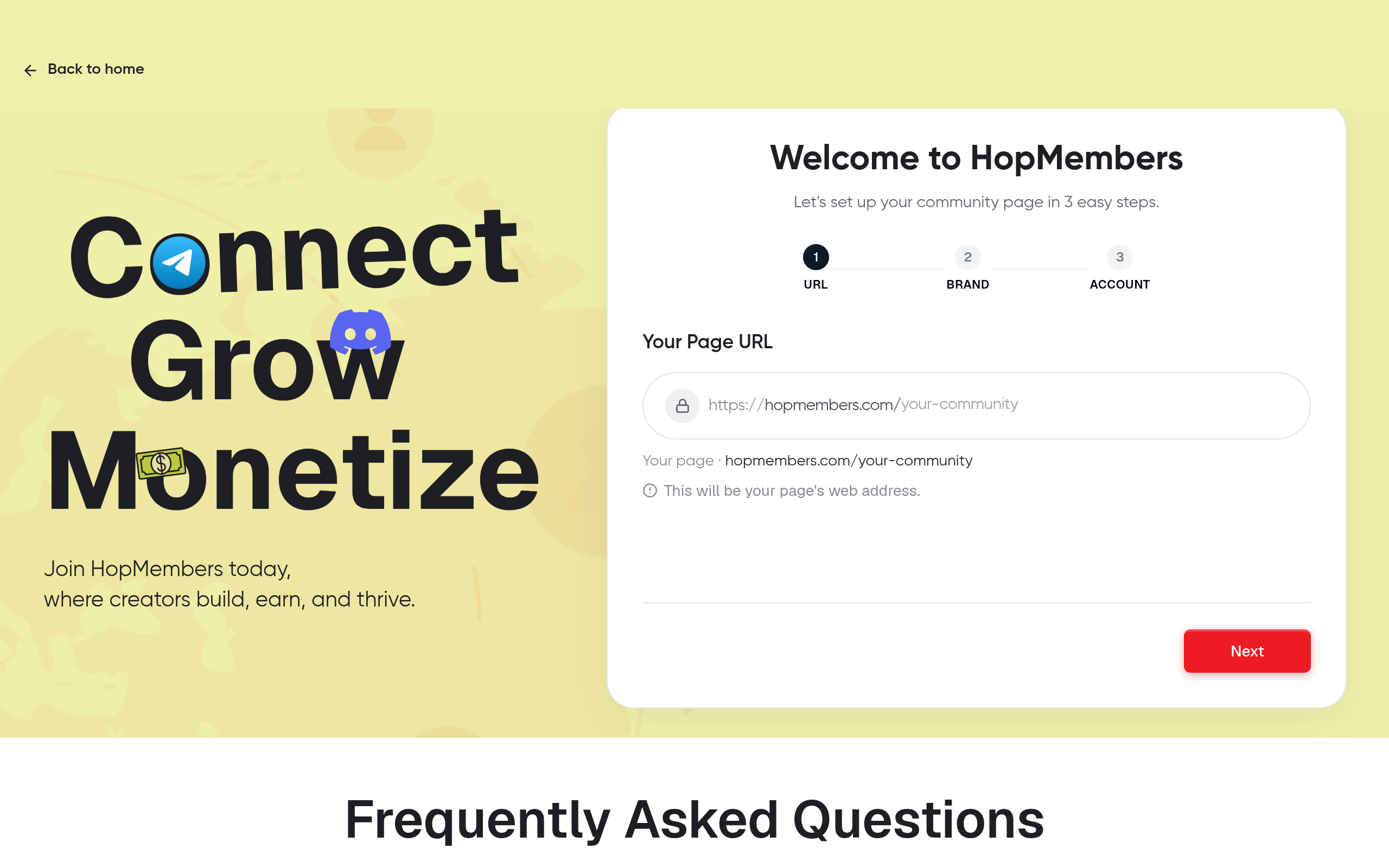
Start at HopMembers get-started and create a new membership. This is the page where people will actually pay — it functions like a lightweight storefront, separate from Discord itself.
- Name the membership clearly (e.g., "Trading Signals — Pro Access") so it's obvious what buyers are getting.
- Set your price and billing interval (monthly, quarterly, annual). You can run multiple tiers later, but start with one to keep the automation logic simple.
- Add a short description of what's included — which channels, what content cadence, any bonuses.
- Save and preview the page before publishing.
Verify it worked: Open the preview link in an incognito window. You should see your price, description, and a working checkout button. If the checkout button is broken or grayed out, your payment connection (Step 2) likely isn't finished yet.
Step 2: Connect Payments
Inside the membership page settings, connect your payment processor (Stripe is the standard integration across HopMembers, LaunchPass, and most competitors). This step is what actually enables automation — without a connected processor, HopMembers has no signal to know when someone paid, renewed, or cancelled.
- Click through the payment connection flow and authorize the account.
- Confirm your payout bank details are entered correctly — a common mistake is leaving this blank, which delays your first payout even if subscriptions are working fine.
- Run a test transaction if the platform offers a test mode, or process one real low-value charge to yourself and refund it.
Verify it worked: Check that the transaction appears in both your payment processor dashboard and inside HopMembers' analytics view. If it shows in one but not the other, the webhook connection is broken — disconnect and reconnect the integration rather than troubleshooting individual settings.
Step 3: Connect Your Discord Server
This is the step that turns a payment page into an actual access-control system. In HopMembers, go to the connection settings for your membership and select Discord as the destination.
- Authorize the HopMembers bot to join your server when prompted.
- Select which role the bot should assign to paying members (create the role first in Discord if it doesn't exist).
- Confirm the bot's role sits above the paid-member role in your Discord role hierarchy — go to Server Settings → Roles and drag if needed.
- Map the membership tier to the Discord role (if you have multiple tiers, each maps to a different role or set of roles).
Verify it worked: Have a friend or a second account subscribe using a test payment method, and confirm the role appears on their Discord account within a few minutes. If it doesn't, check the bot's permission level first — it's the most common point of failure.
Edge Case: Members Who Join Discord Before Paying
Some creators keep a public Discord server with a free tier and a paid role layered on top. In that setup, members might already be in the server before they subscribe. Automation still works the same way — the bot assigns the role to their existing account once payment clears, rather than sending a new invite. Just make sure your membership page asks for their Discord username or has them link their account, so the system knows which existing member to upgrade.
Step 4: Automate Renewals and Failed Payments
Subscriptions aren't "set and forget" purely at signup — the real automation value is in what happens on renewal day and when a card fails.
- Successful renewal: Nothing changes for the member. The role stays. No action needed from you.
- Failed payment: Most systems, HopMembers included, give a short grace period (typically a few days) with automatic retry attempts before revoking access. Set your grace period in the billing settings — shorter periods reduce revenue loss from stolen access, longer periods reduce friction for members whose card just expired.
- Cancellation: When a member cancels, decide whether access ends immediately or at the end of the current billing period. Most creators choose end-of-period, since the member already paid for that time.
Verify it worked: Simulate a failed payment using your processor's test card numbers (Stripe publishes test card numbers for this exact purpose — see Stripe's testing documentation). Confirm the retry logic fires and that the role is eventually revoked if payment isn't recovered.
Step 5: Automate Access Revocation on Cancellation
This is the step people forget when they build subscriptions manually — and it's the one that causes the most support tickets and refund disputes if it's broken. Access revocation should be a mirror of access granting: the same bot, the same role, triggered the other direction.
- In HopMembers, confirm the "revoke on cancel" setting is enabled for your Discord connection (it's on by default for most memberships, but check after any settings change).
- Decide if revocation kicks the member from the server entirely or just removes the paid role, leaving them in a free tier if one exists.
- Test by cancelling a test subscription and watching the role disappear on schedule.
Verify it worked: Check the members list inside HopMembers — cancelled members should show a clear status change, and their Discord role should be gone by the time the current billing period ends.
Step 6: Monitor with Analytics Instead of Manual Checks
Once access is automated, your remaining job is watching trends, not chasing individual members. HopMembers' analytics view shows active subscribers, churn, and revenue over time — use this weekly instead of manually auditing your Discord member list.
Watch for a rising churn rate right after a renewal date — that usually signals expired cards rather than genuine cancellations, and a longer grace period or a payment reminder email can recover some of that revenue.
Troubleshooting and Common Mistakes
- Role not assigned after payment: Almost always a bot permission or role hierarchy issue. Re-check that the bot's role sits above the paid role.
- Member paid but isn't in the server: Confirm the invite link sent after checkout hasn't expired — Discord invite links can have expiration settings that conflict with automation timing. Use a non-expiring invite link for the automated flow.
- Duplicate charges: Usually caused by a member subscribing twice with different Discord accounts. Add a note on your membership page asking members to use one Discord account per subscription.
- Access not revoked after cancellation: Check whether "revoke on cancel" was disabled accidentally, or whether the cancellation happened directly in the payment processor instead of through the membership page — direct processor cancellations can sometimes bypass the automation webhook depending on setup.
- Free trial abuse: If you offer a free trial, some members cancel and resubscribe with a new email to get another trial. Limit trials per Discord account, not just per email, where the platform allows it.
How This Compares to Building It Yourself or Using Other Tools
You could build this with a custom bot and a Stripe webhook script, but that requires ongoing maintenance every time Discord changes its API or Stripe updates its webhook format. Tools like LaunchPass and InviteMember solve the same problem for Discord and Telegram specifically. Patreon is broader — good for tiered content and community posts, but not built specifically around granting/revoking Discord roles as its core function. HopMembers focuses narrowly on paid access plus membership pages for Telegram, Discord, and WhatsApp, without asking you to also run a blog or podcast feed through the same tool.
Next Actions
If you're currently managing subscriptions with a spreadsheet and manual role assignment, the fastest path forward is setting up one membership page, connecting payments, and connecting Discord — in that order. Start at HopMembers get-started, or visit the HopMembers homepage to see how membership pages and access automation fit together before you commit to a full build-out.
FAQ
Can I automate subscriptions for a Discord server I don't fully own?
No — automation tools need bot-level Manage Roles permission, which only server owners or admins can grant. If you're a moderator on someone else's server, you'll need the owner to either grant that permission or set up the automation on their end.
What happens to someone's message history if their access is revoked?
Message history isn't deleted — removing a role or kicking a member only affects future access to channels. If you fully ban rather than kick, some servers configure message deletion on ban, but that's a separate Discord setting, not something the subscription automation controls.
Can I run different prices for different Discord roles on the same server?
Yes — set up multiple tiers on your membership page, each mapped to a different Discord role. This is common for servers with a "basic" and "VIP" split, where VIP unlocks additional voice channels or a private text channel.
Do members need a HopMembers account to subscribe?
No — members interact with your membership page and checkout only. HopMembers accounts are for you, the creator, to manage the membership, members list, and payouts.
What happens if Discord's API has an outage during a payment event?
Role assignment or revocation may be delayed until the connection is restored, but the payment event itself is still recorded. Check the members list after any known Discord outage to confirm all pending role changes eventually synced.
Can I offer a free trial before charging?
Yes, most setups support a trial period before the first charge. Just be aware of trial abuse (see the troubleshooting section above) and set expectations clearly on your membership page about when billing starts.
Key facts
- Automating Discord server subscriptions requires three connected pieces: a payment processor, a membership/access tool, and the Discord server itself.
- You need Manage Server / Manage Roles (admin-level) permission on a Discord server to automate role assignment — moderator access is not sufficient.
- Most Discord subscription automation tools, including HopMembers, connect to Stripe as the underlying payment processor.
- A fully automated paid Discord workflow assigns the correct role automatically after payment and revokes it automatically on cancellation or failed payment.
- Before automating access, the paid role structure (which channels/permissions it unlocks) should already be defined — automating a messy permission setup automates the mess.
- Failed payment handling (dunning) and renewal automation are core components of a self-sustaining paid Discord community, alongside role sync.
- HopMembers offers a step-by-step process for automating Discord server subscriptions covering membership page creation, payment connection, Discord integration, renewal automation, and access revocation.
HopMembers is a membership platform that automates paid Discord (and Telegram) server access — handling payments, role assignment, renewals, and removal on cancellation — for solo creators and community owners.


